
Paying your Invoice
How to pay your Sequence invoice, including crypto and card options.
5 articlesTable of contents
Welcome to this step-by-step guide on how to pay your Sequence invoices.
The guide is organized into the following sections:
What You’ll Need Before you Start
Browser compatibility
Please use Google Chrome for maximum compatibility on your desktop or tablet
Please avoid using Safari or Firefox, as some features may not work correctly.
Time to complete your payment
Once you open your personalized Payment Portal, you’ll have up to 30 minutes to finalize the transaction before a new address / QR is generated.
A funded wallet able to take new addresses
Depending on your network / currency choice, you will need to send the payment to a designated wallet that is specific to each invoice.
Step 1: Your invoice
Locate the invoice email you received from Sequence and open the PDF.
Click on the Payment URL shown in the top section.
This unique link will open your a Payment Gateway that is unique to your invoice, where you’ll find the amount due, payment options, and your unique Bitcoin or Lightning payment address.
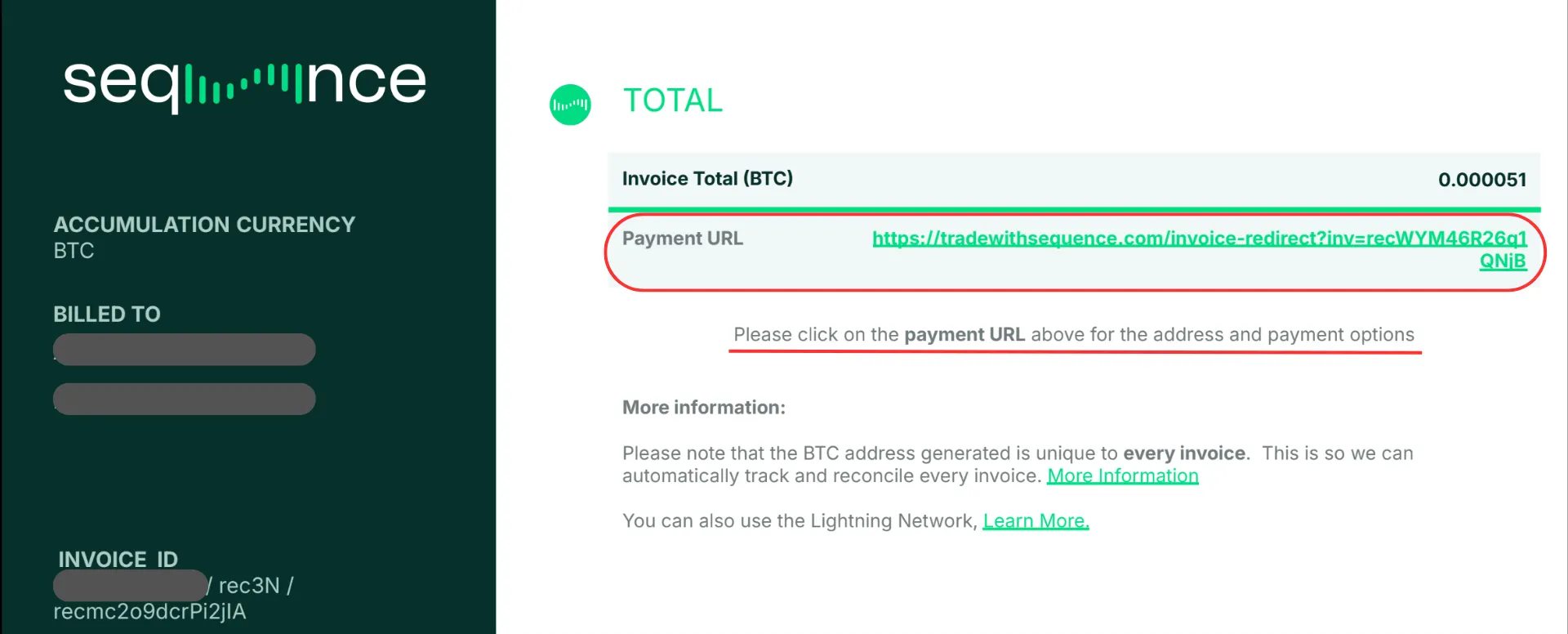
💡 Tip: If the Payment URL shows a line break, be sure to copy the full link before opening it — otherwise, the page won’t load correctly ⚠️ Important Note: Each invoice has its own unique payment link and BTC address — please never reuse an old BTC address. Always use the address from the most recent invoice you received.
Step 2: Open your the Payment Gateway link
The Sequence Payment Gateway is an automated billing system that generates a unique payment link for each invoice. This link opens a personalized payment portal where you can pay via Bitcoin, Lightning, or USDT/USDC (via a third party called “FixedFloat”).
🎥 For a full overview, please watch the following video:
Once you click the Payment URL, a new browser tab will open showing your Payment Gateway.
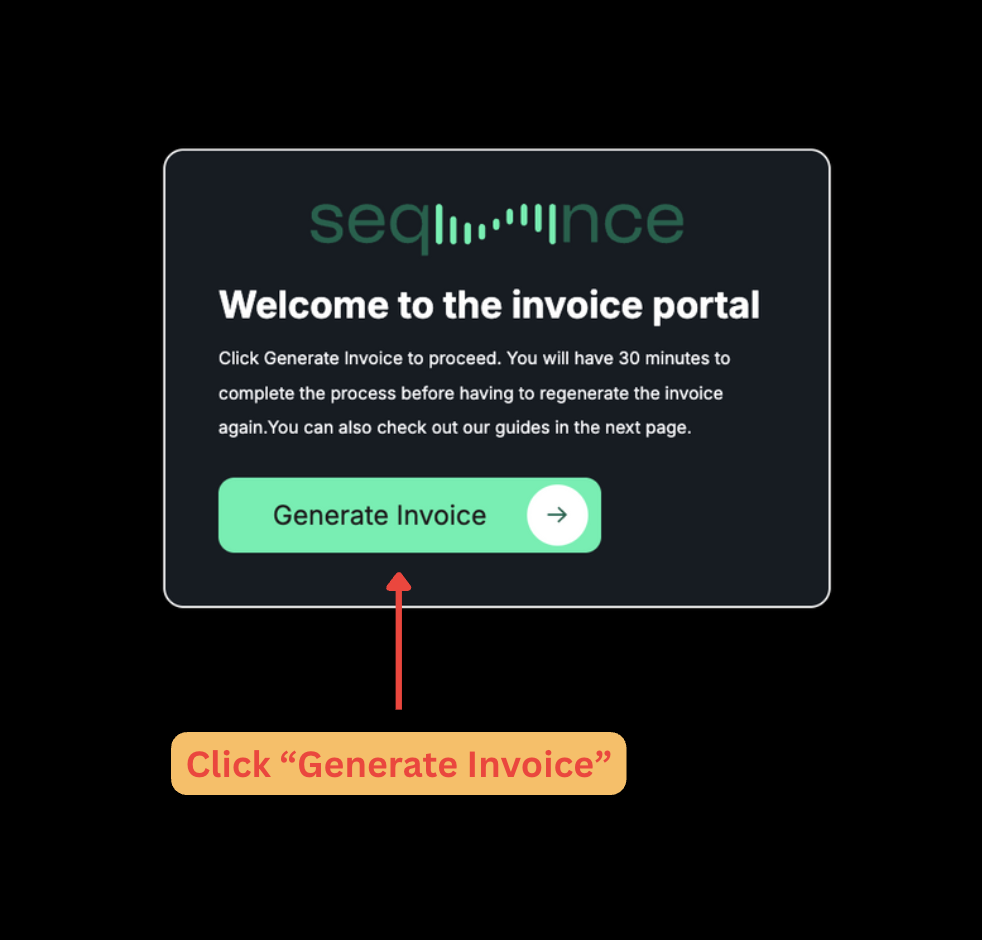
Once the Sequence Invoice Portal is open, click the “Generate Invoice“ button if the invoice doesn’t load automatically.
Once the Sequence Invoice Portal is open, click the “Generate Invoice“ button if the invoice doesn’t load automatically.
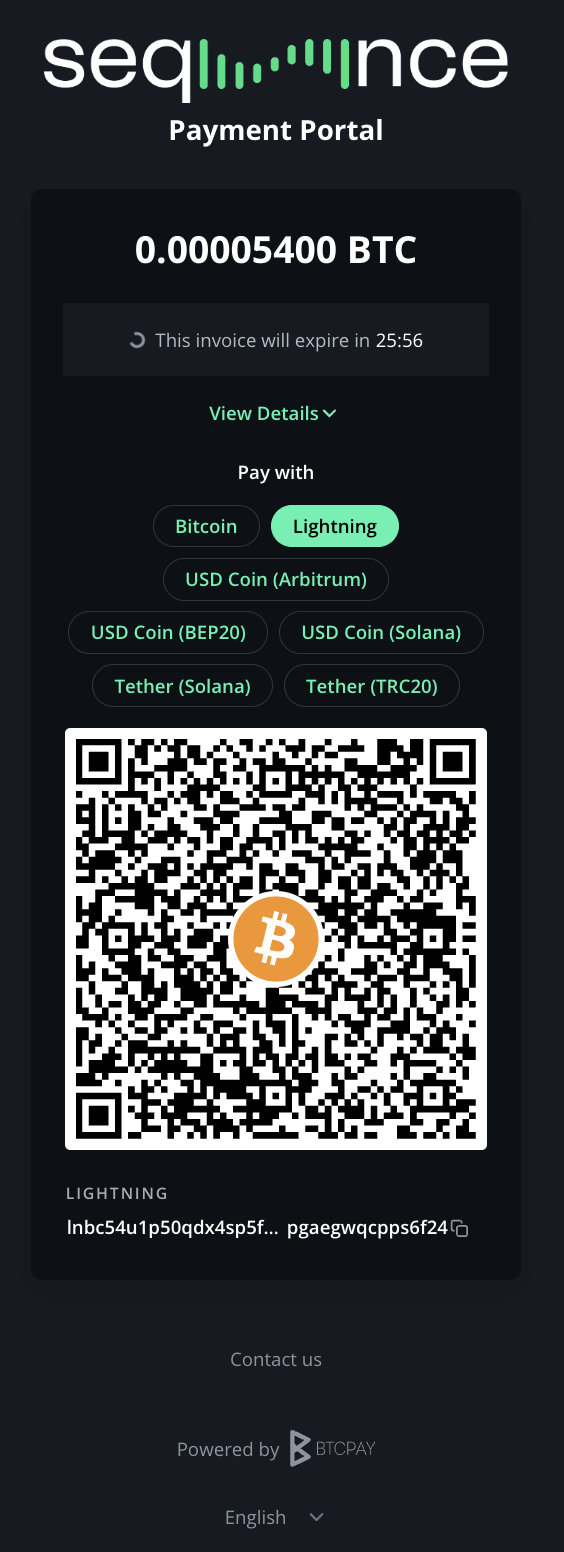
You will see a QR code and multiple network options

Step 3: Choose your preferred payment method
Option A: BTC On-Chain Payment (Most widely available)
? Use this option for any invoice level (including payments above $2,500 in BTC/USD)
Using this method, you send BTC from your exchange using the Bitcoin Network (on-chain). Please note that the exchange will convey a network fee to account for the BTC on chain fees to make these transfers. As an example, as at the time of writing, Bybit charges 0.00011 BTC. So that the invoice reconciles, please make sure that you the amount you send exactly matches the invoice total.
About the wallet addresses: Sequence invoicing uses a unique invoice every time we send an invoice. If you have a restricted your withdrawal settings on your exchange account, you might want to create a third-party wallet and whitelist that account.
For step-by-step setup instructions:
👉 Paying with Bitcoin (On-Chain via Muun Wallet)
Alternatively, you can pay from another a second exchange account that is has lower security settings.
Option B: Lightning Payments (Fastest & cheapest)
? Best for invoices below $2,500 in BTC/USD.
Send BTC using the Lightning Network for instant, low-fee transfers. The Lightning Network is a protocol secured on the Bitcoin Network; however, it works differently. Some exchanges have Lightning payments enabled in most territories (Kraken, OKX, Kucoin and Binance).
However, Bybit does not have Lightning payments enabled. Therefore, you have to either move the BTC to another exchange or use a Lightning wallet that offers BTC-to-Lightning Network swaps.
There are a variety of Lightning wallets available; however, we have been using Muun Wallet extensively over the last few months. For step-by-step setup instructions:
👉 Paying with Bitcoin (Lightning Network via Muun Wallet)
Option C: Stablecoin Payments (USDT / USDC via FixedFloat)
? Recommended for payments below $2,500 in USD
If you prefer to pay with USDT or USDC:
First, select Lightning (to load the Lightning address).
Then choose one of the USDT or USDC network (e.g., USDC-Arbitrum or USDT-Solana) options from our third-party gateway “FixedFloat” for easy conversion.
Please note that once selecting this method, you will have 8 minutes to make the payment through “FixedFloat”. Please follow the on-screen instructions very carefully. This is a third party service that will perform the conversion of USD to BTC for you.
For step-by-step setup instructions:
👉 Paying with USDT or USDC (via FixedFloat Conversion)
FAQs
What is the Lightning Network?
The Lightning Network (LN) is a second-layer protocol built on top of Bitcoin that allows for faster and cheaper transactions by processing payments off-chain before settling them on the main blockchain. It's designed for instant, low-fee transfers ideal for everyday use.
Why Pay via Lightning Network?
Lightning payments are fast, secure, and low cost, perfect for BTC invoicing.
This method supports clients who are both comfortable with exchanges and those preferring self-custody wallets.
What is a Lightning Invoice?
It’s a payment request generated through the Bitcoin Lightning Network. It contains all the details—amount, destination, and expiration time—needed to complete a transaction instantly and at very low cost.
What is the Sequence Payment Gateway?
It is an automated billing system that generates a unique, single-use payment link for each invoice.
Every billing cycle (approximately every 4 to 6 weeks), users receive an invoice by email containing their personalized payment link.
Each link opens a secure portal where payments can be made via Bitcoin, Lightning, or USDT/USDC (processed through FixedFloat).
Once the payment is completed, it is automatically reconciled with your Sequence account — there’s no need to send your TxID or confirmation manually.
Each link is valid only for that specific invoice and cannot be reused for future payments.
🎥 For a full overview, watch:
Why can’t I pay directly from Bybit using the on-chain Bitcoin address that appears on my invoice?
Bybit is not a Lightning-enabled exchange, so it can’t be used to pay Lightning invoices.
Bybit does support on-chain BTC transfers. Please note that each invoice generated will have a unique address.
If you would like to use the lightning network, we suggest downloading Muun Wallet and setting up a wallet. For step-by-step setup instructions, visit:
You can then send funds from Bybit to your Muun wallet and settle using the Lightning Network.
Alternatively you can pay your invoice using another exchange with lightning payments enabled. Refer to your exchange’s official guide below for step-by-step instructions:
Should I send my TxID via the Main Dashboard?
No, with this new method your invoice is automatically reconciled in our system — the good news is you no longer need to send us your TxID.
What if I don’t want to install a new wallet?
Using an exchange route is easier—simply set up a free Kraken or Binance account and use their LN withdrawals.
Are there any risks using exchanges for Lightning payments?
Exchanges hold custody during the transaction; use only trusted exchanges and enable 2FA.
What are the approximate fees when paying a Sequence invoice from Bybit through different exchanges or wallets?
Here’s a quick comparison of withdrawal and Lightning fees when sending BTC from Bybit to pay your Sequence invoice via different routes:
Payment Method | Bybit Fee (BTC only) | Lightning Fee |
|---|---|---|
Bybit → Hybrid Wallet → LN | ~0.0005 BTC | <1 sat |
Bybit → Kraken → LN | ~0.0005 BTC | 0 sats |
Bybit → Binance → LN | ~0.0005 BTC | ~200 sats |
Bybit → Kucoin → LN | ~0.0005 BTC | ~200 sats |
Bybit → OKX → LN | ~0.0005 BTC | 0 sats |
Other Useful Resources (External Links)
Bybit’s Official Guide: How to Submit an On-Chain Withdrawal Request
Muun’s Official Website: https://muun.com
Muun’s Official Help Center: https://help.muun.com
Muun’s Official Open Source Repo: https://github.com/muun/apollo
OKX: How do I withdraw Bitcoin (BTC) with OKX’s lightning network?
Kucoin: Depositing and Withdrawing BTC using the Bitcoin Lightning Network on KuCoin
Binance: How to Use the Bitcoin Lightning Network to Deposit and Withdraw BTC on Binance