
Paying BTC OnChain Muun
Sequence Wiki — Paying Your Invoice
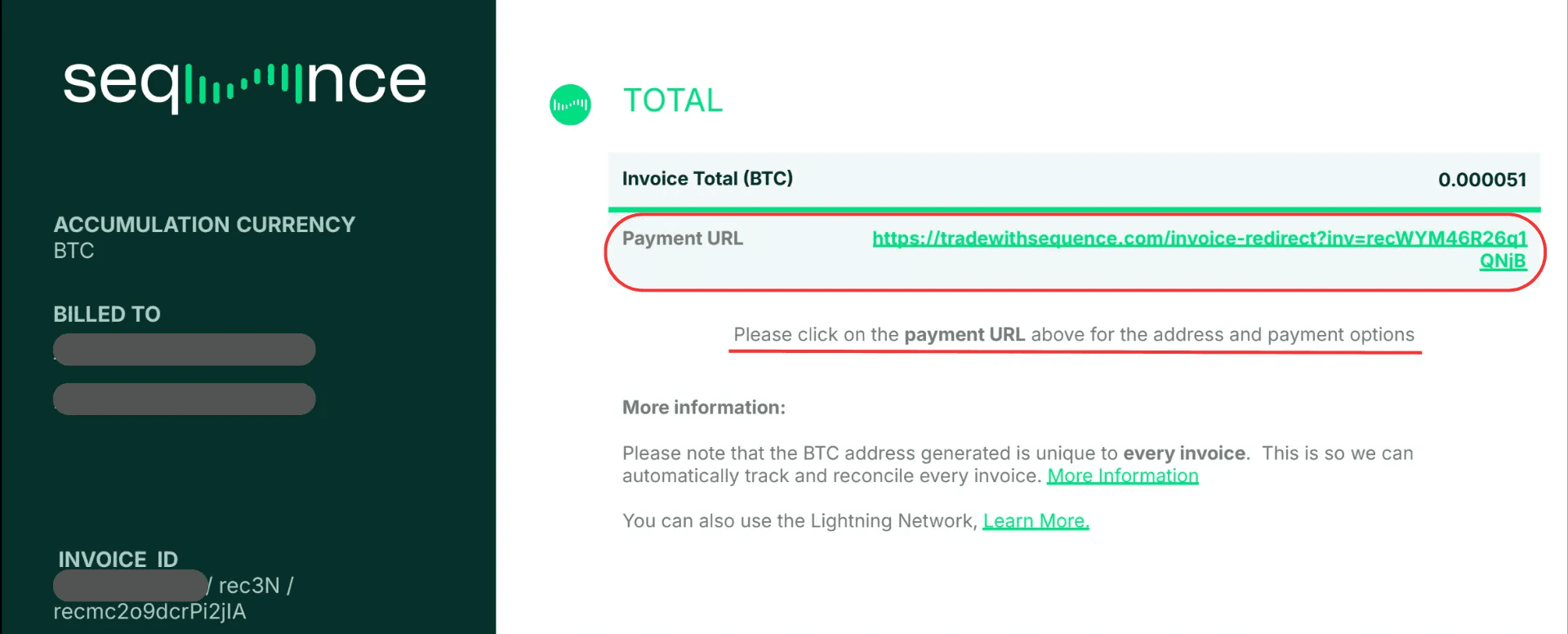
Table of contents
📝 What You’ll Need
- Muun Wallet installed and funded with BTC
Make sure your Lightning wallet (e.g., Muun - only BTC) is installed on your mobile device and has sufficient funds to complete the payment.
For setup instructions, refer to:
- Time to complete your payment
Once you open your personalized Payment Portal, you’ll have up to 30 minutes to finalize the transaction before a new address / QR is generated.
- Browser compatibility
Please use Google Chrome for maximum compatibility.
Avoid using Safari or Firefox, as some features may not work correctly.
📒 Step 1: Your invoice
- Locate the invoice email you received from Sequence and open the PDF. \
- Click on the Payment URL shown in the top section.
- This unique link will open your a Payment Gateway that is unique to your invoice, where you’ll find the amount due, payment options, and your unique Bitcoin or Lightning payment address.
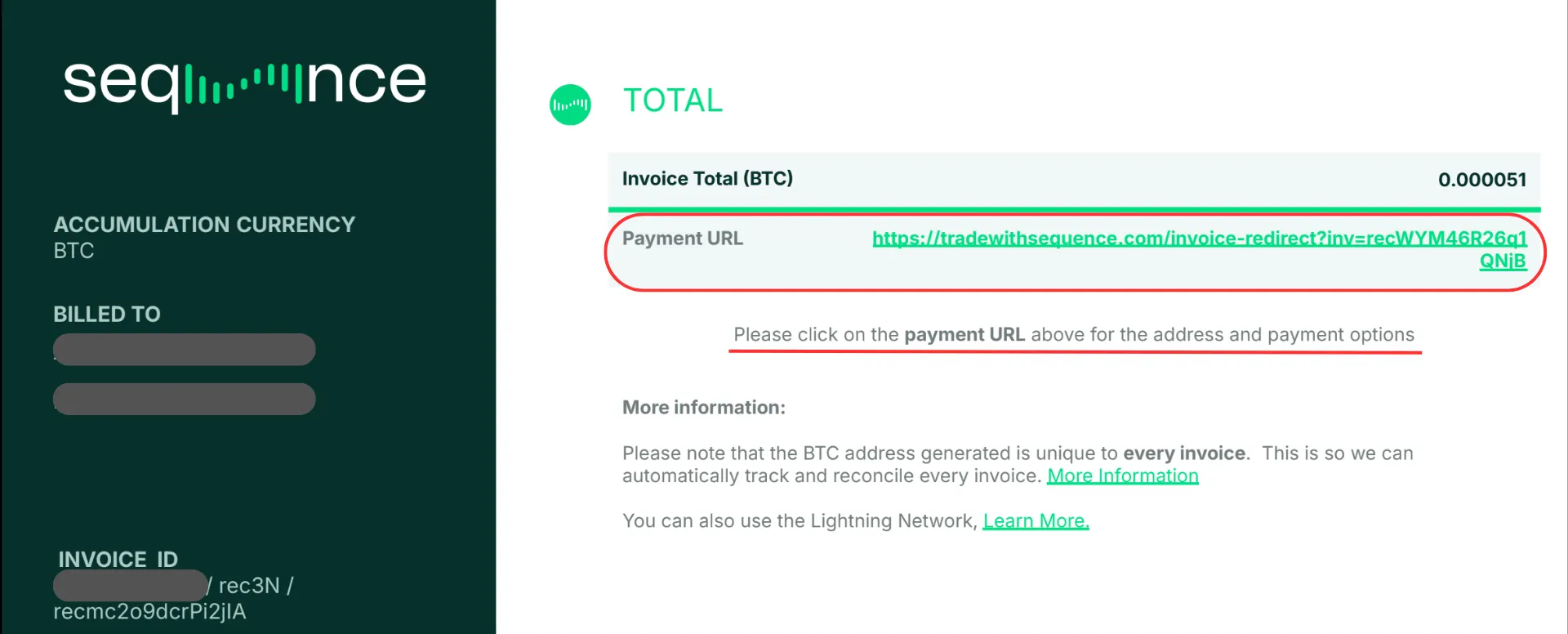
💡 Tip: If the Payment URL shows a line break, be sure to copy the full link before opening it — otherwise, the page won’t load correctly ⚠️ Important Note: Each invoice has its own unique payment link and BTC address — please never reuse an old BTC address. Always use the address from the most recent invoice you received.
⚡ Step 2: Open your the Payment Gateway link
- The Sequence Payment Gateway is an automated billing system that generates a unique payment link for each invoice. This link opens a personalized payment portal where you can pay via Bitcoin, Lightning, or USDT/USDC (via a third party called “FixedFloat”).
🎥 For a full overview, please watch the following video:
- Once you click the Payment URL, a new browser tab will open showing your Payment Gateway.
💰 Step 3: Pay your Bitcoin Invoice (On-Chain via Muun Wallet)
▶️ Watch (easy to follow)
or
📒 Read (Full step-by-step with screenshots)
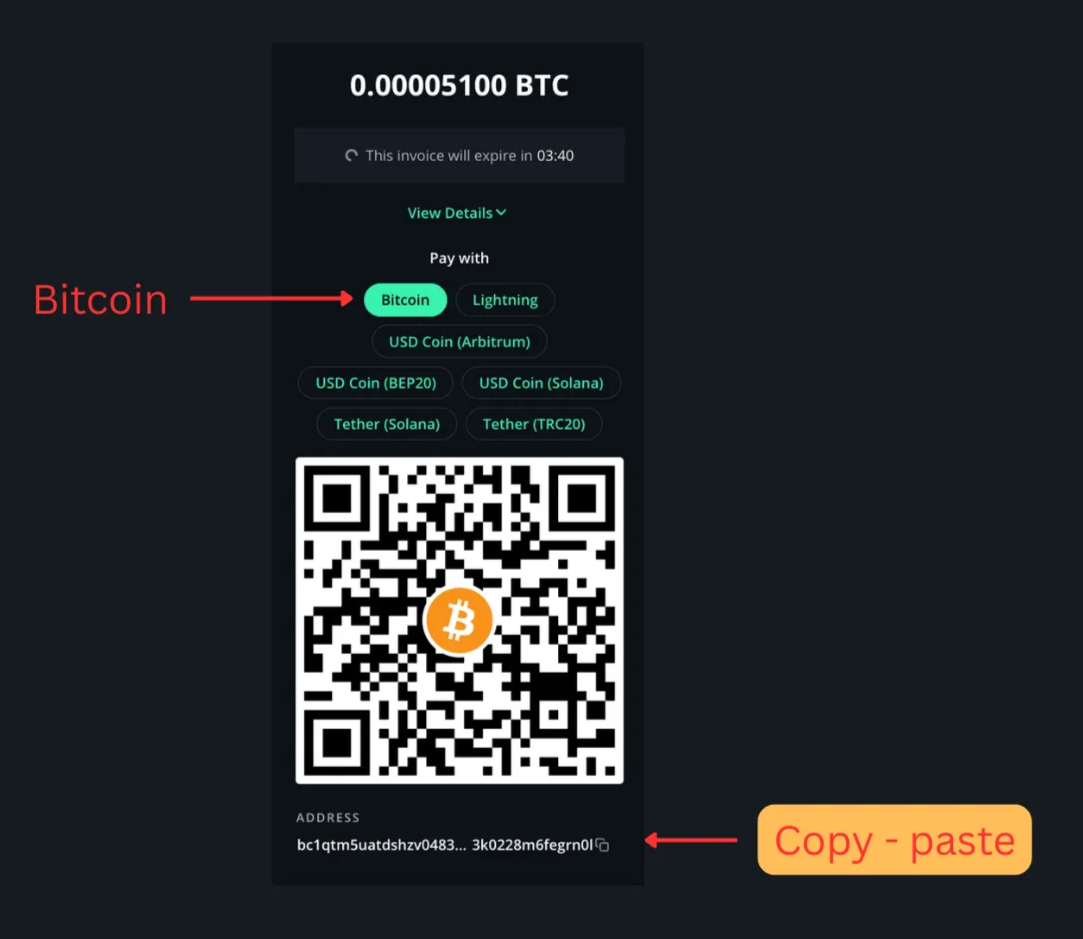
When you select Bitcoin, you can complete your payment directly from your Muun wallet.
- Scan the QR code using your Muun app, or Copy and paste the Bitcoin address shown in your Payment Gateway.
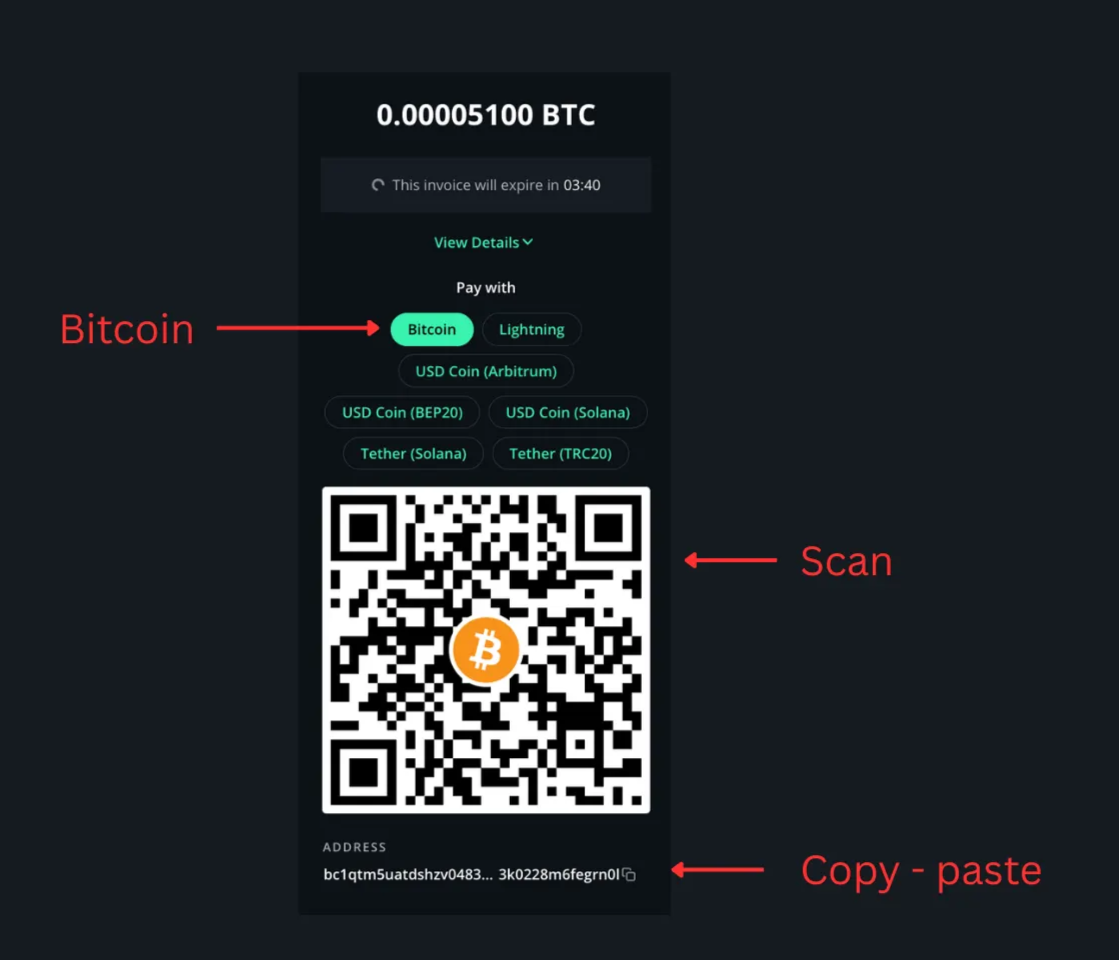
- Validate the amount and recipient, then tap SEND. The payment will be completed instantly if your wallet has enough balance to cover the invoice and fees.
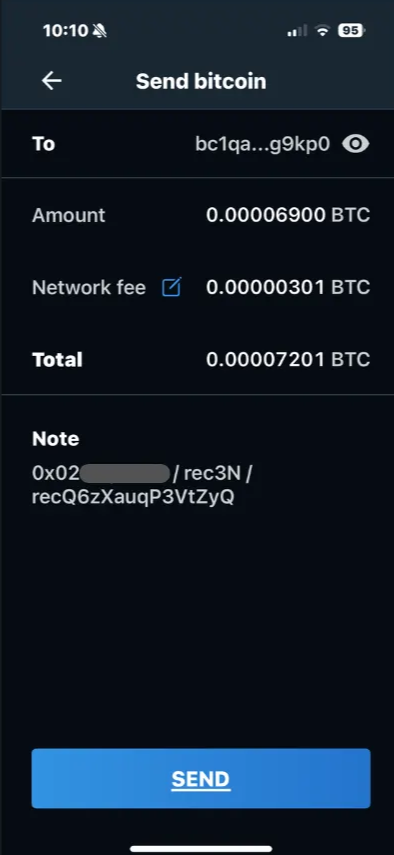
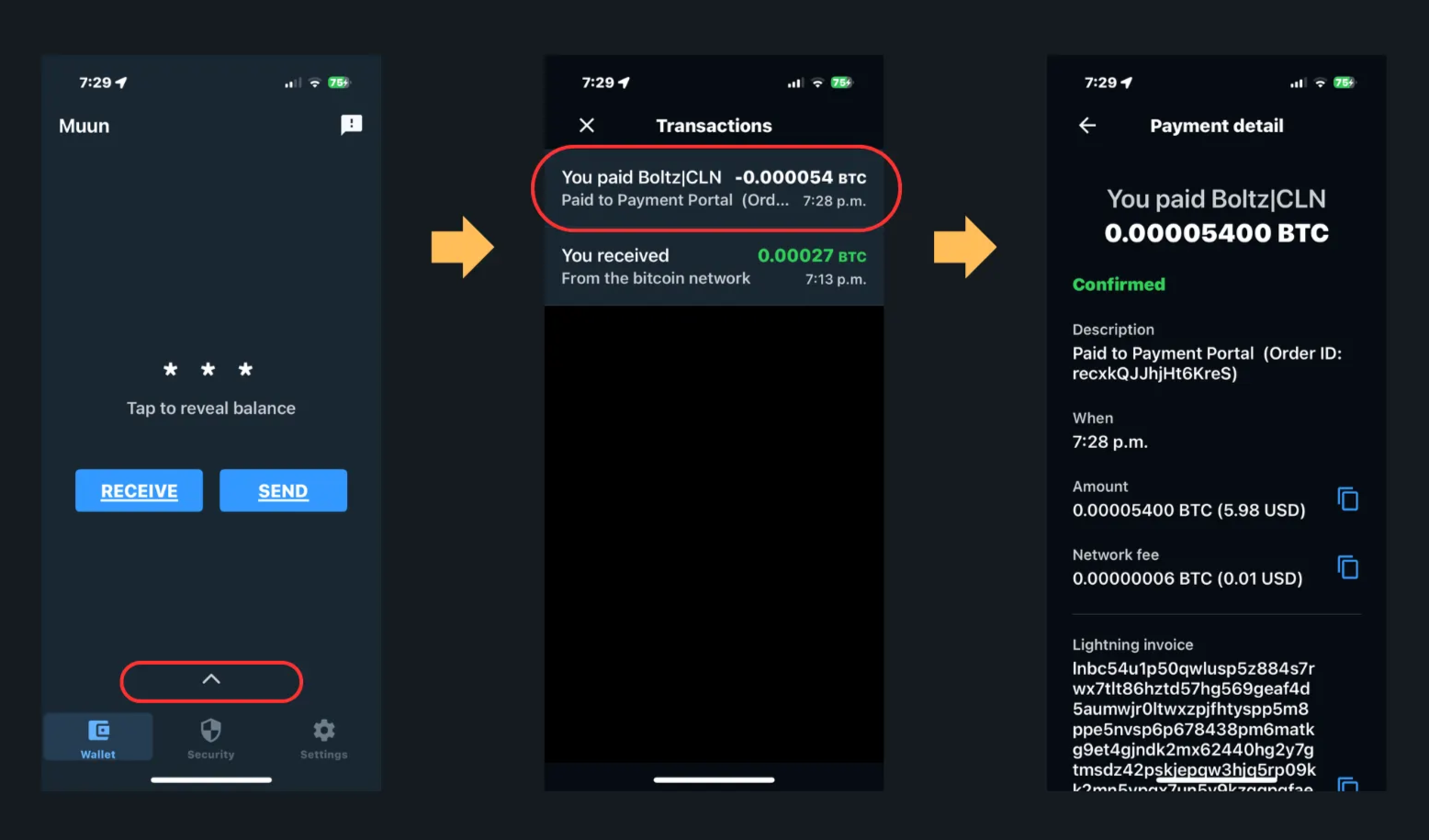
- Verify Your Payment. Go to your Muun home screen, tap the arrow at the bottom, then select the transaction you want to review. The next screen will show your payment receipt, including amount, timestamp, and confirmation details.
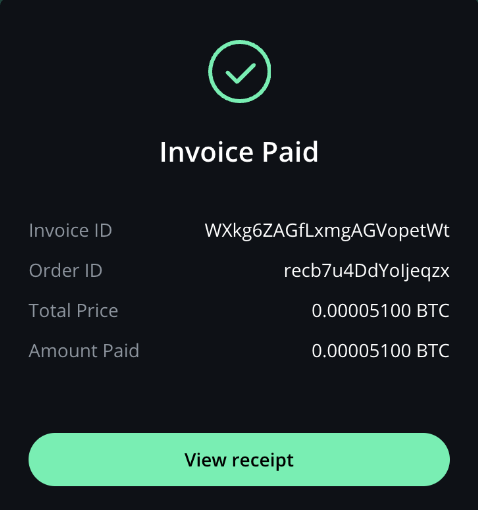
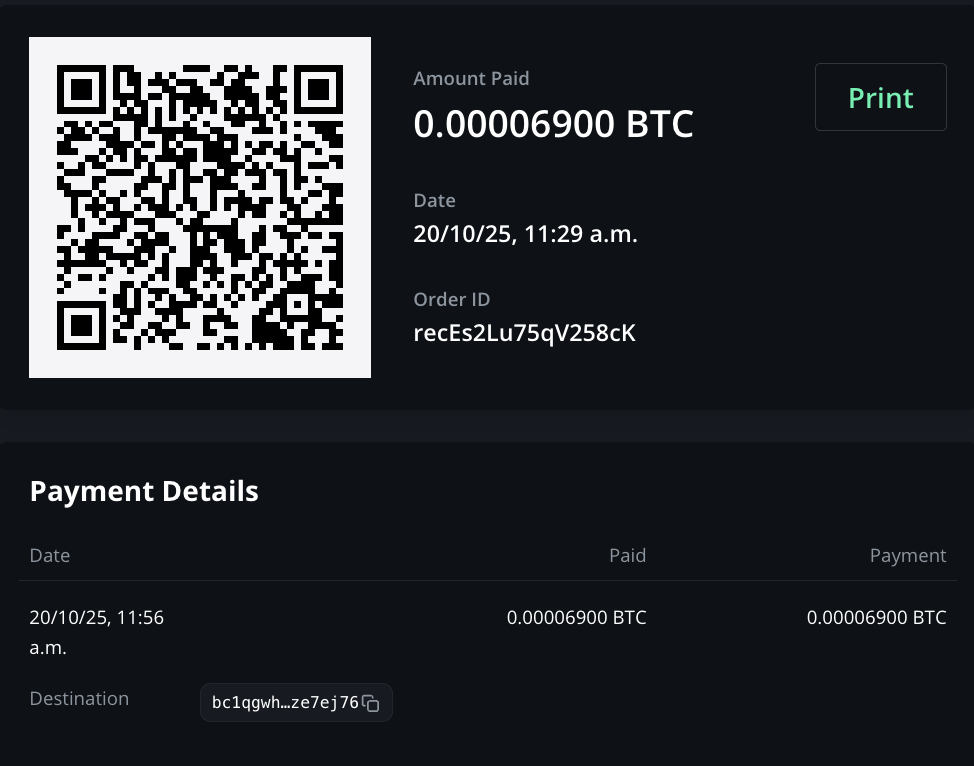
- Confirm Invoice Payment. Return to your Sequence Payment Gateway. If your payment was successful, the screen will automatically update to show “Invoice Paid.”
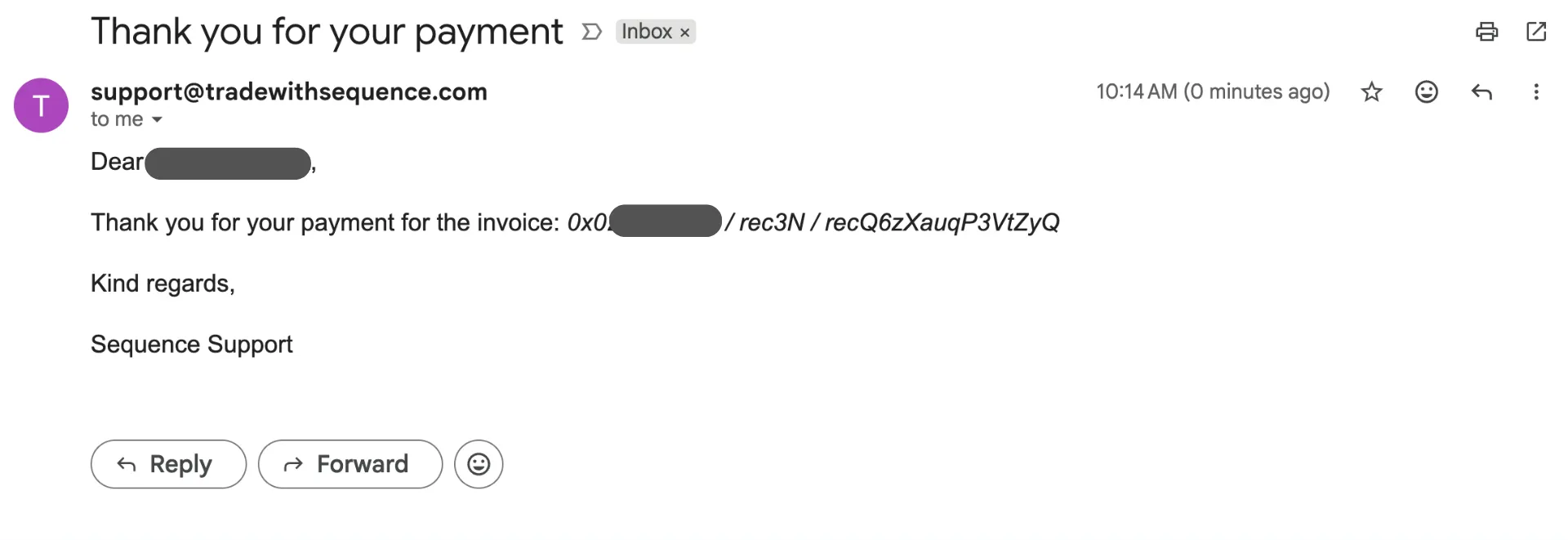
- You will have an acknowledgment email from Sequence in your inbox!
💡 FAQs
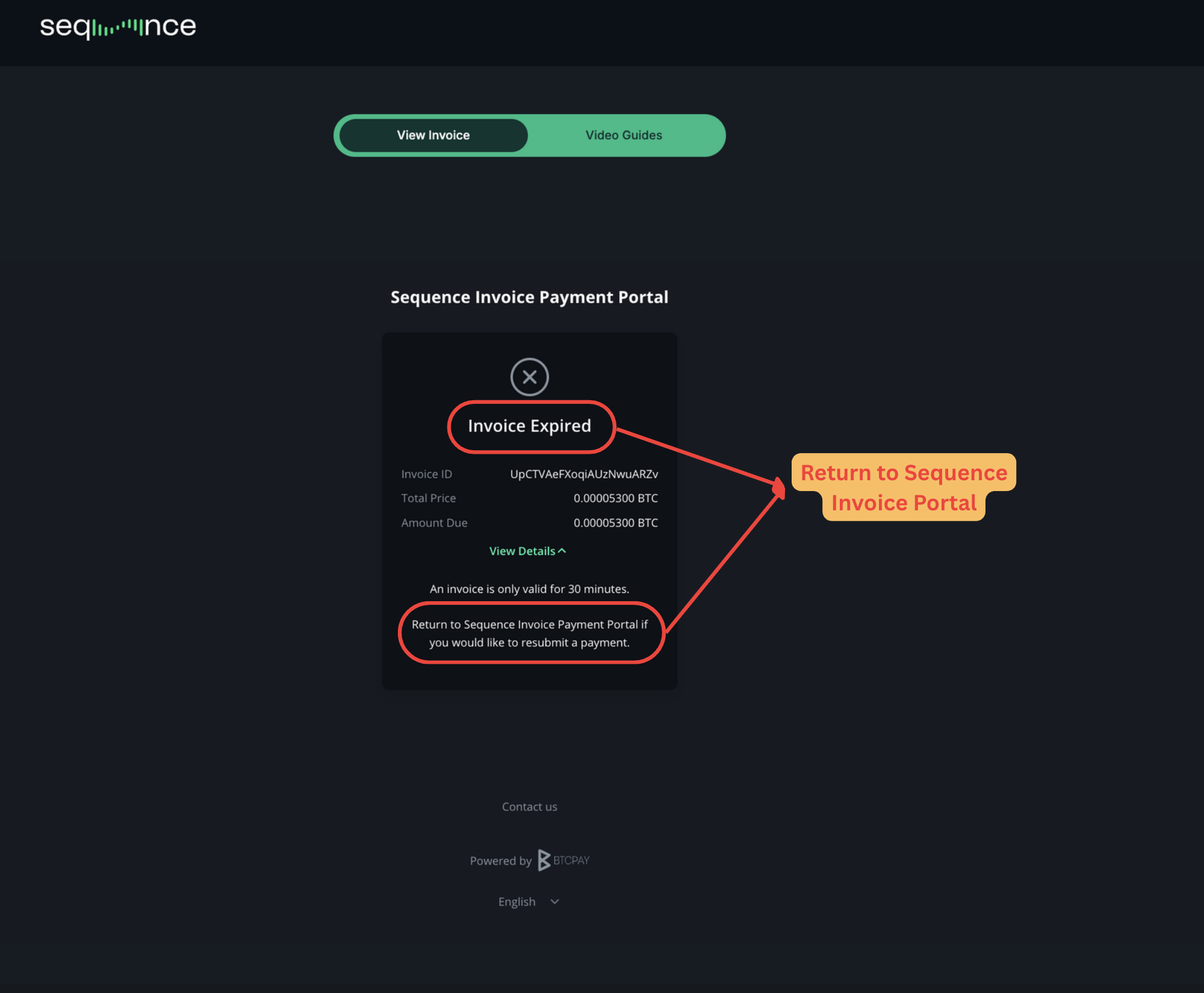
What should I do if I see “Invoice Expired” when opening my payment link?
If the 30-minute window passes and the invoice expires, please return to the Sequence Invoice Portal or use your browser’s Back button to reload the previous page.
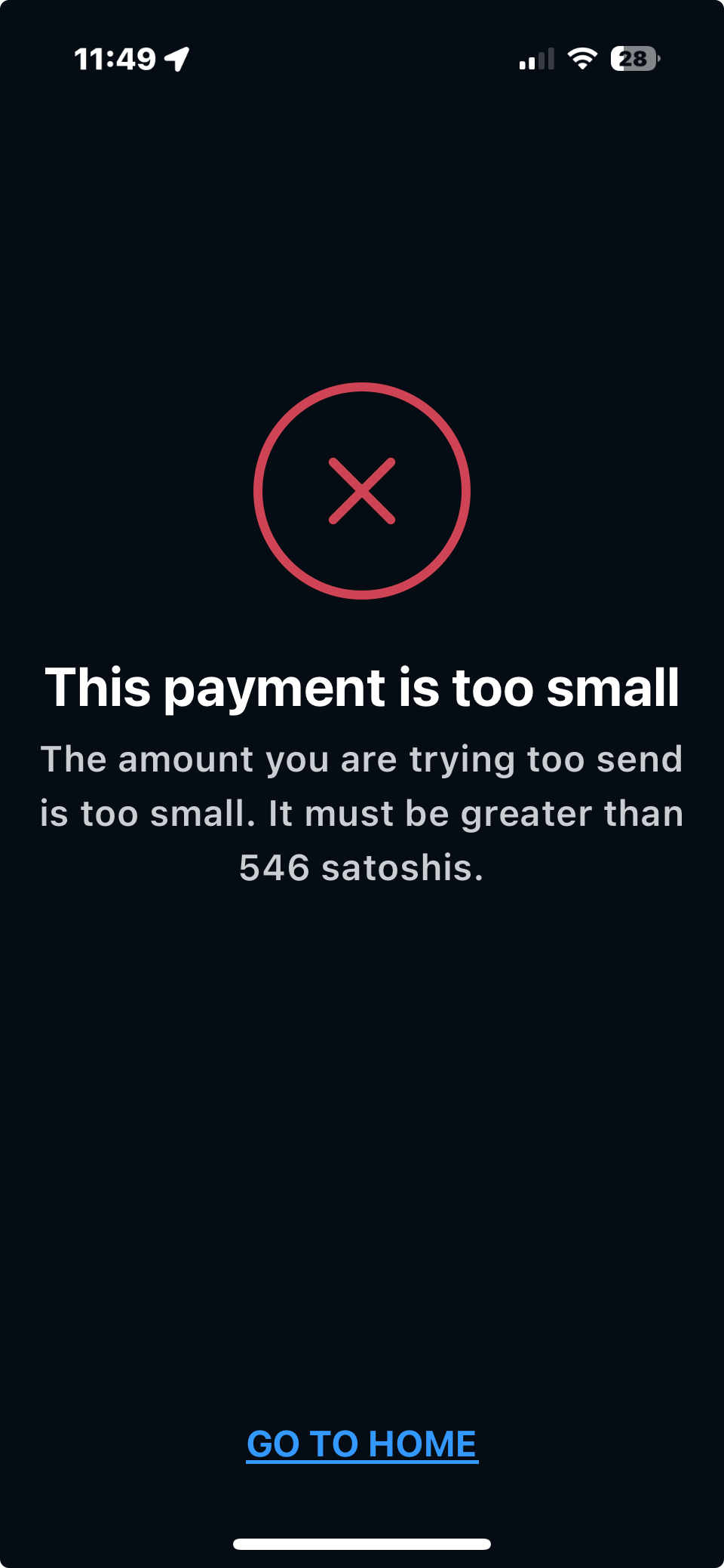
Why does Muun show “This payment is too small”?
When attempting to pay a Sequence invoice using Muun Wallet (On-Chain), you may see this error.
This message appears when the transaction amount is below the minimum threshold required by the Bitcoin network (commonly known as the dust limit).
What to do: If this message appears, please send an email to support@tradewithsequence.com. Our team will review it and provide you with further instructions.
Why does Bybit show an error when I scan the QR code?
When scanning the QR code, Bybit’s app sometimes parses the payment data incorrectly and adds extra parameters to the address (for example: bitcoin:, or an amount at the end of the string).
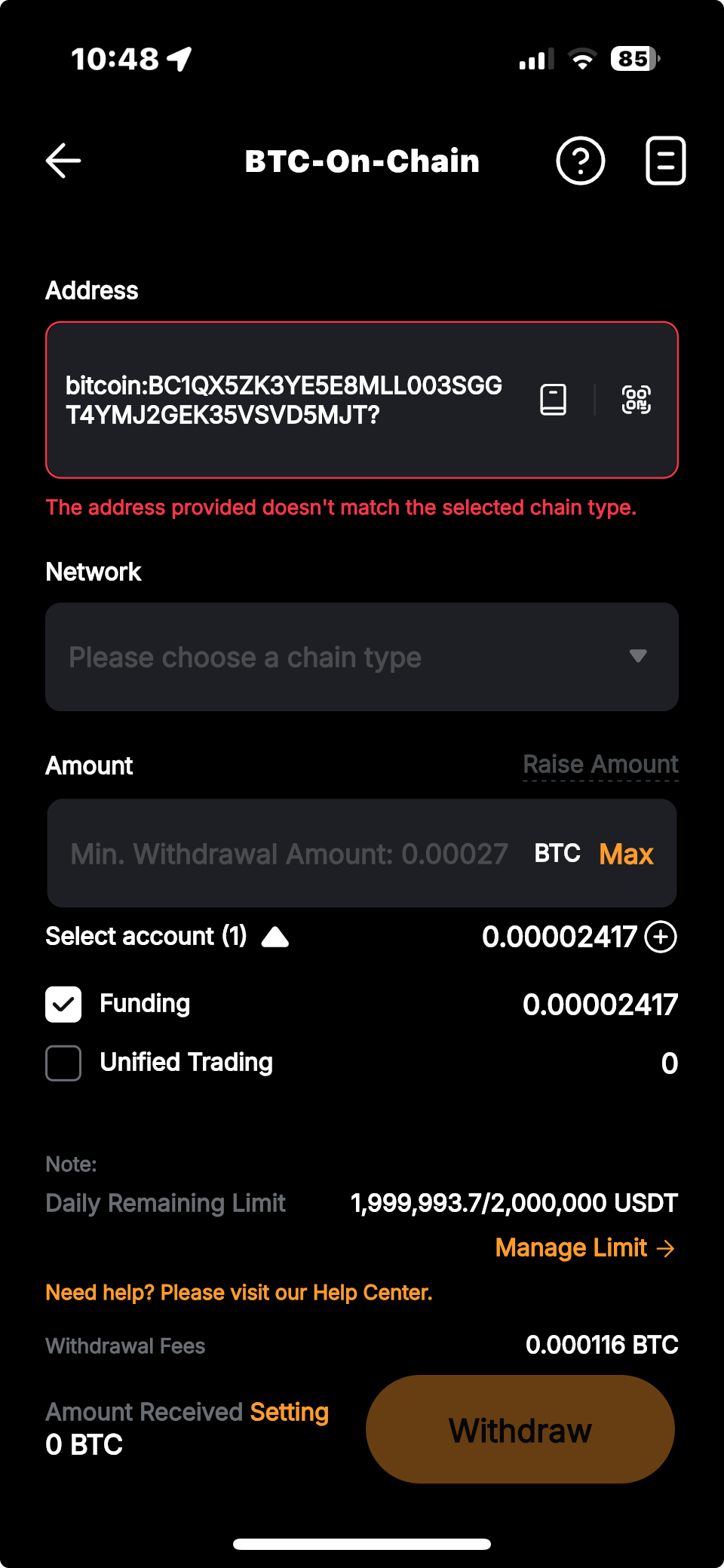
This causes the app to reject the address and display an error like “The address provided doesn’t match the selected chain type.”
Solution:
Please copy and paste the BTC address and amount due manually from your Sequence Payment Portal instead of scanning the QR code.
This is a Bybit UI issue — Sequence cannot correct it from our side.
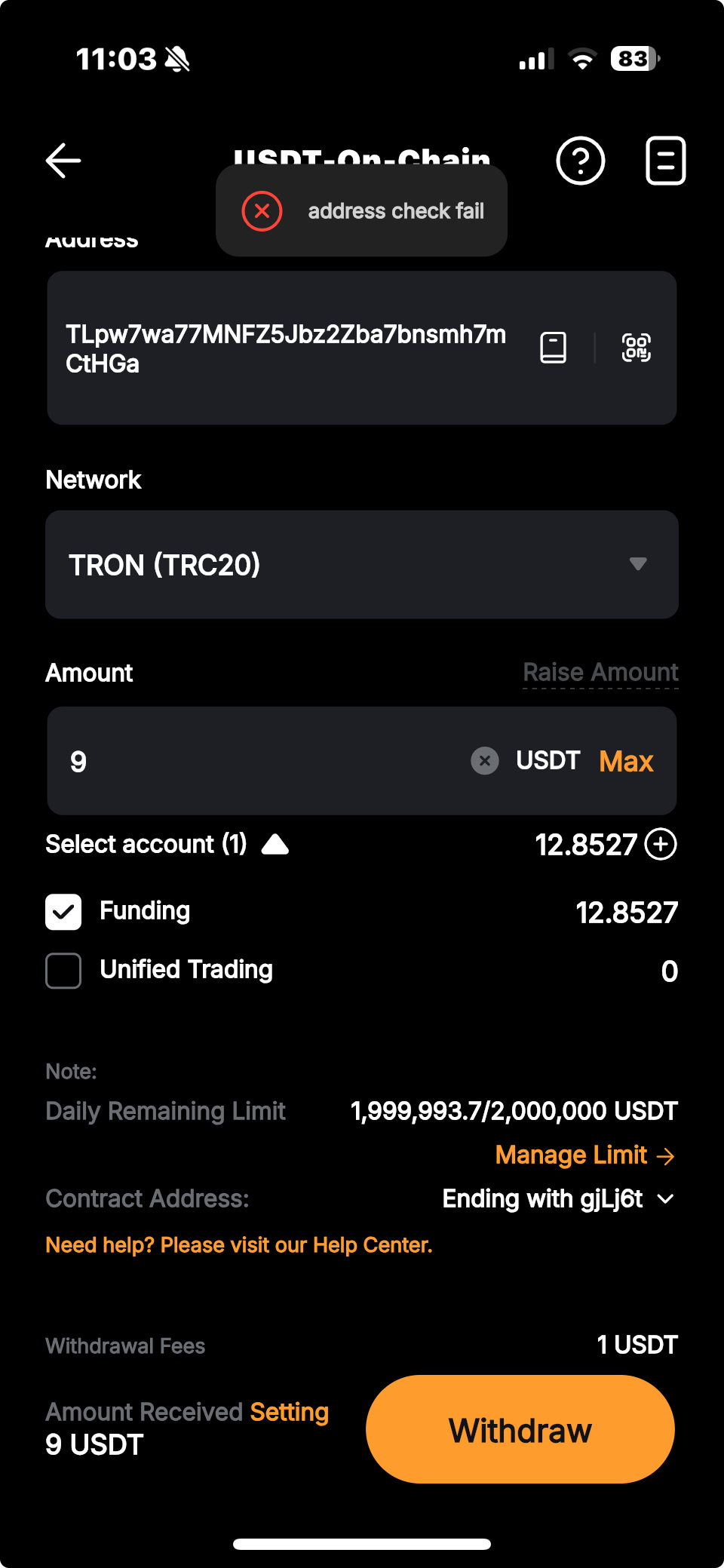
What should I do if Bybit shows the error “Address check fail”?
Generate a new invoice to get the correct payment address:
- Click “Generate Invoice.”
- Wait 5 seconds.
- Then refresh the URL in your browser.
A new invoice with the correct address will appear under the “View Invoice” tab.
What happens if I pay after the invoice expires?
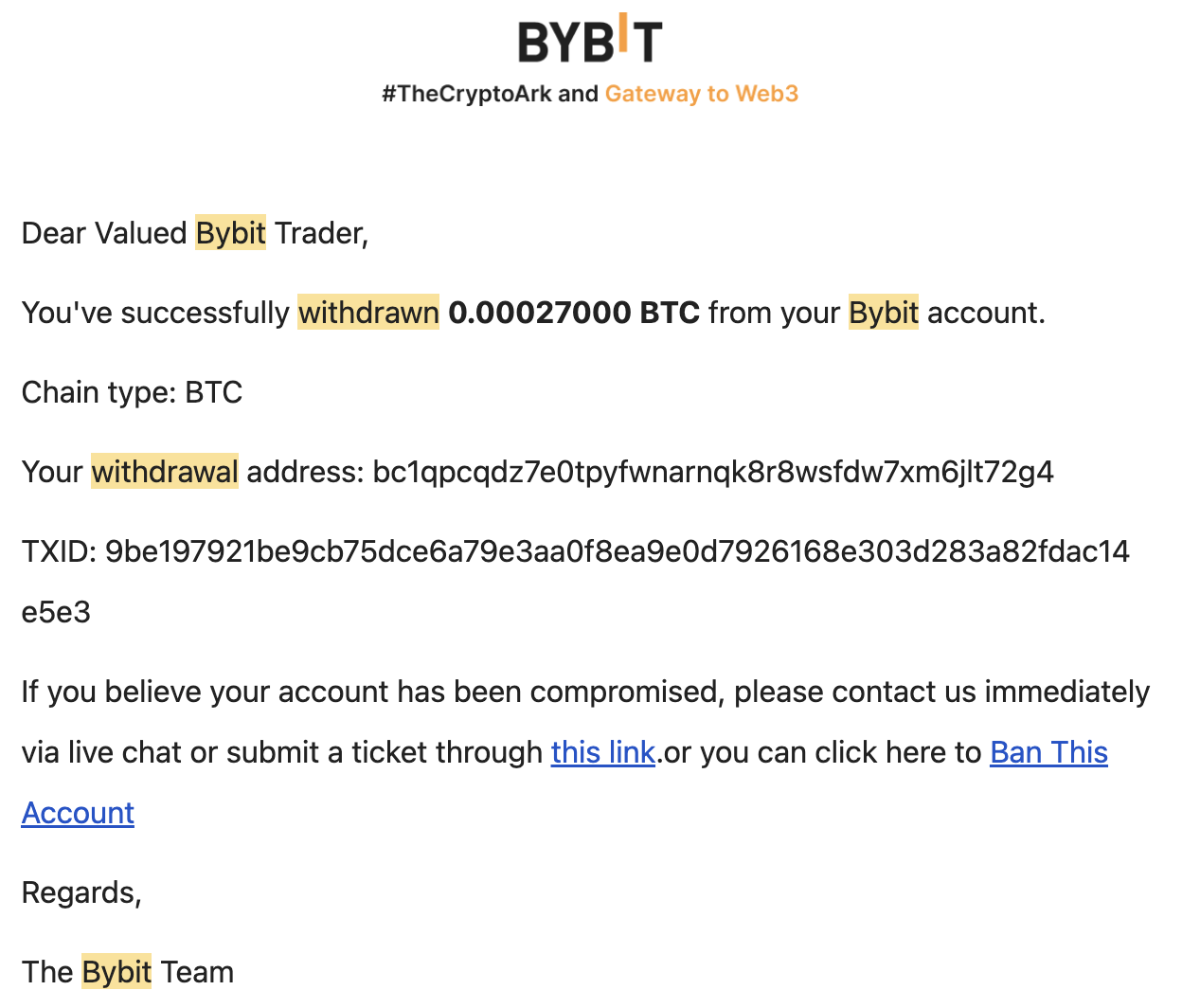
If you send your BTC payment after the 30-minute timer expires, the system will generate a new payment address when the invoice refreshes.
Even if Muun or your exchange shows the transaction as “Confirmed”, that payment will not be automatically reconciled, since it was sent to an expired address.
What to do:
Please email support@tradewithsequence.com and include your TxID (transaction ID), along with a short note explaining what happened. Our team will manually verify and apply it to your account.
What happens if I underpay or overpay an invoice?
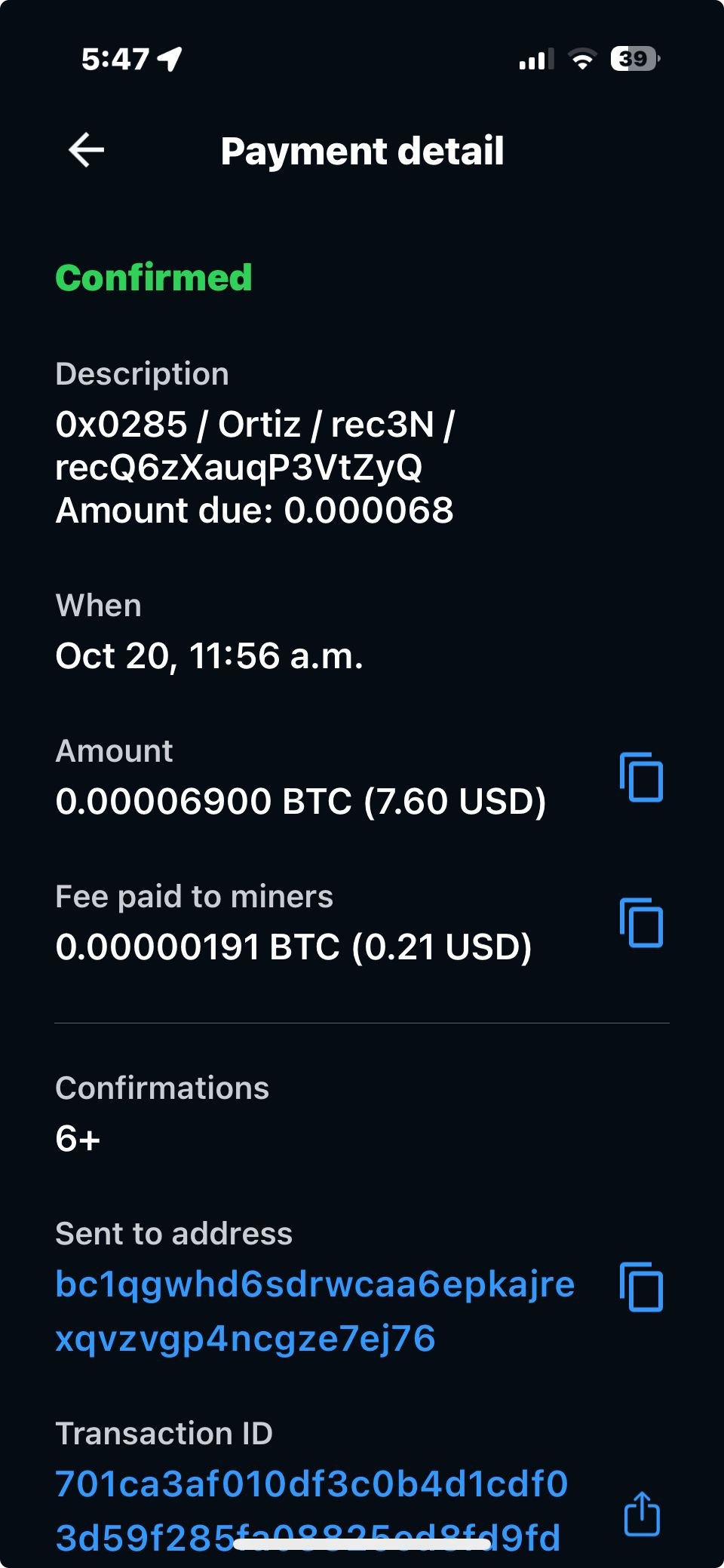
If the amount you send doesn’t exactly match the invoice total, it will be detected automatically by our accounting team.
- If you overpay, the extra amount will be credited to your next invoice.
- If you underpay, the difference will be added to your next invoice.
What should I do if my invoice is below 0.00027 BTC and Bybit won’t let me send the amount?
Bybit has a minimum BTC withdrawal limit of approximately 0.00027 BTC.
If your Sequence invoice is smaller than that amount, your payment may be rejected.
Options:
- Pay with Muun Wallet — Muun supports smaller on-chain payments (minimum 546 satoshis).
- Pay with USDT or USDC — Follow this guide:
Should I send my TxID via the Main Dashboard?
No, with this new method your invoice is automatically reconciled in our system — the good news is you no longer need to send us your TxID.
🧩 Other Useful Resources (External Links)
- Bybit’s Official Guide: How to Submit an On-Chain Withdrawal Request
- Muun’s Official Website: https://muun.com
- Muun’s Official Help Center: https://help.muun.com
- Muun’s Official Open Source Repo: https://github.com/muun/apollo
- Kraken: How do I send bitcoin on the Lightning Network?
- OKX: How do I withdraw Bitcoin (BTC) with OKX’s lightning network?
- Kucoin: Depositing and Withdrawing BTC using the Bitcoin Lightning Network on KuCoin
- Binance: How to Use the Bitcoin Lightning Network to Deposit and Withdraw BTC on Binance