
Blofin Derivatives - Setup Guide
How to connect your Blofin derivatives account to Sequence.
Table of contents
Key terms on this page
This comprehensive guide walks you through the full process of setting up your Blofin — from funding and margin configuration to creation and submission to Sequence.
The guide is organized into the following sections:
Available strategies on Blofin:
Before you Start
Use a Desktop Browser for Best Results.
We strongly recommend completing the setup process on a desktop browser, preferably Chrome. In our experience, doing this on a mobile web browser can be quite difficult — while not entirely impossible, the process is significantly less smooth.
Primary Email Requirement
Your registered email is the one linked to your active strategy or bot, and it’s the only one authorized to receive private account information. 2FA codes, invoices, and sensitive support responses will only be sent to this email.
Microsoft Email Users (Hotmail / Outlook / MSN / Live) & Zigglo:
If you’re using an email address from Hotmail, Outlook, MSN, Live, or any other Microsoft-related domain, please note that these are not compatible with key features in Sequence. Please contact us at support@tradewithsequence.com to get this resolved.
Jurisdictional Restrictions on Derivatives Trading
Please be aware that some jurisdictions restrict access to futures and derivatives trading. While exchanges such as Blofin do not publish a complete list, these products are typically not available to users in certain regions.
Blofin’s official Terms of Use provide a list of Restricted Countries, meaning jurisdictions where Blofin cannot offer any service at all — including spot, derivatives, margin, or any part of the platform.
If you're unsure whether your region is affected, one easy way to find out is to log into your futures account and try placing a test trade. The order can be cancelled immediately afterward. If your jurisdiction is restricted, the platform will typically block the attempt or display a clear error message.
💡 Special Note — & Palau Digital Residency
Blofin allows users to deposit crypto, create API keys, and trade derivatives without completing standard KYC, subject to certain limitations.
Accounts without KYC are restricted to a daily withdrawal limit of $20,000 and do not have access to fiat on-ramps, off-ramps, or certain advanced platform features.
To raise the withdrawal restriction and complete KYC Level 1, Blofin is available to Palau Digital Residents. For more information, please visit: 👉 Palau ID
Important note: As Sequence is a non-custodial service, we recommend you conduct your own research (DYOR) regarding local restrictions and available services in your jurisdiction.
Step 1: Create a Sub-account
First, create a dedicated sub-account exclusively for trading with Sequence. Each strategy requires its own sub-account to ensure optimal performance — do not manually modify positions or place trades within it.
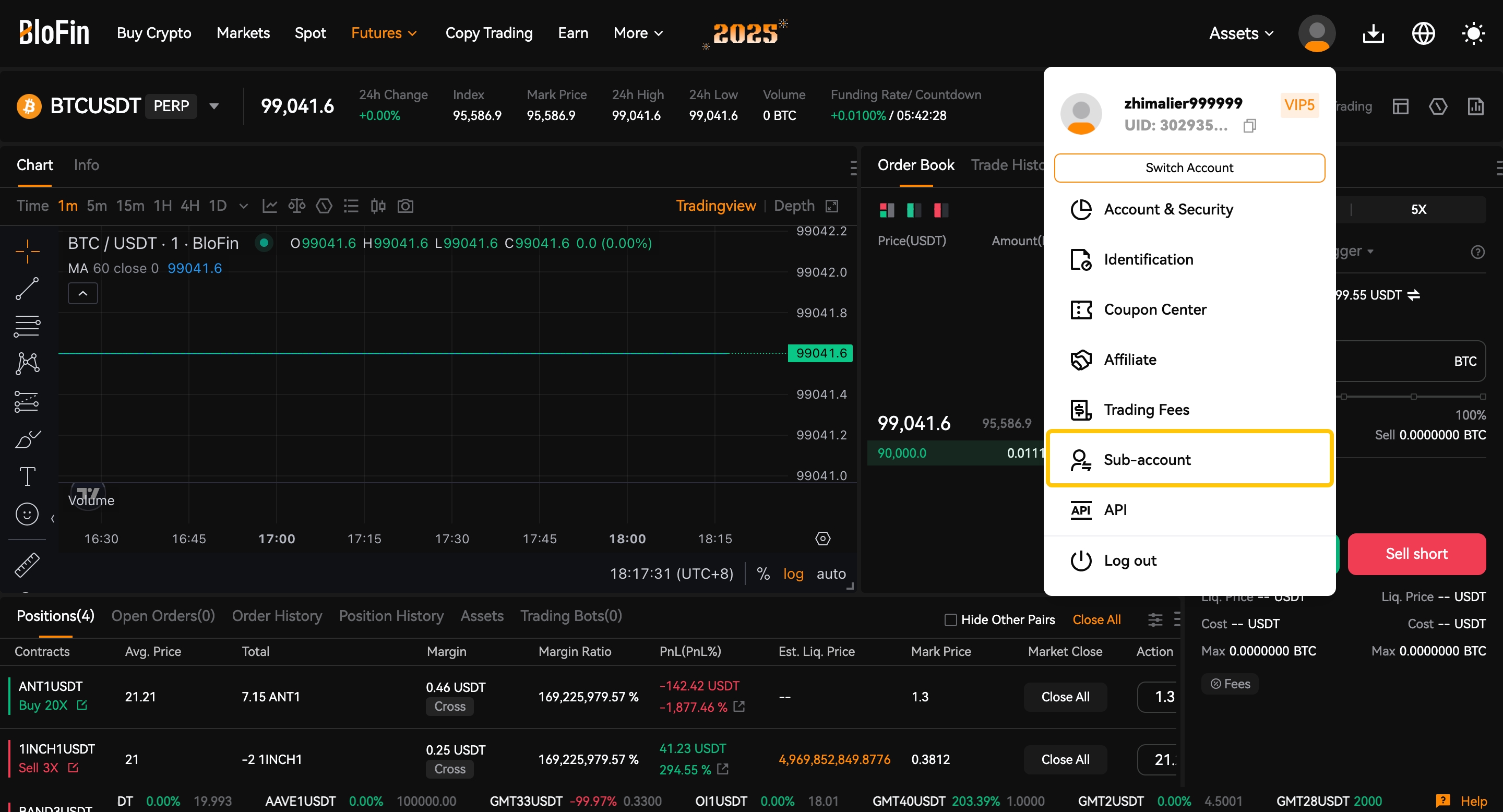
a. Open the BloFin website and log in to your account, click on the User Avatar and select Sub-account.
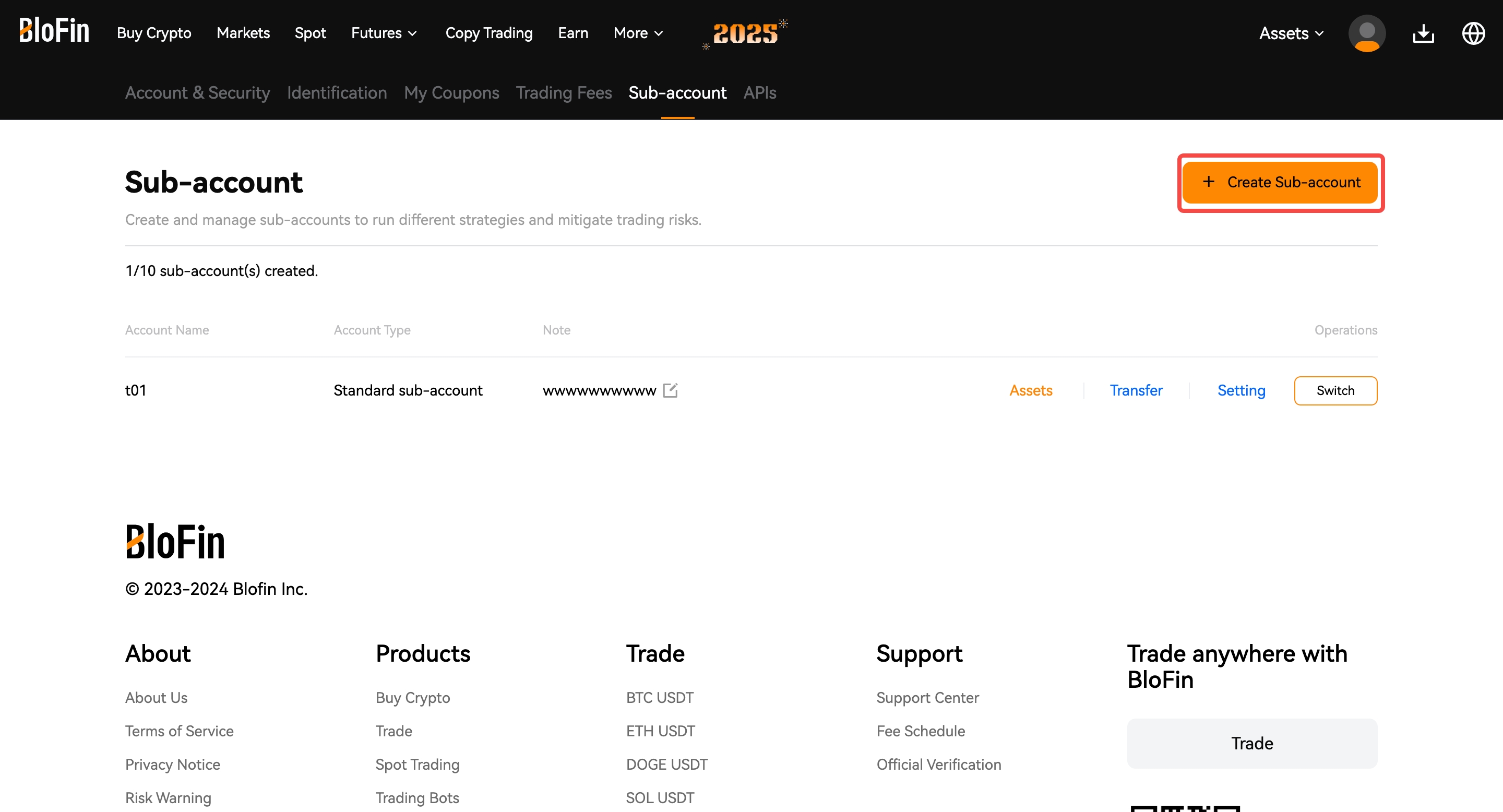
b. Click on the +Create Sub-account.
c. Enter your sub-account nickname, then click Submit.
d. Fill in and Confirm the security verification to complete your sub-account creation.
Step 2: Transfer funds
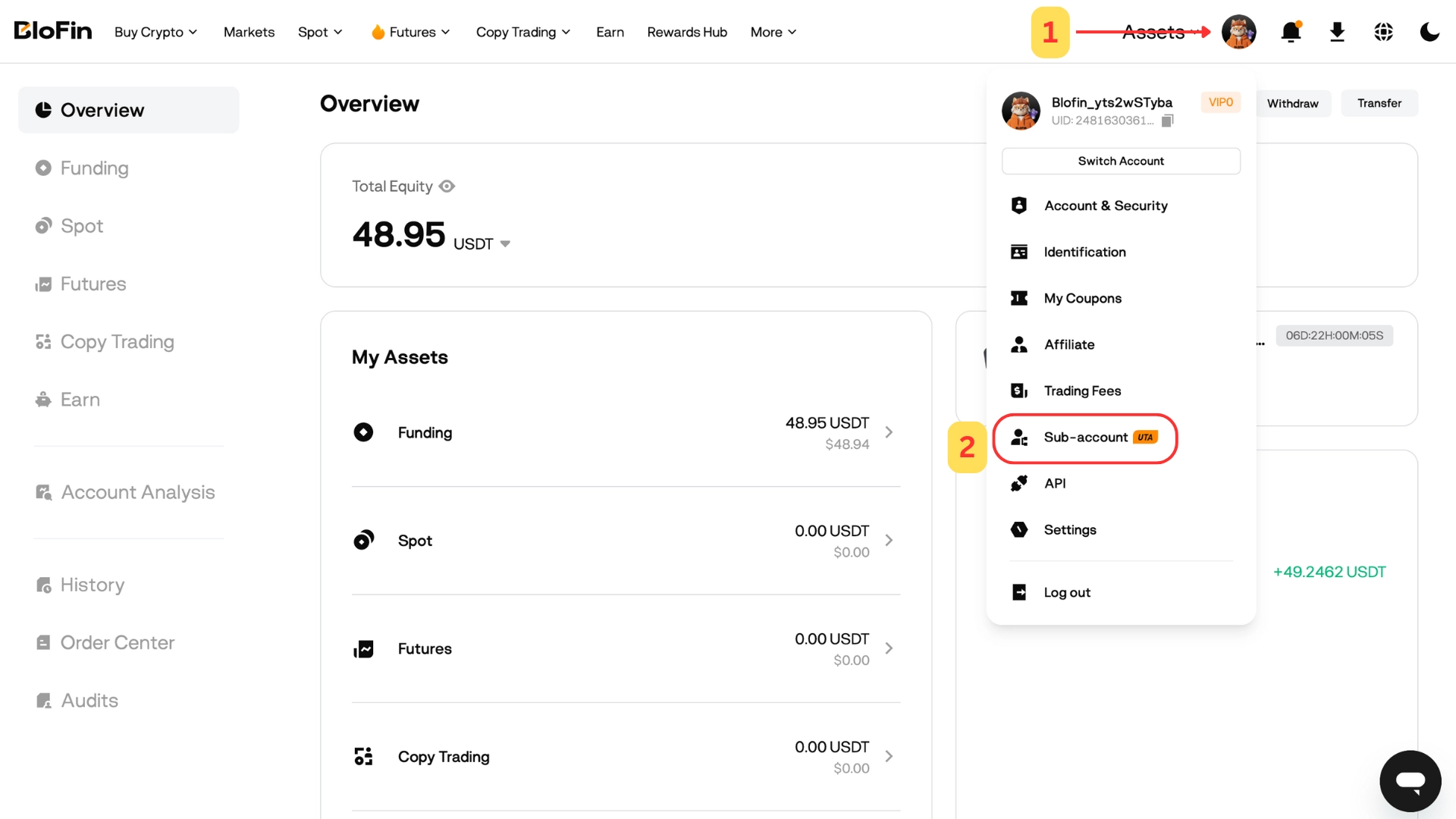
a. Log in to your BloFin main account, click User Avatar -> Sub-accounts.
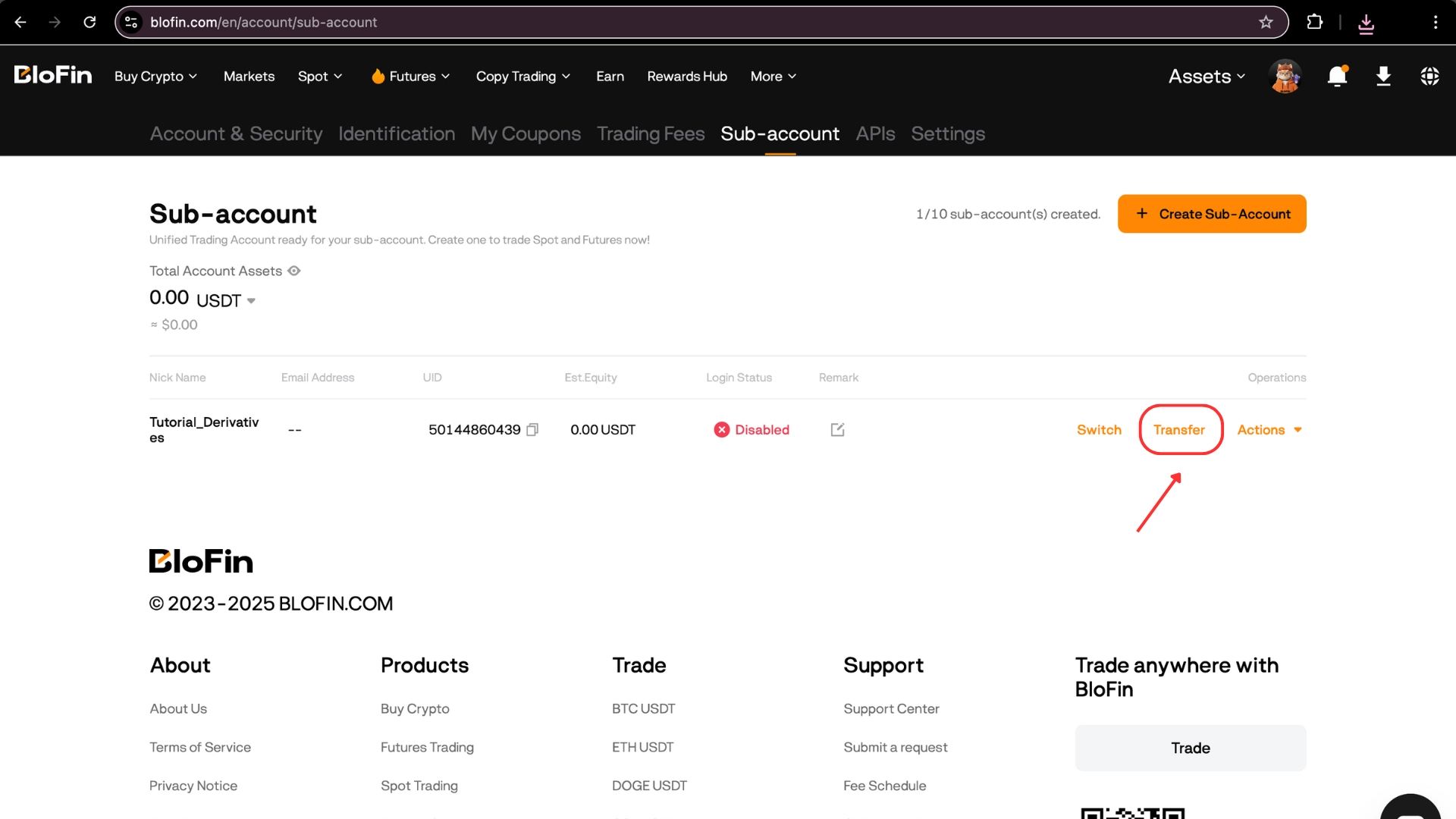
b. Find the sub-account that you want to transfer funds and select Transfer.
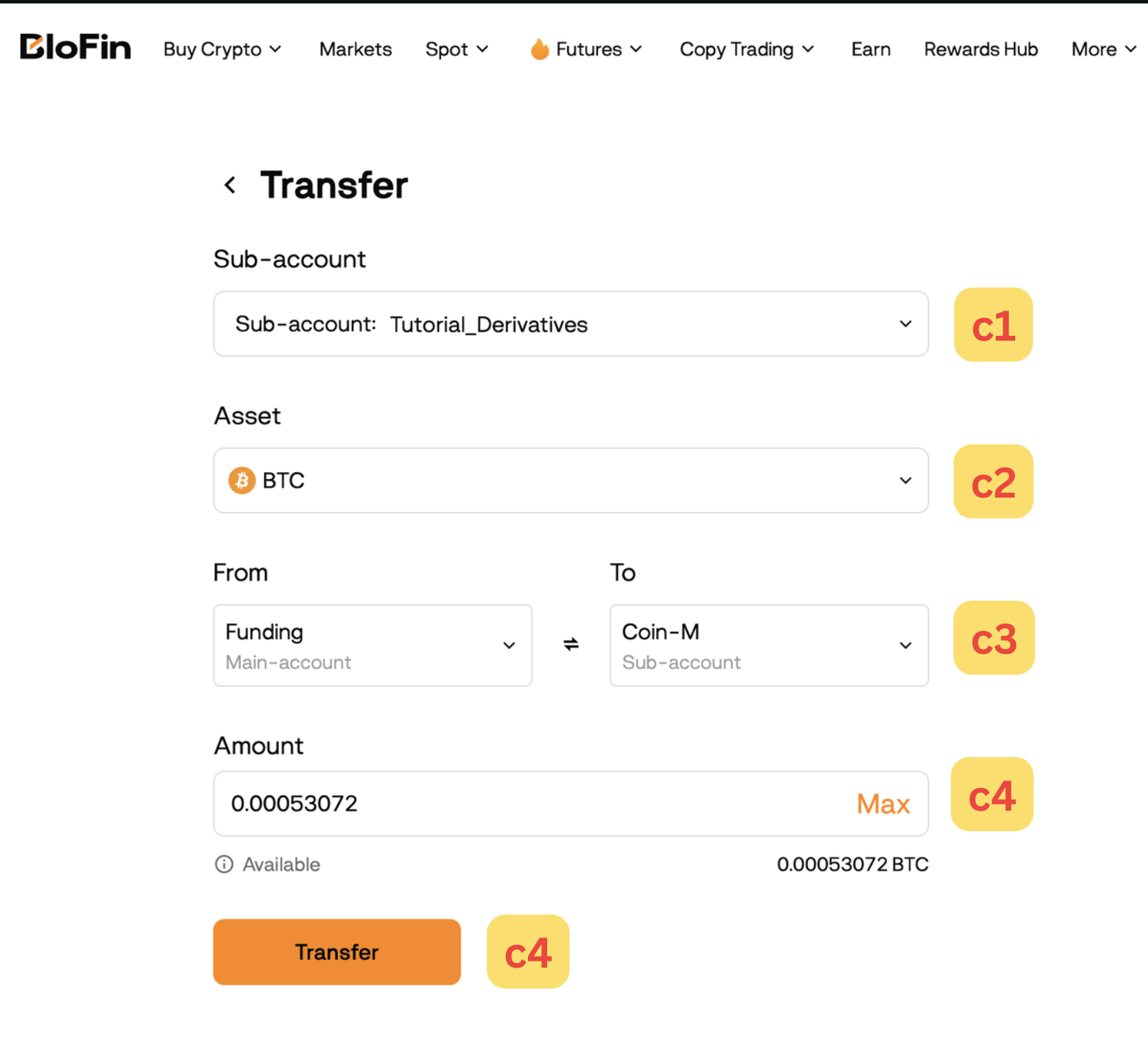
c. On the Transfer interface, adjust the details according to your preference.
c1. Select the Sub-account you would like to transfer
c2. Select your preferred crypto in Asset.
c3. Please note: to trade Derivatives your funds need to be located in the “Futures” wallet COIN-M
From: Funding - Main Account
To: Coin-M - Subaccount
c4. Fill in the Amount and click Transfer to complete your crypto transfer from your main account to your sub-account.
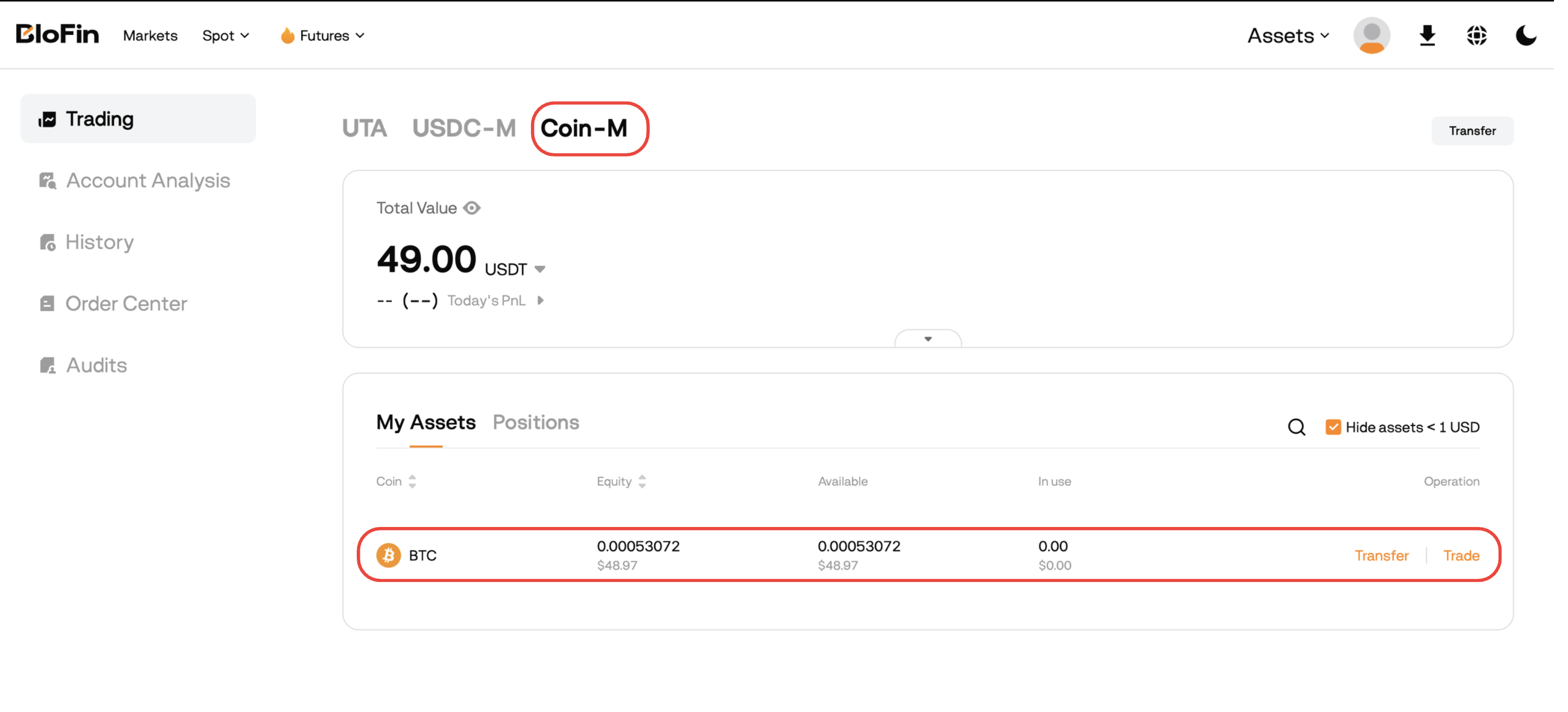
d. Verify that your funds are in the correct place:
First, switch to your sub-account.
Go to Trading: https://blofin.com/en/assets/trading
Then select the appropriate market type: Coin-M for Inverse strategies: BTC Inverse or BTC Inverse SL
Step 3: Create API Keys
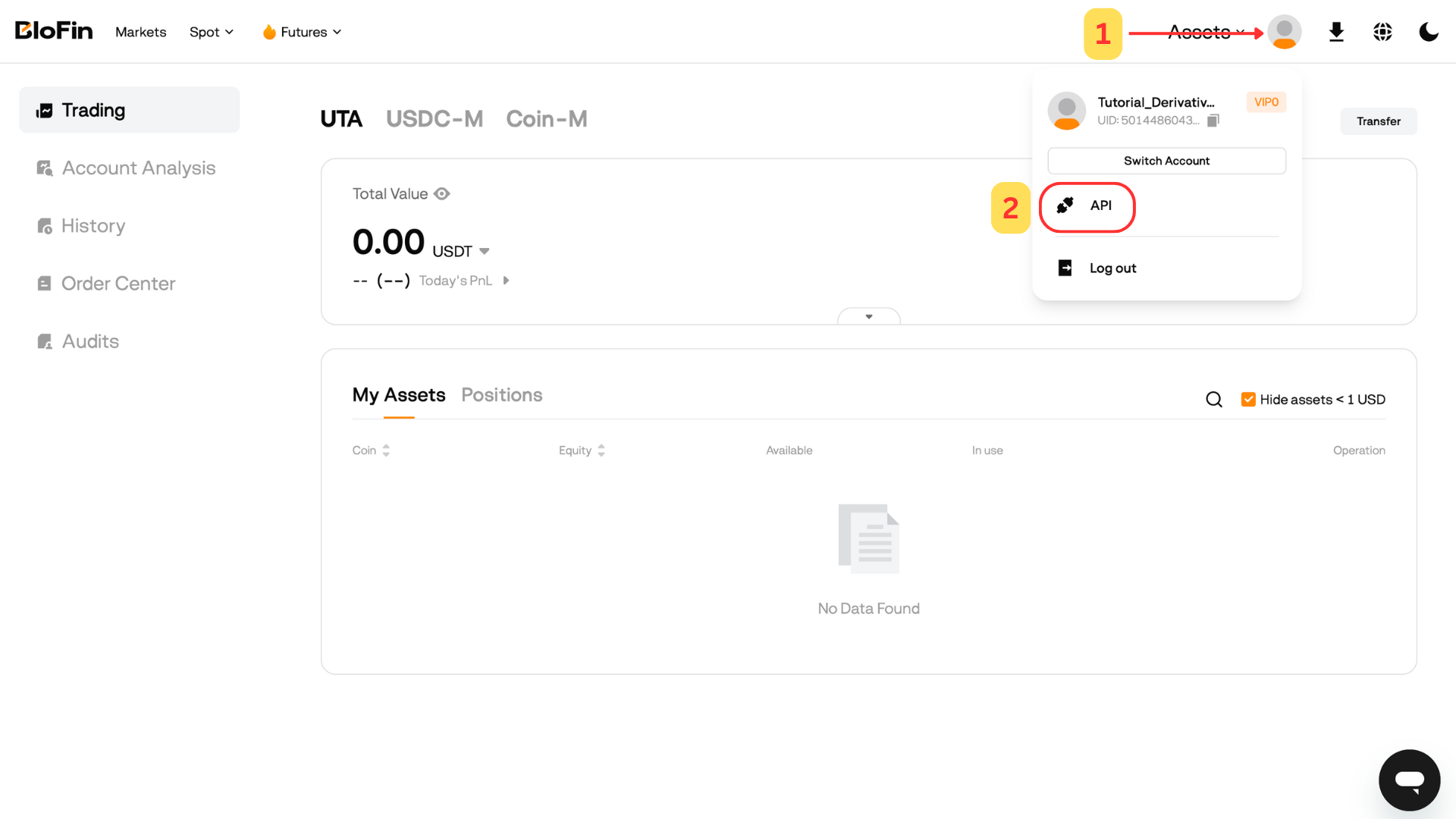
a. Log in to your subaccount.
b. Navigate to the API Management section by clicking your profile/user icon in the top-right corner and selecting API from the dropdown menu.
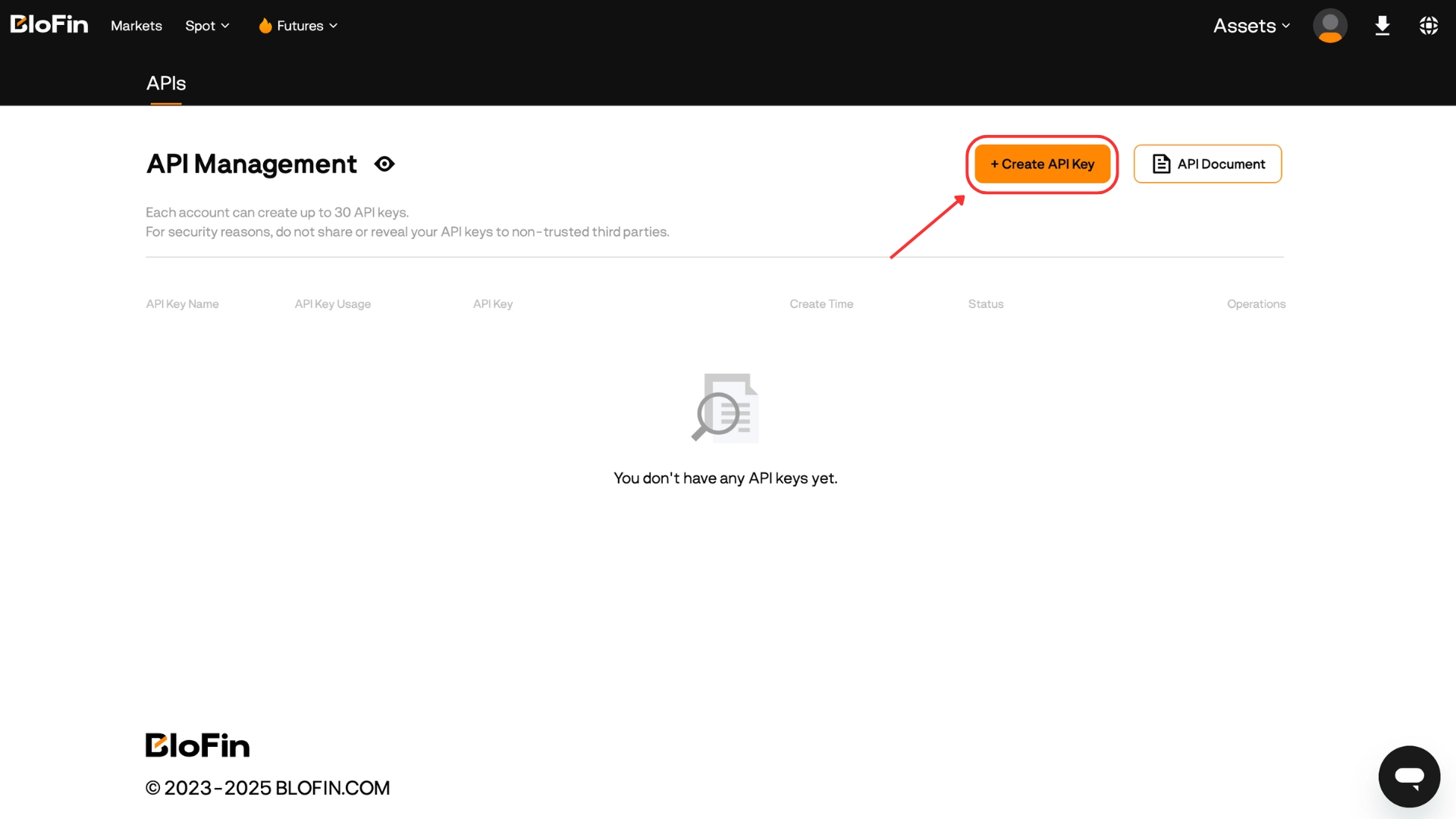
c. Click the Create API Key button to start the process.
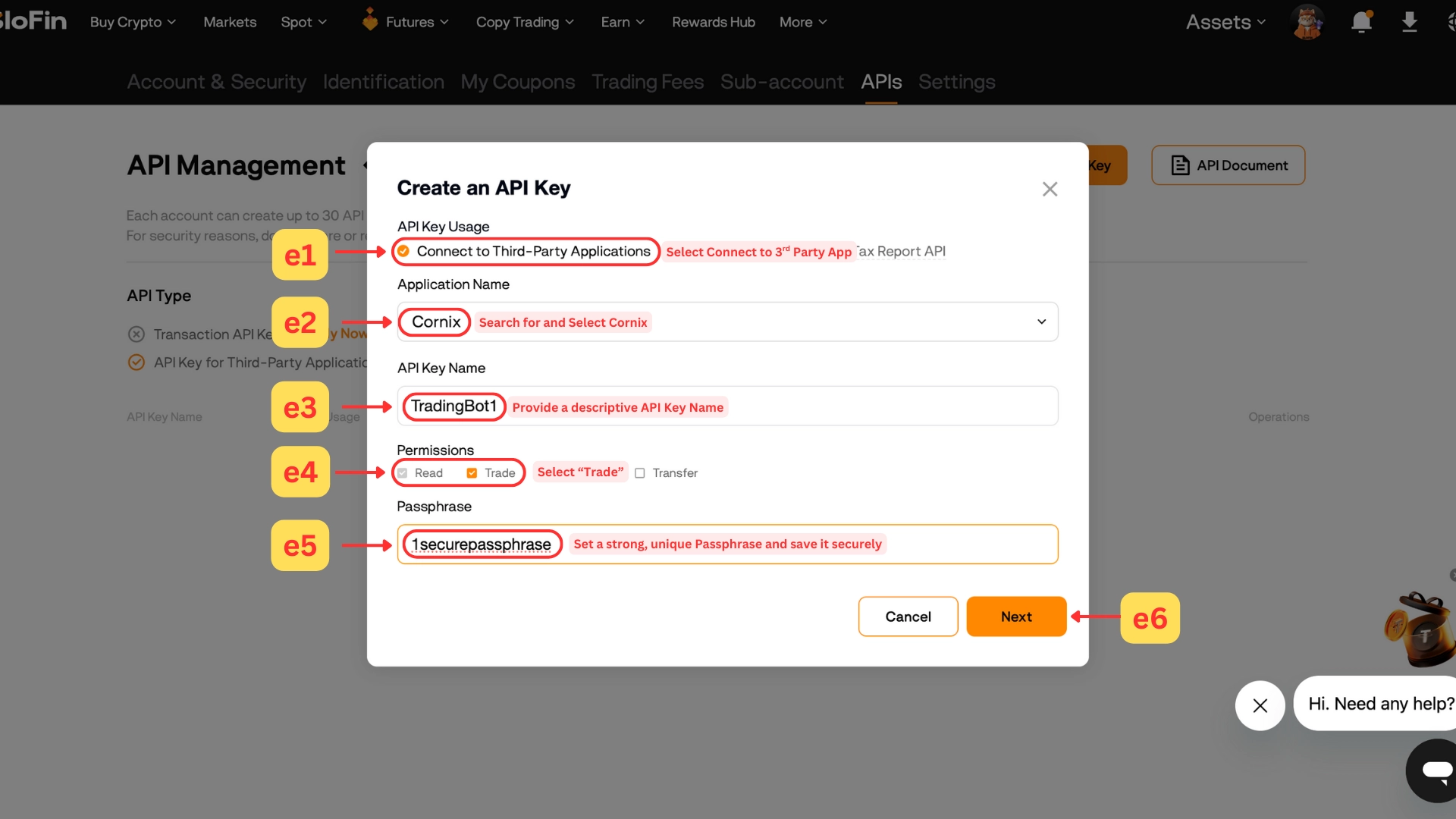
e. Configure your API key in the pop-up window:
e1. Choose the "Connect to Third-Party applications" option.
e2. Search for and select Cornix in the Application Name field.
e3. Provide a descriptive API Key Name (e.g., "TradingBot1"). It must contain 4 to 20 characters, using letters, numbers, and “_” only.
e4. Select the necessary Permissions: Read and Trade.
e5. Set a strong, unique Passphrase and save it securely. It must contain 4 to 20 characters, using letters, numbers, and “_” only.
e6. Click Next.
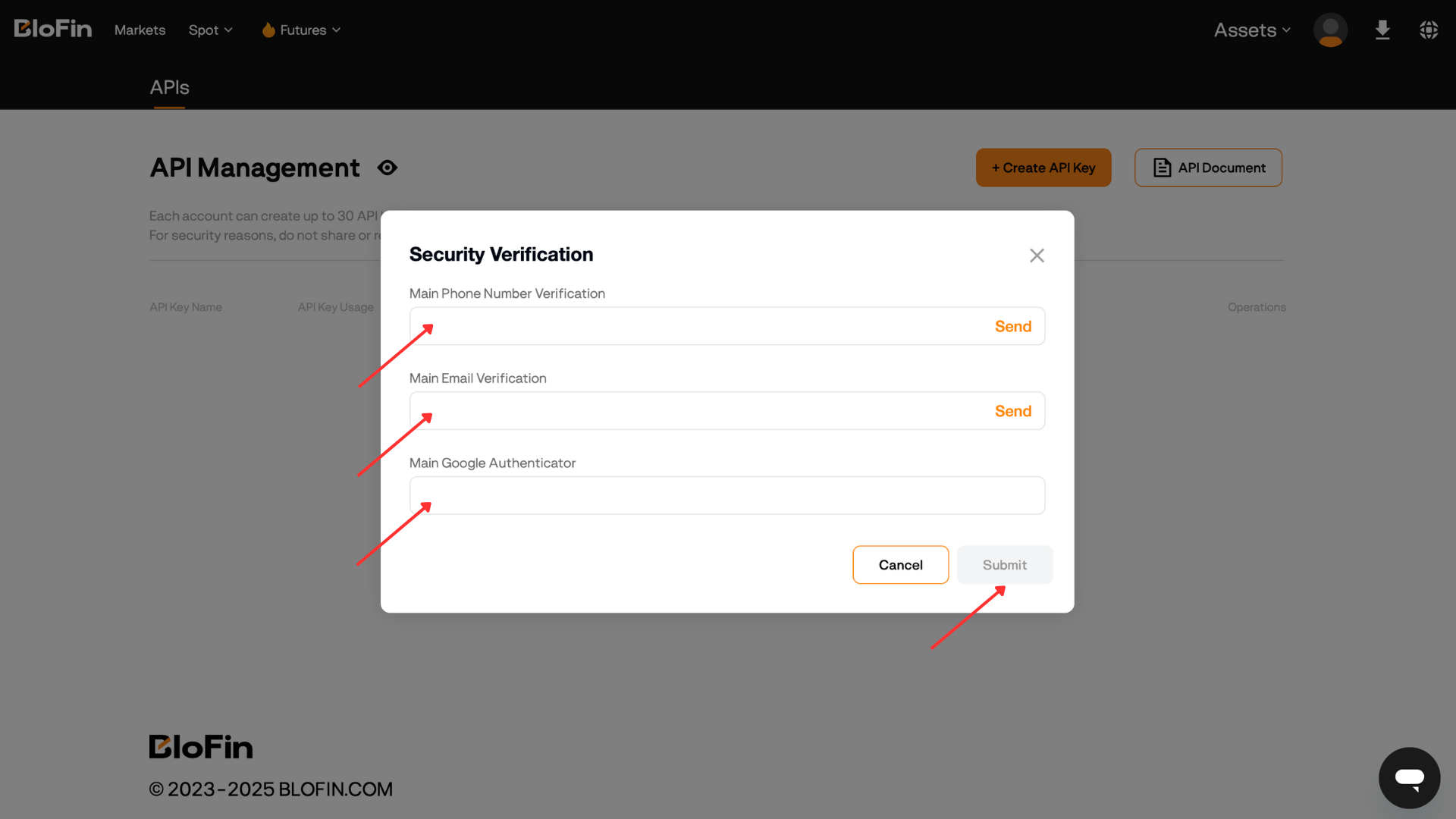
e7. Complete the required security verification steps and click Submit.
Once you successfully complete the required security verification steps, a confirmation message — “API Key created successfully” — will appear in the bottom-left corner of the screen. You will then be able to copy and securely store both your API Key and Secret Key.
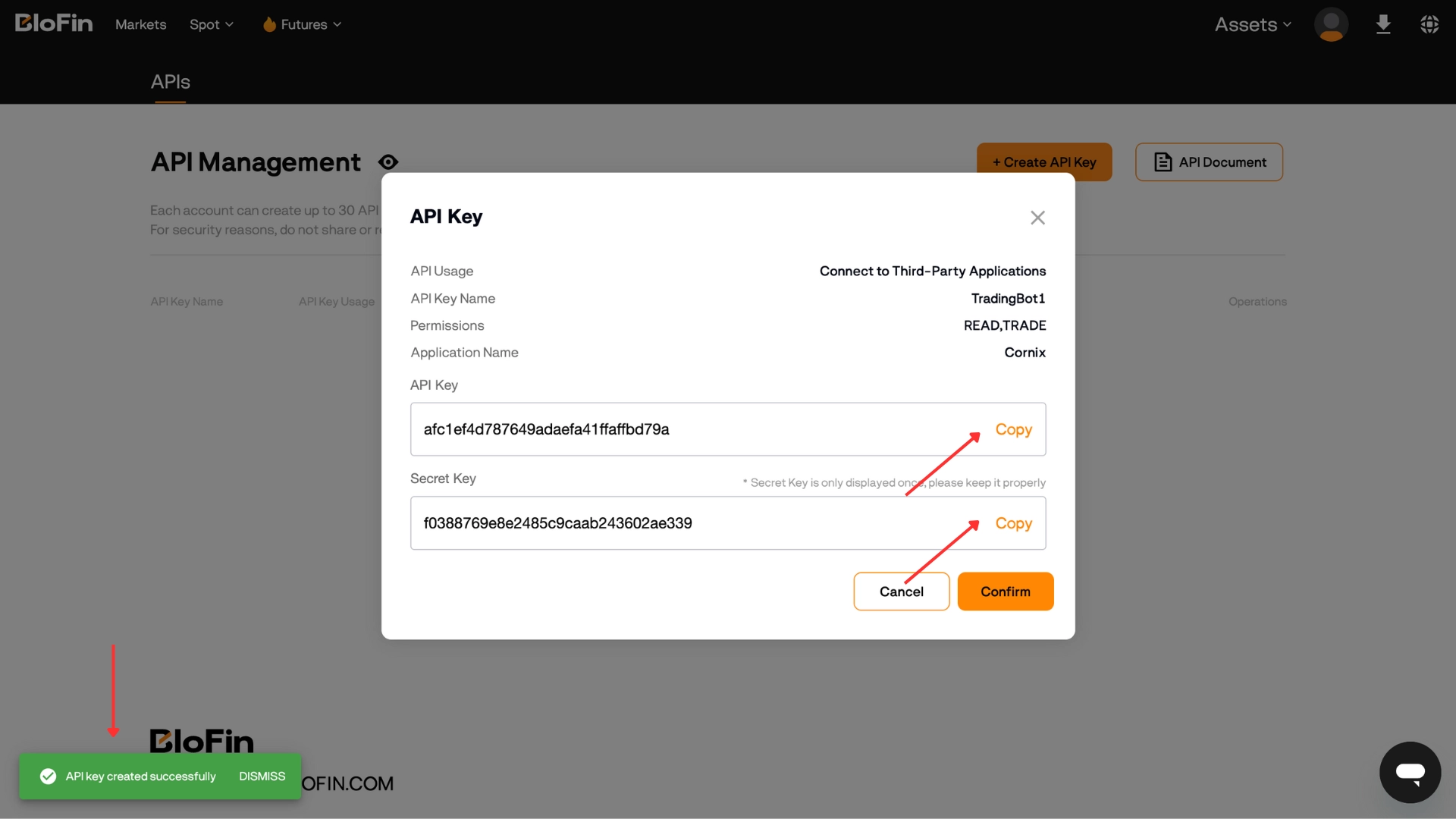
⚠️ Important: Copy and Securely Store your generated API Key and Secret Key. For security reasons, the Secret Key is only displayed this one time. Neither Blofin nor Sequence can retrieve it later.
Step 4: Go to your Main Dashboard
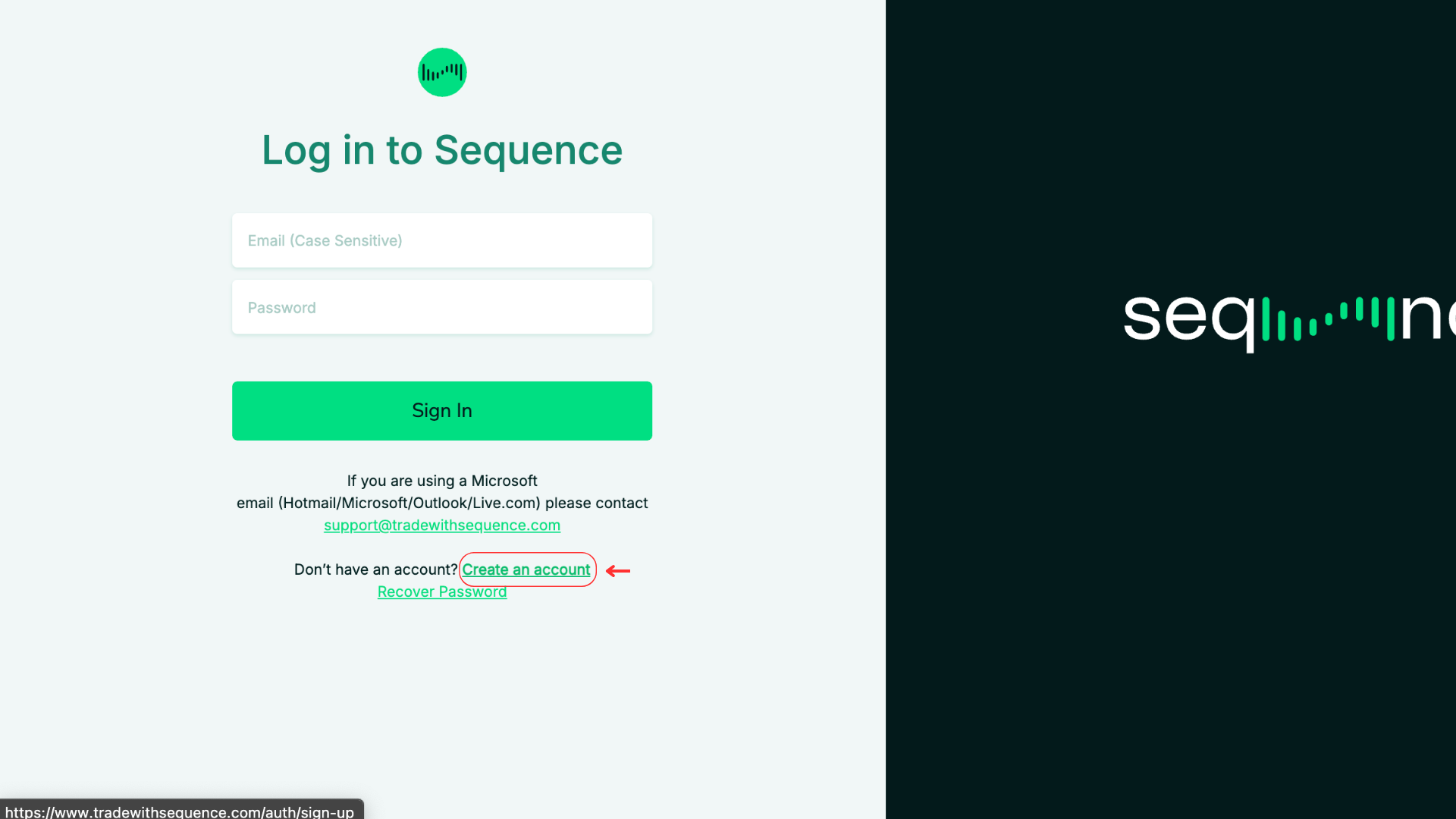
Go to https://www.tradewithsequence.com/ and click “Sign in”
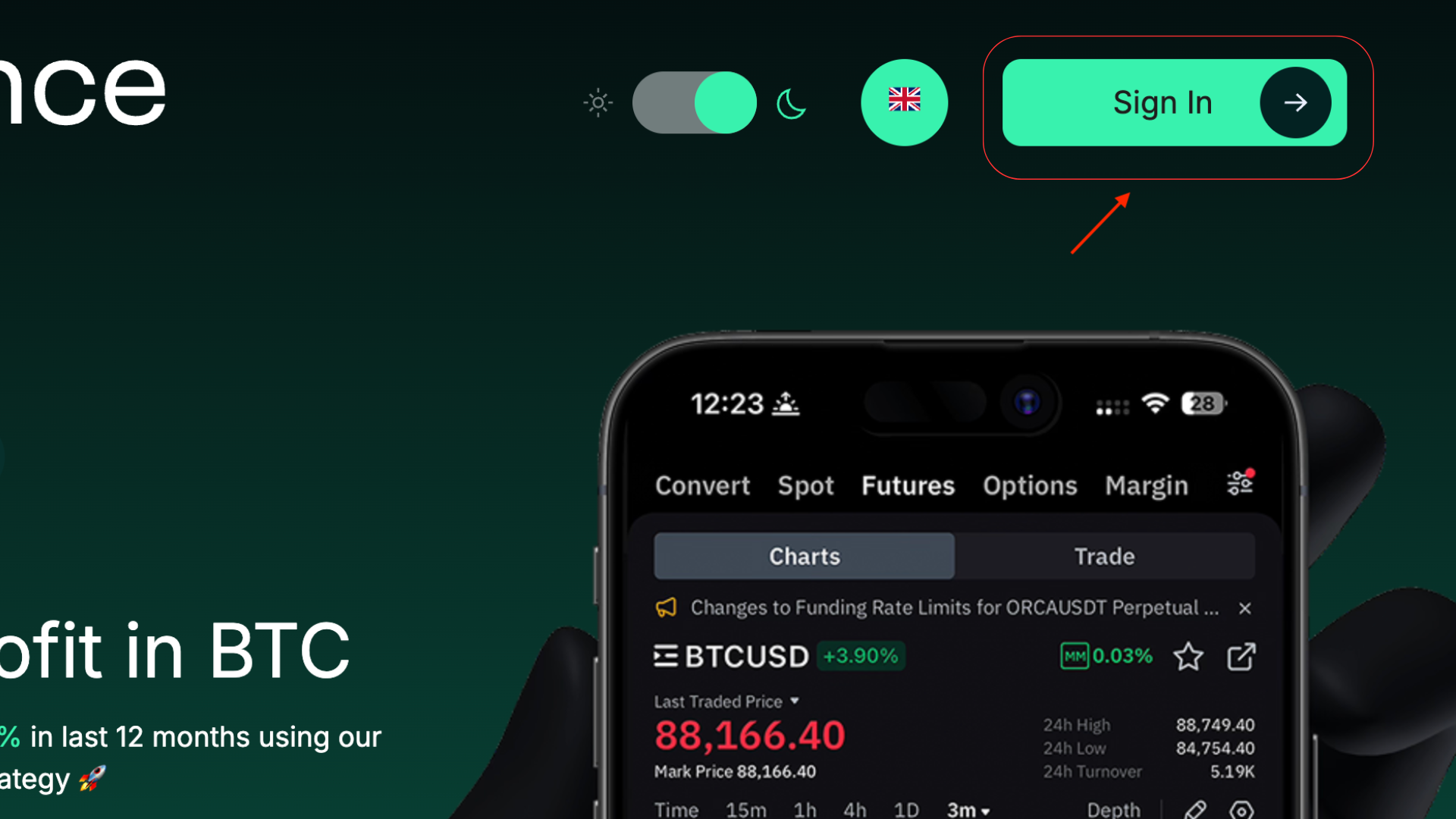
Sign up or Sign In.
If you already have an account, enter your credentials to sign in.
If you don’t have an account yet, click “Create an Account” to sign up.
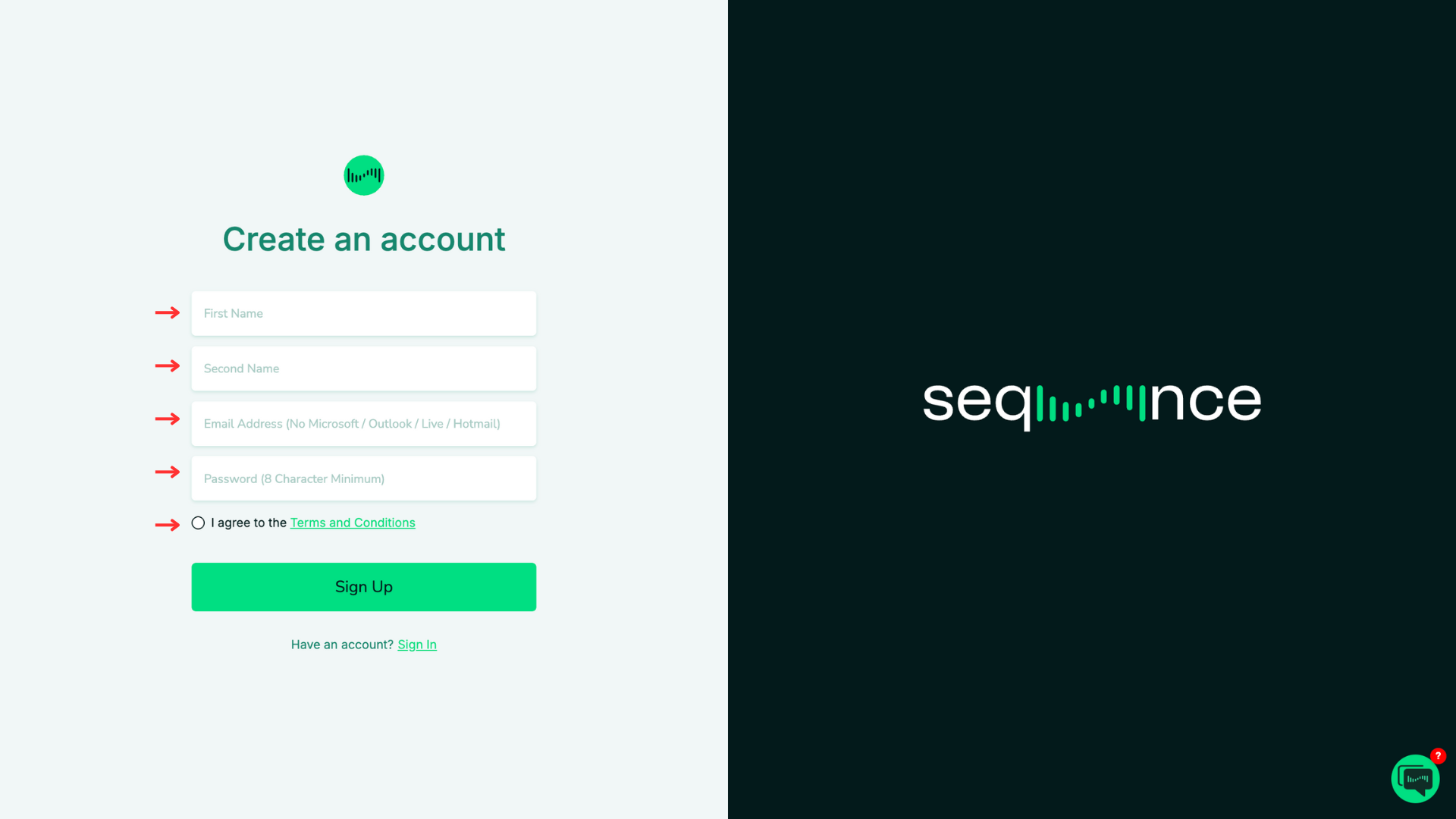
On the Create an Account screen, complete all required fields: First Name, Second Name, Email Address (no Microsoft/Outlook/Live/Hotmail), and Password (minimum 8 characters).
Check the box to agree to the Terms and Conditions.
Click Sign Up to create your account.
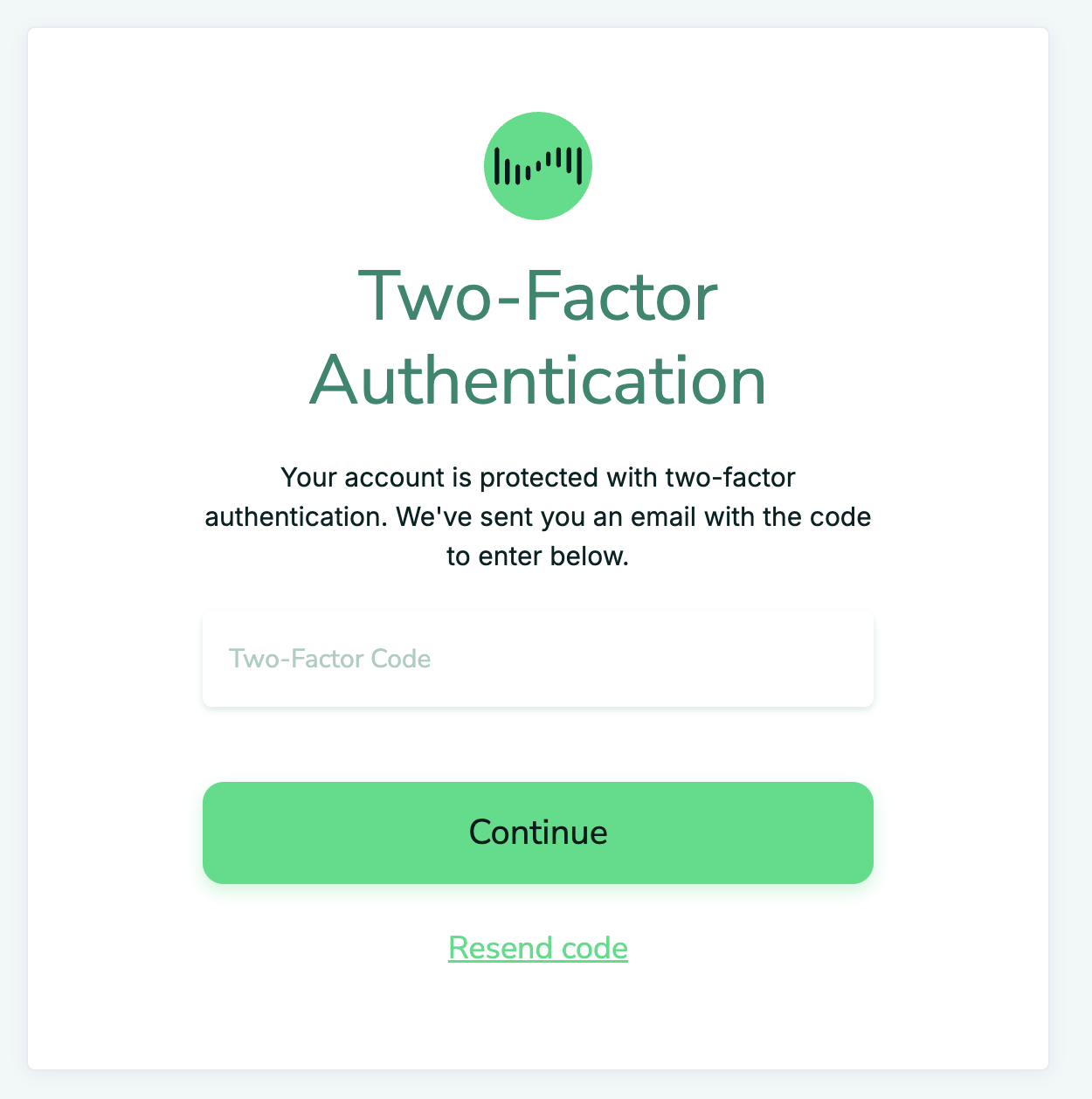
Check your Email. You will be asked to check your 2FA details
⚠️ If you don’t receive an email, firstly check spam, and secondly please check the Sequence welcome email that you registered with initially - these must match. 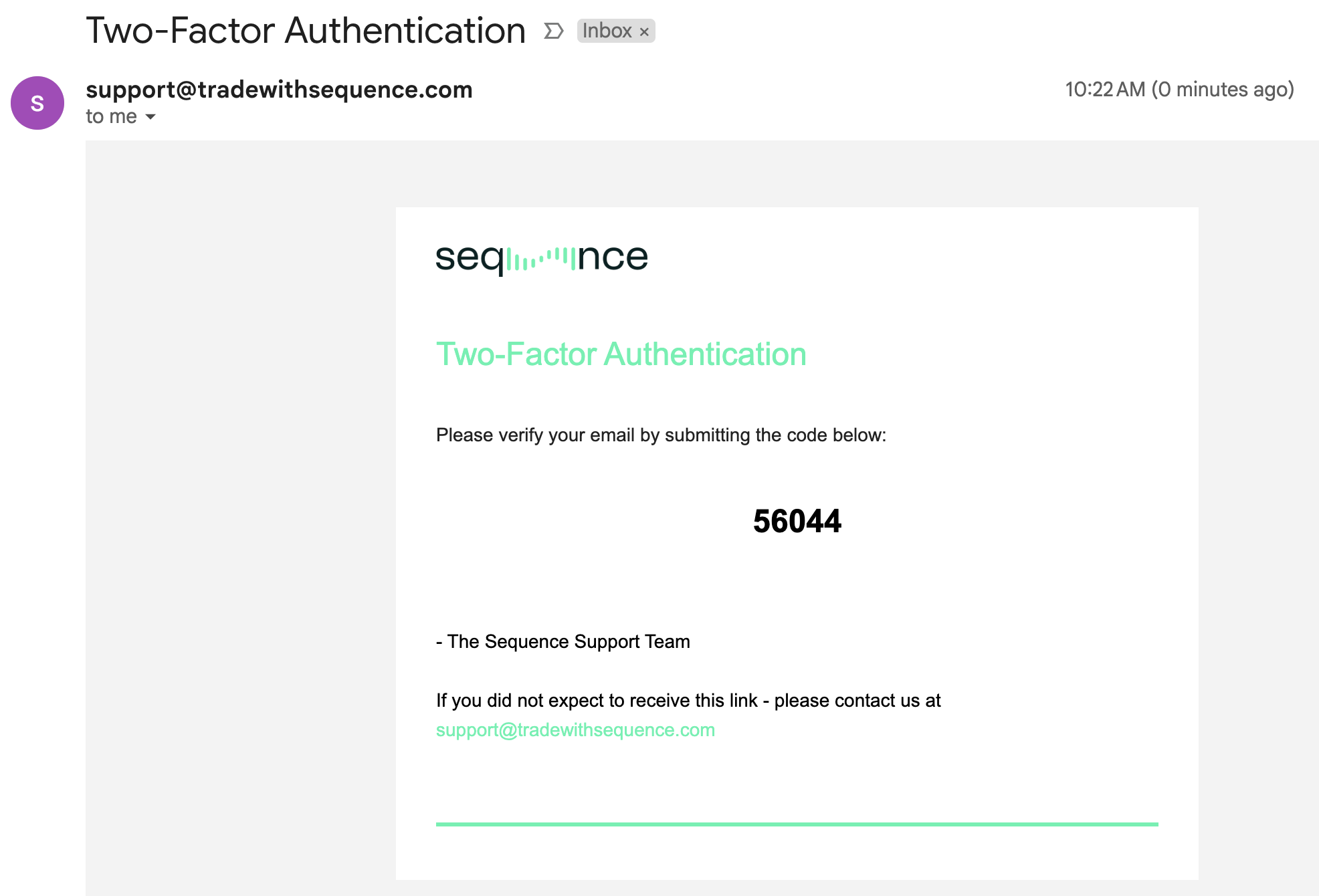
Enter 2FA Details in the web interface (Left image)
You will be redirected to the Main Dashboard.
In the top right corner or in the left-hand panel of the Dashboard, you will see “Add Strategy.”
Click “Add Strategy” to set up a new trading bot for the first time.
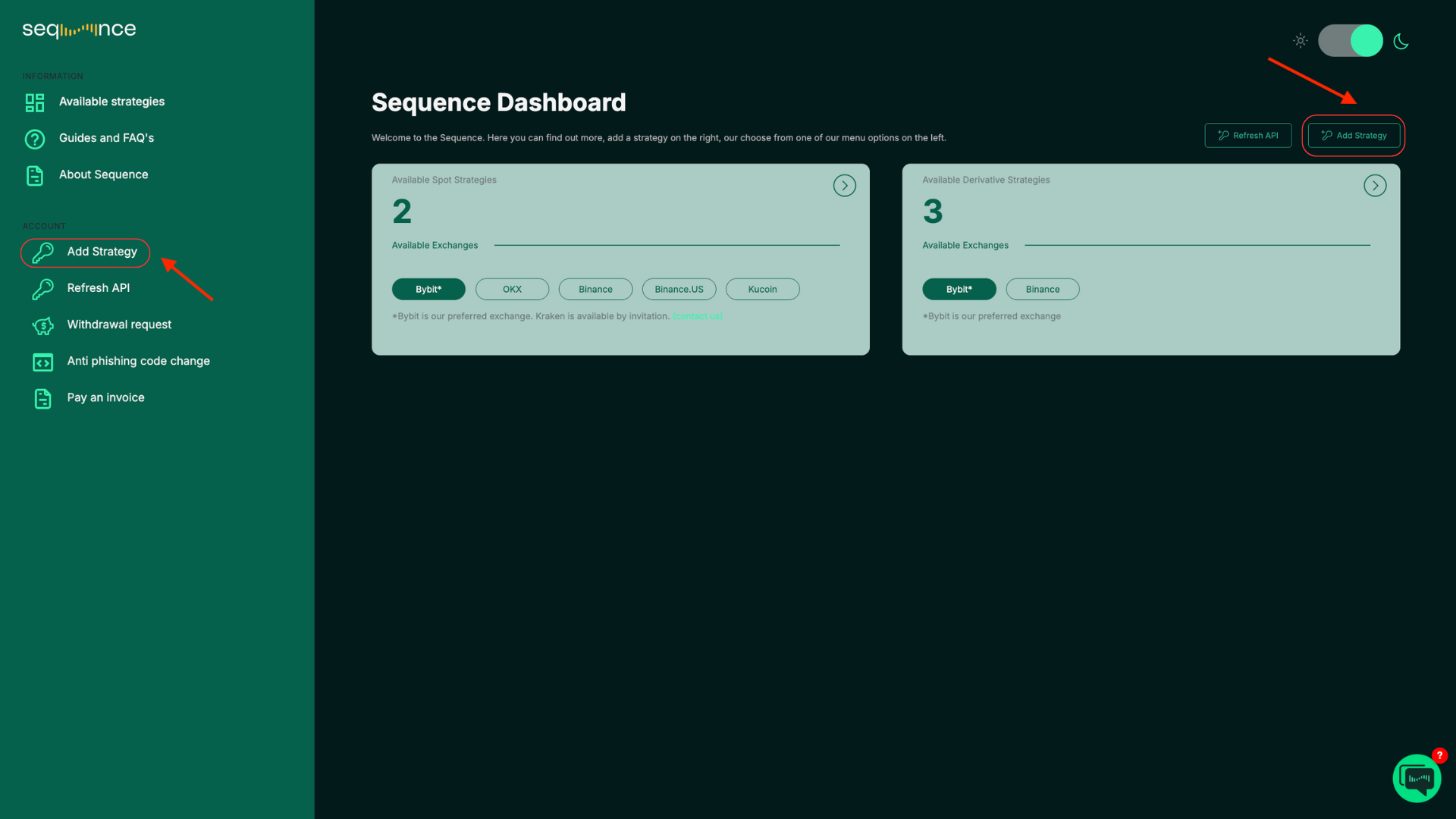
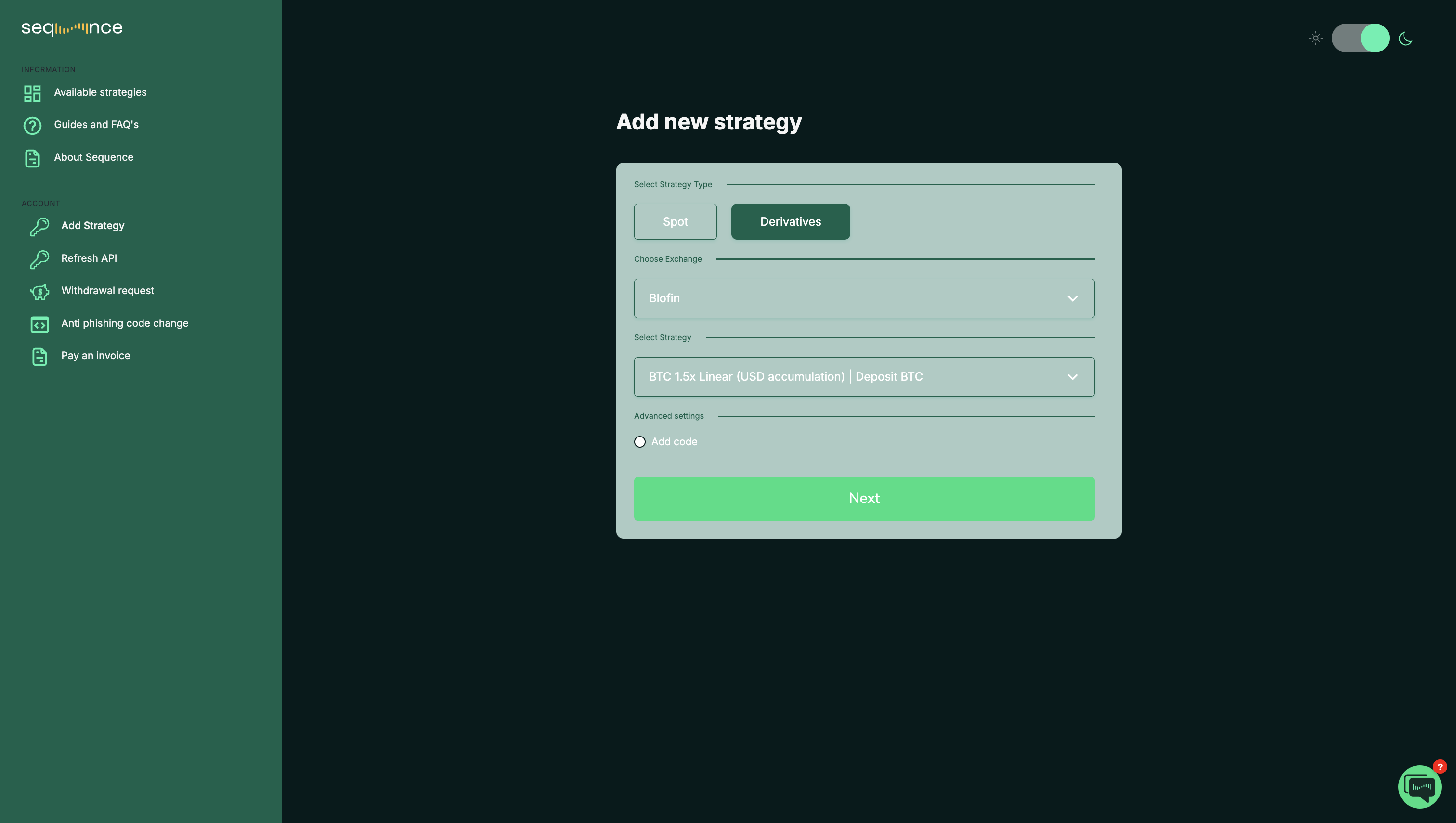
Choose “Derivatives”
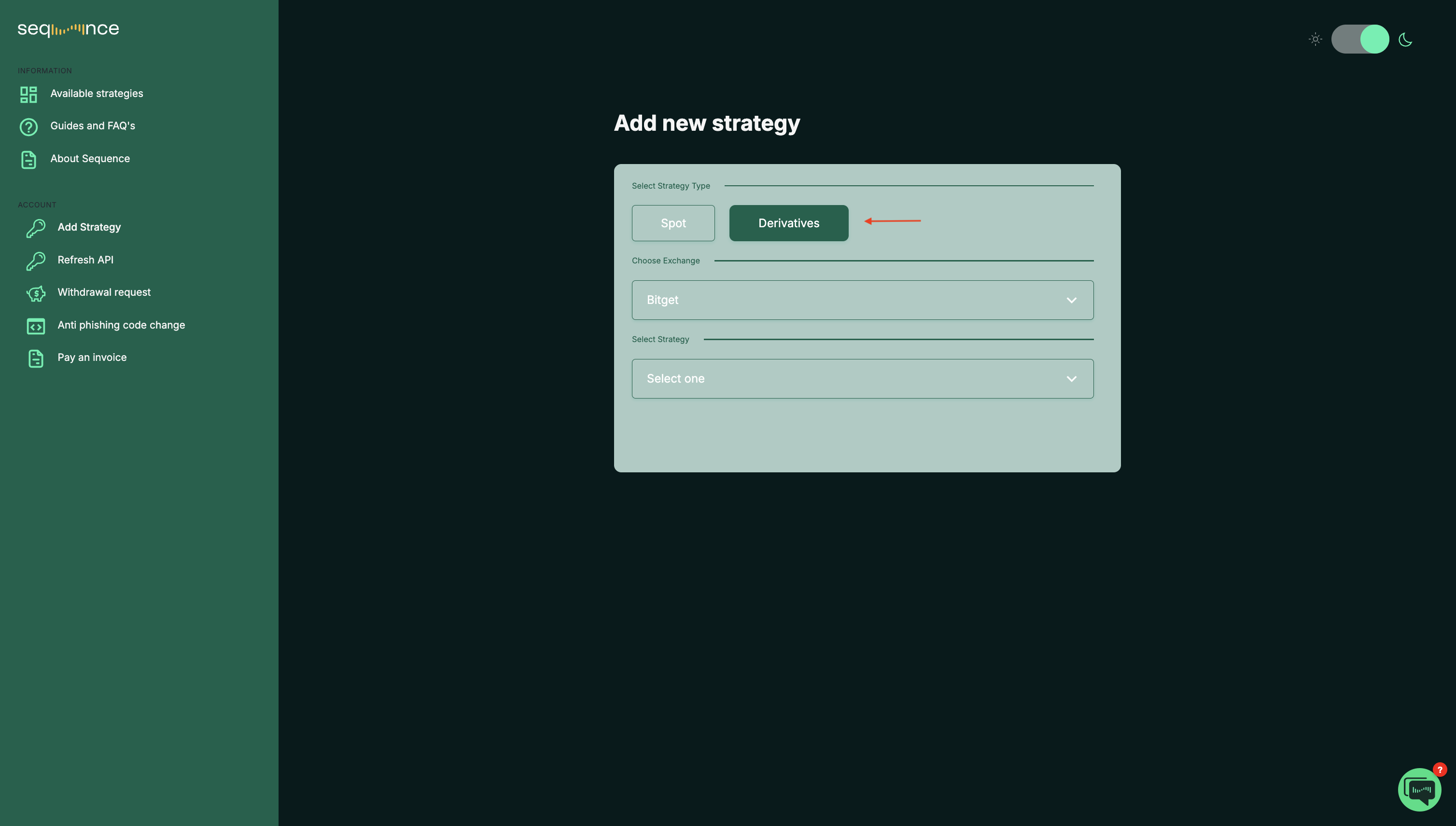
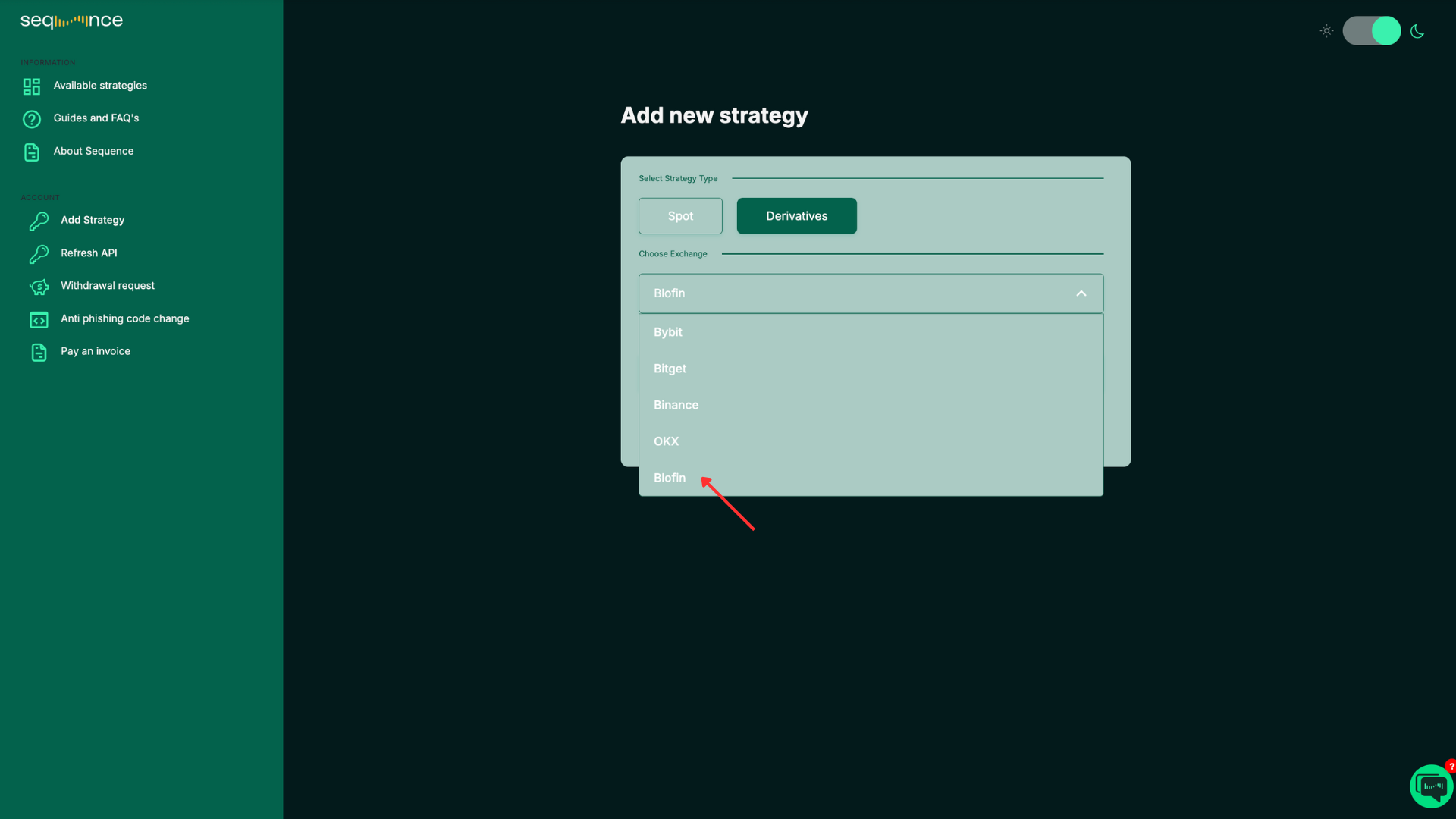
Tip: Click anywhere outside the menu to close the dropdown. Choose your “Exchange: Blofin”
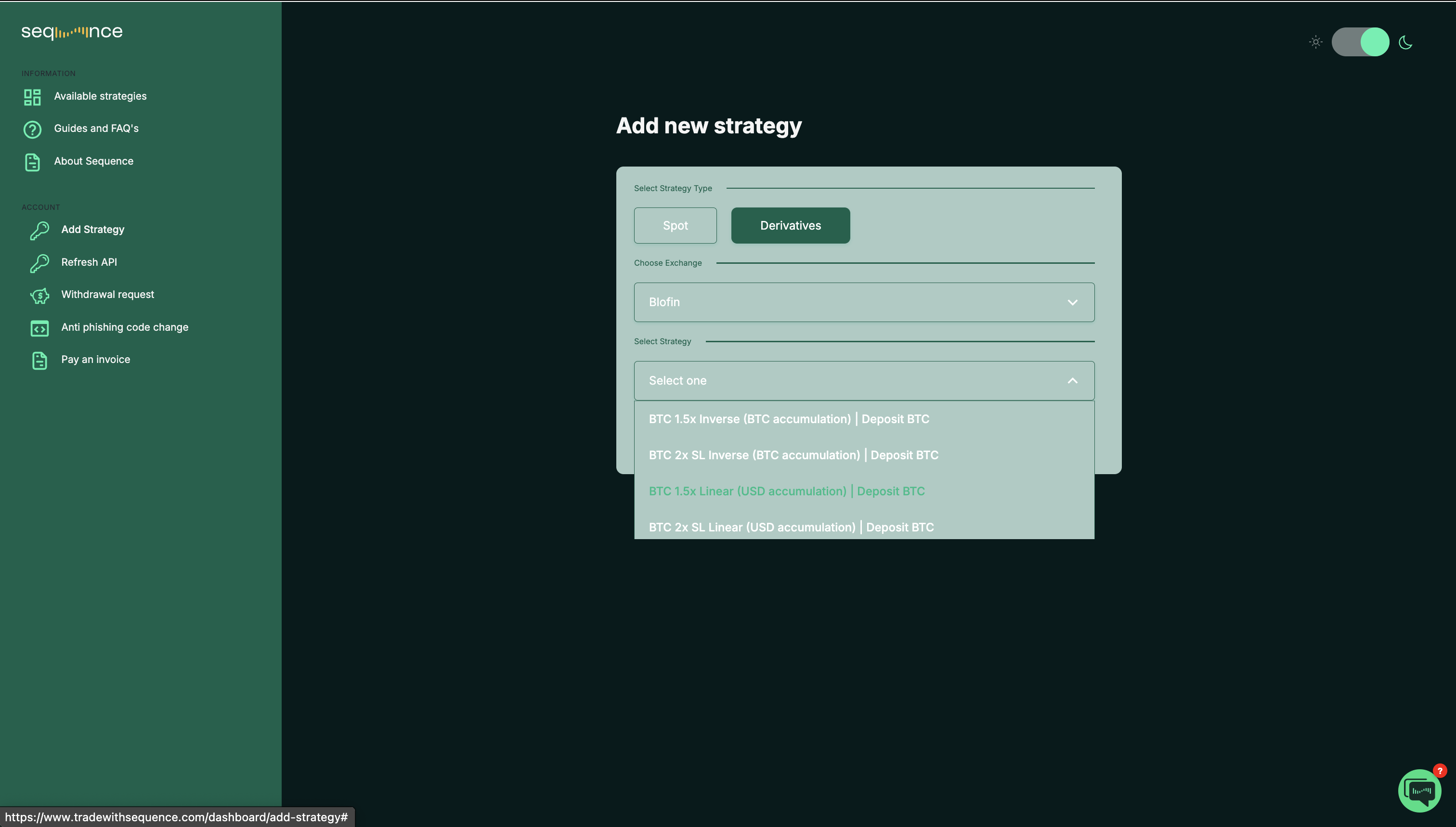
Tip: Click anywhere outside the menu to close the dropdown. Select your “Strategy”.
Important Note: Strategies labeled “Invite Only” are limited to specific users. Please contact us to check your eligibility.
Tip: Click anywhere outside the menu to close the dropdown. Click “Next”.
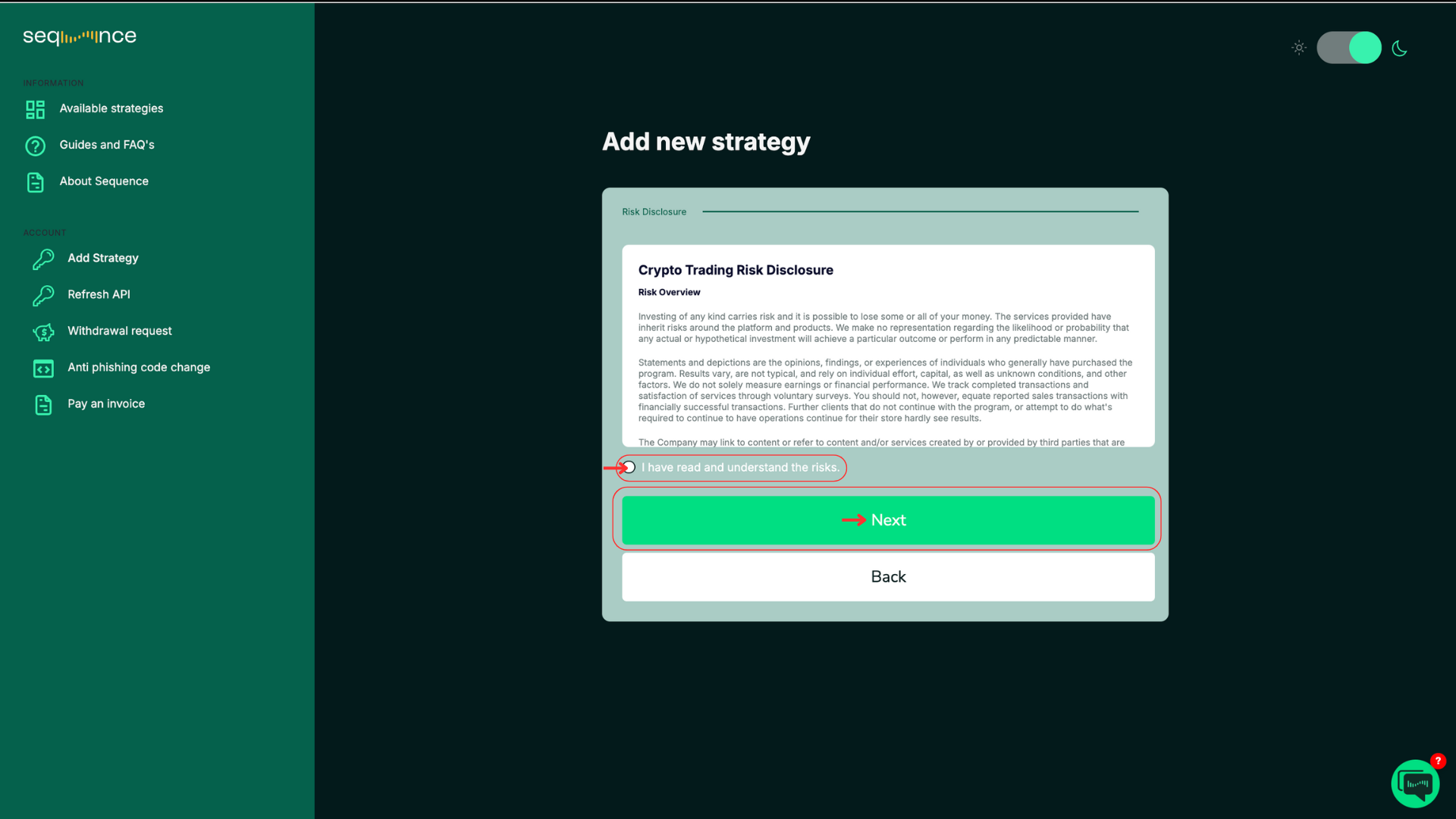
Tip: Click anywhere outside the menu to close the dropdown. Read and Accept to the Crypto Trading Risk Disclosure.
Make sure you understand the trading risks in the disclosure.
Click “I have read and understand the risks” and then click “Next”.
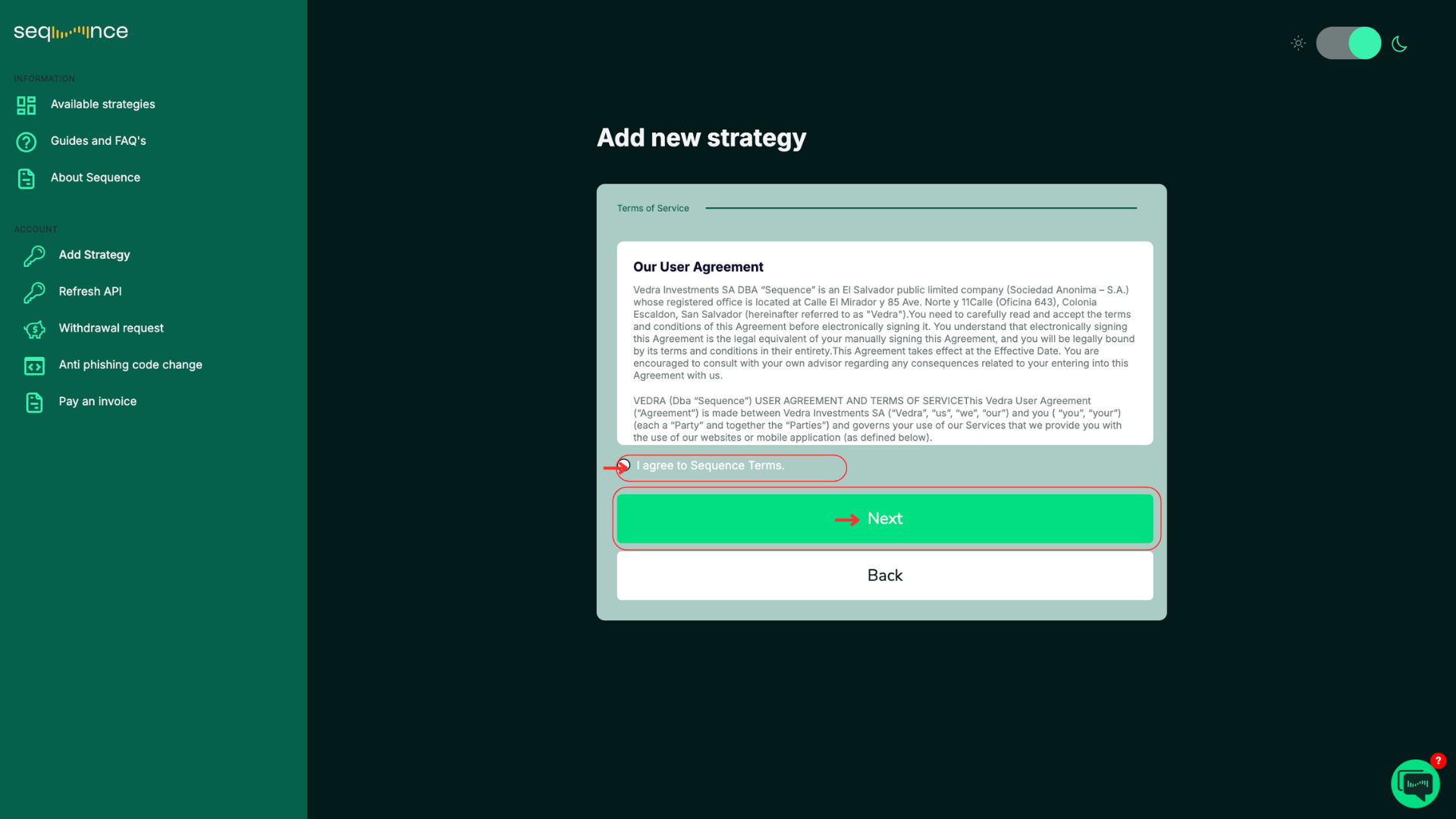
Read and Accept to our User Agreement.
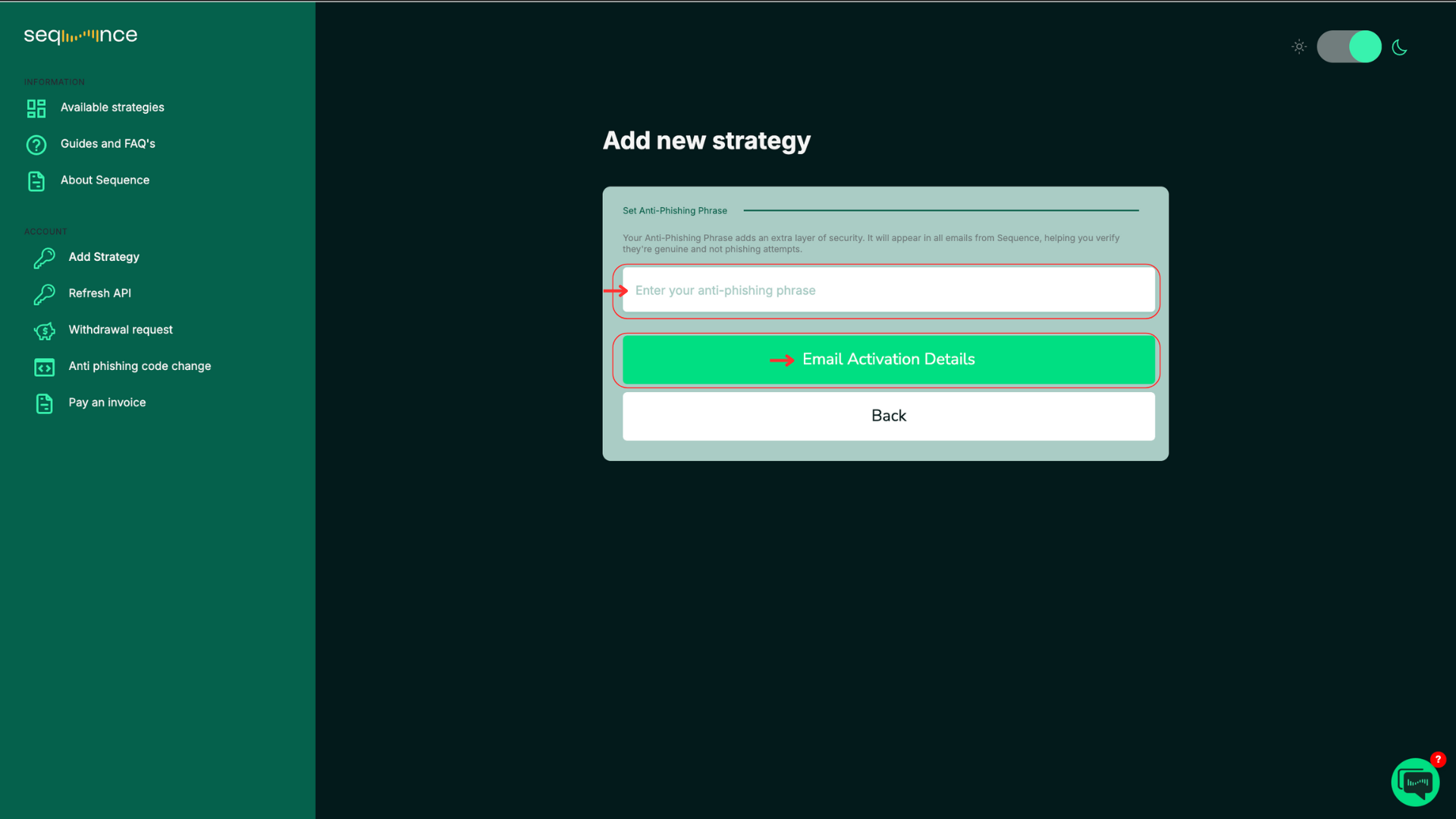
Set Up Your Anti-Phishing Code
Enter a word or code between 4 to 20 characters. This code helps you verify that messages you receive are genuinely from Sequence.
Then click "Email Activation Details".
A “Please check your email” message will appear. Check your email.
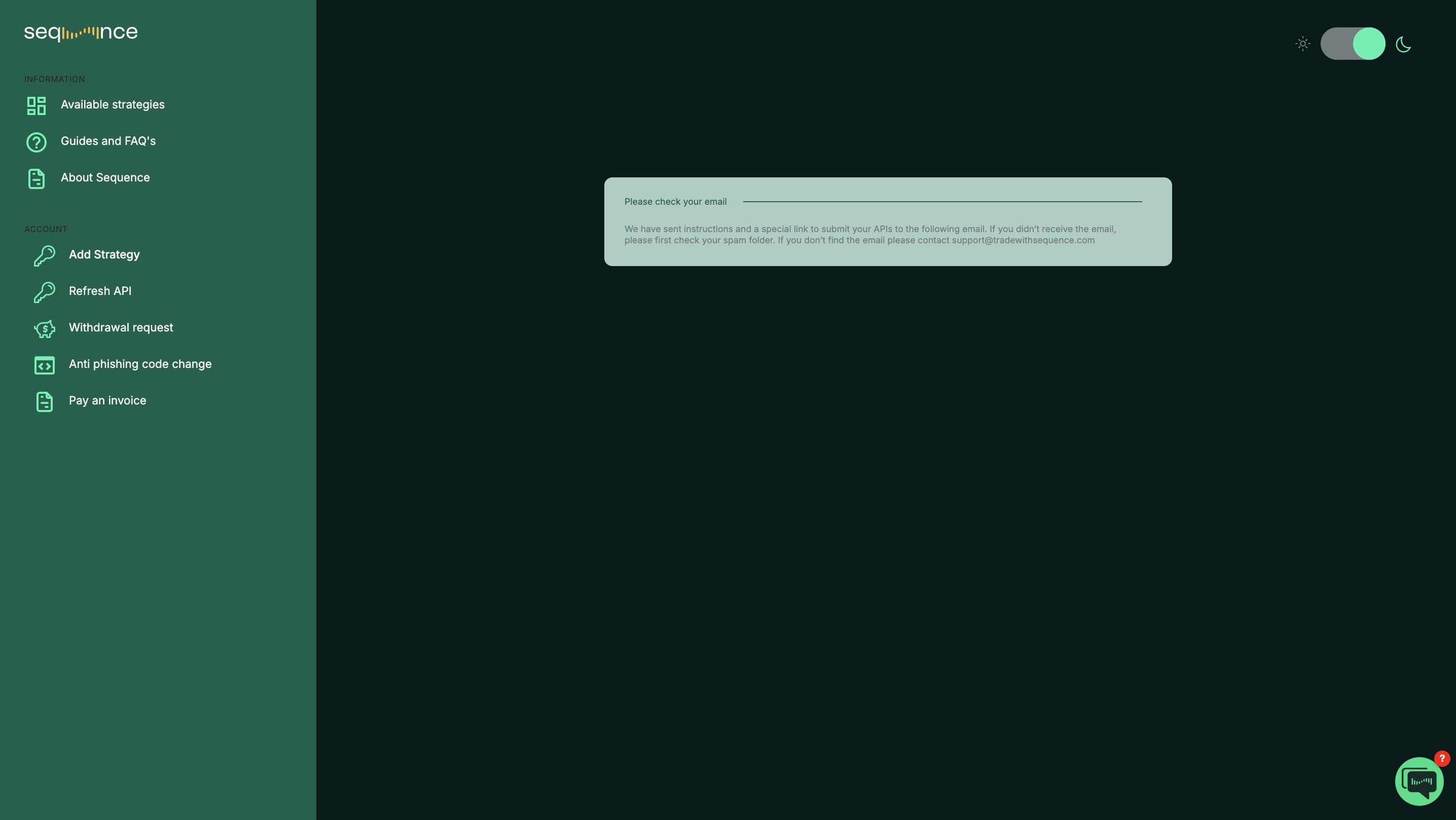
We have sent instructions to the email address you registered with.
If you don’t see the email in your inbox, check your Spam or Junk folder.
If you still can’t find it, contact support@tradewithsequence.com.
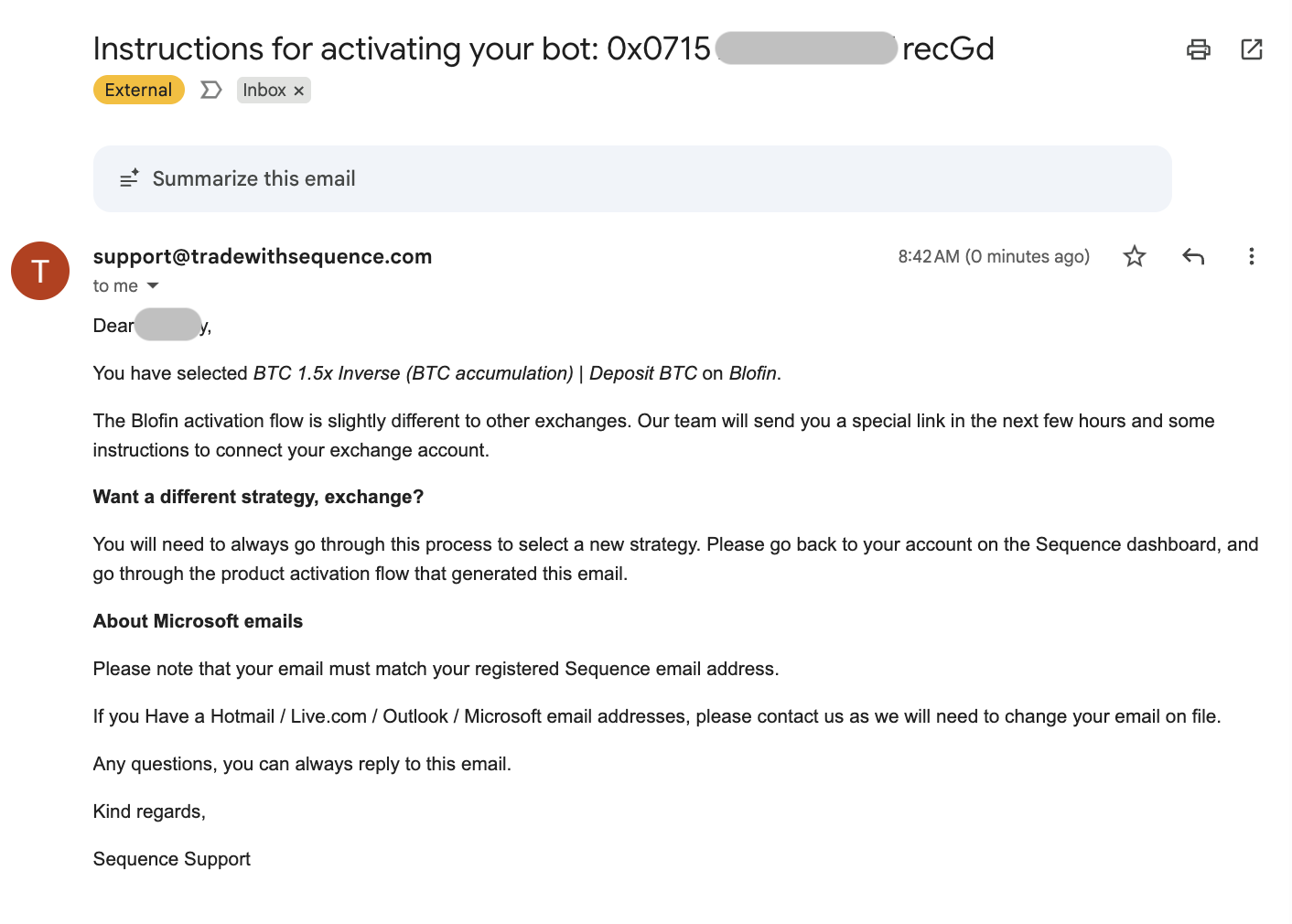
Step 5: Open your connection link
⚠️ Important:
Each submission link is valid for a single use only. If you make an error, or don’t complete the connection within 24 hours, the link will expire automatically and you’ll need to request a new one by contacting support@tradewithsequence.com
Open your personalized link and select “Blofin Futures” as the exchange.
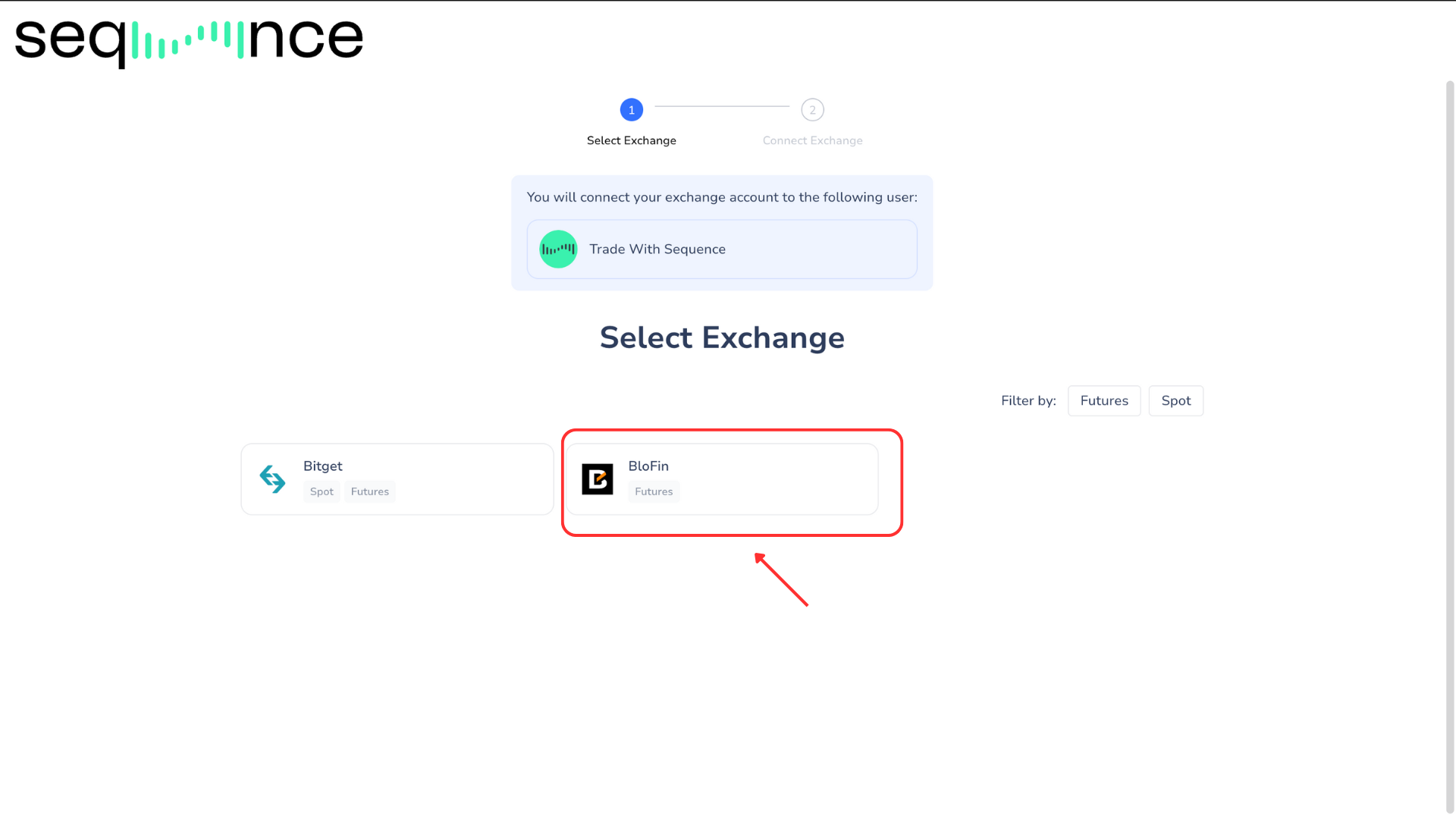
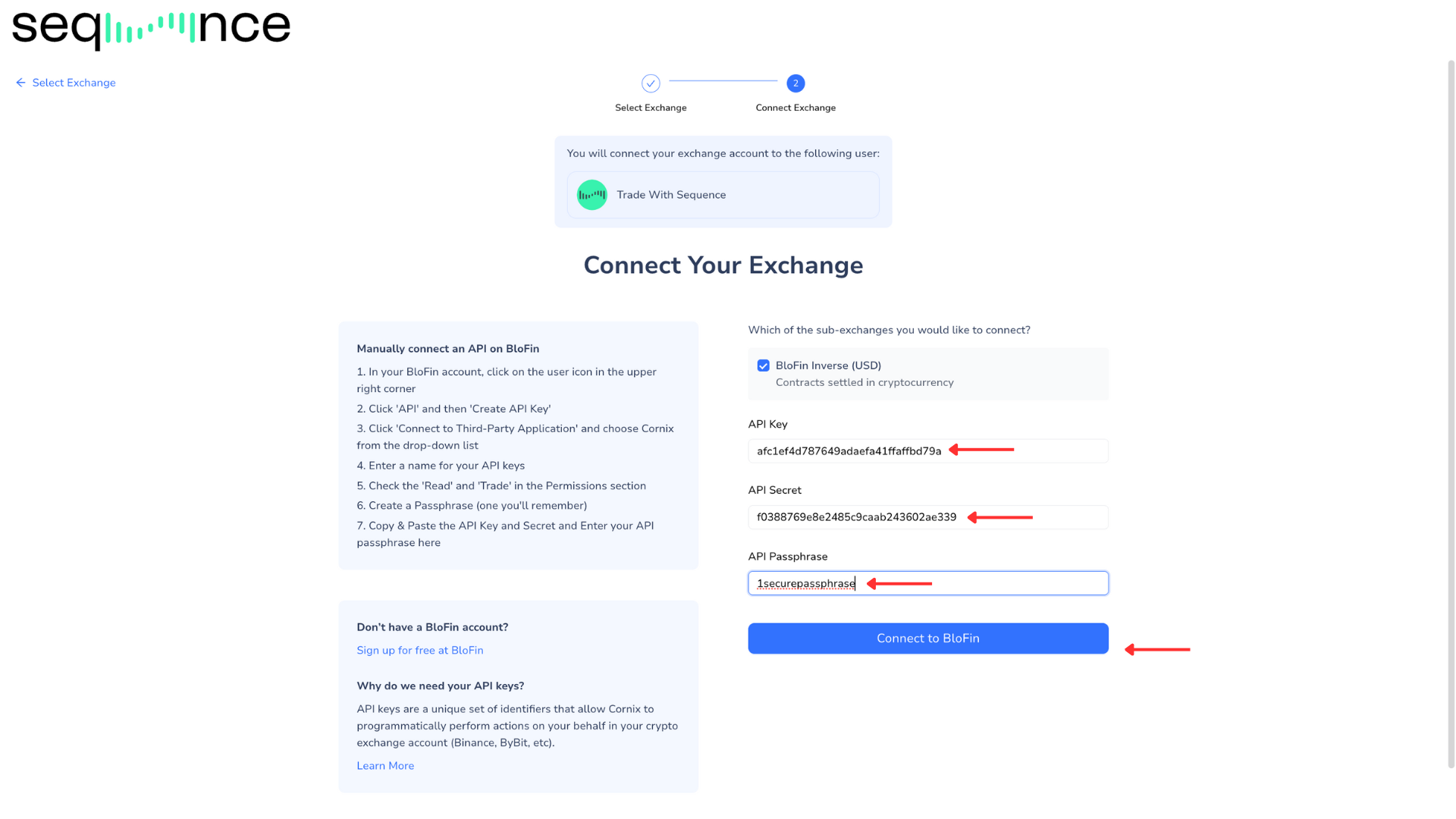
Paste your “API Key”, “API Secret”, and “API Passphrase” into the fields provided, then click “Connect to BloFin” to finalize the setup.
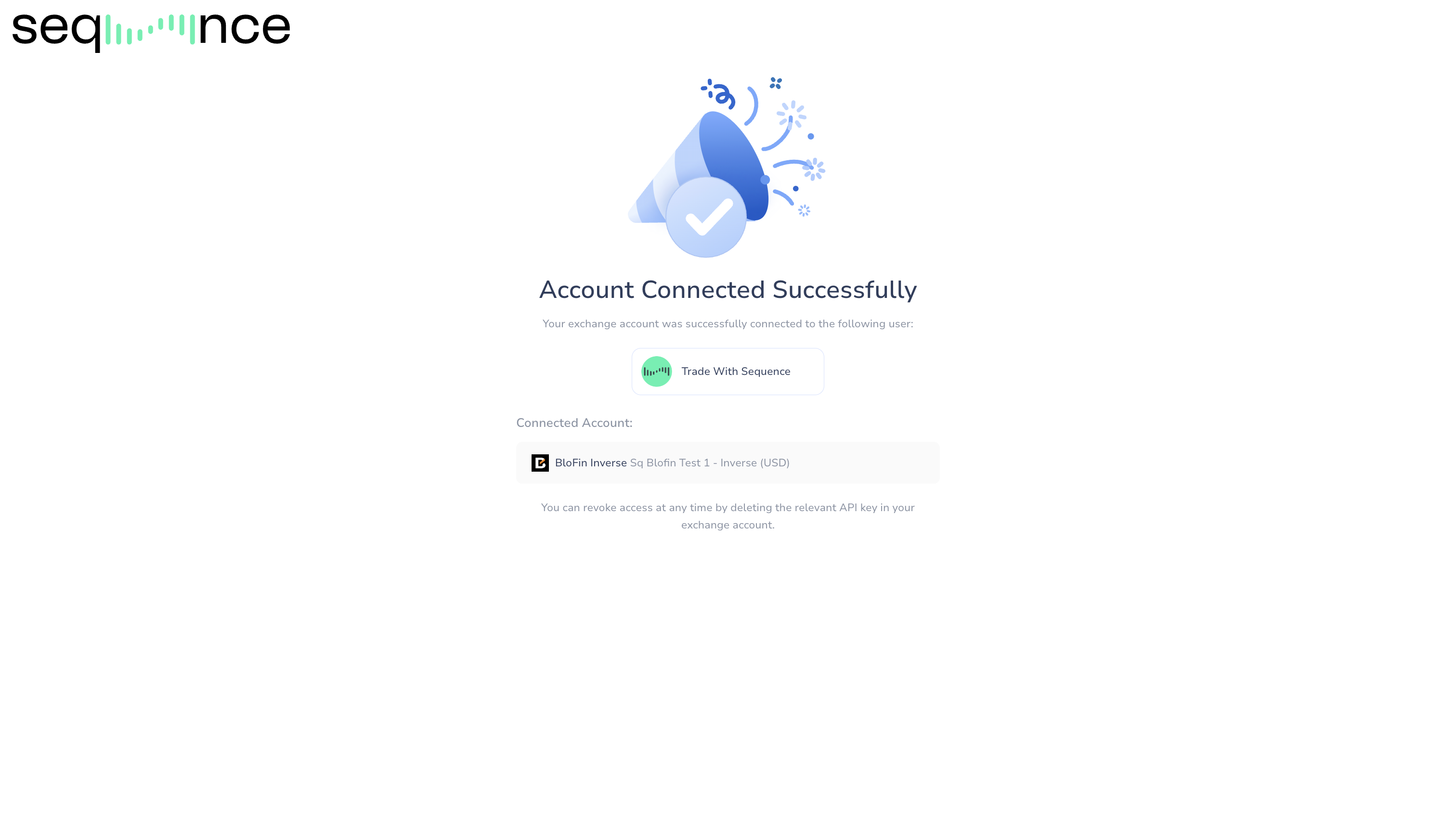
You’ll see a confirmation message: “Account Connected Successfully.” This means your dedicated Blofin Derivatives sub-account is now securely connected to Sequence.
Notify Sequence to Review Your Connection
To proceed with the review and activation of your strategy, please email us at support@tradewithsequence.com from your registered email address to confirm that your account has been connected.
Please include your Client ID or Bot ID (e.g., Client ID = 0x001 / , Bot ID = 0x001 / Fibonacci / Hxq01).
Once we receive your email, our trading team will review your setup. Within 24 hours, you will receive an email confirming one of the following:
✅ Your strategy has been successfully launched, or
⚠️ A correction is needed before activation (e.g., sub-account settings, strategy selection, or funding requirements).
If approved, the confirmation email will include your Sequence Bot ID, strategy name, and anti-phishing word for future reference.
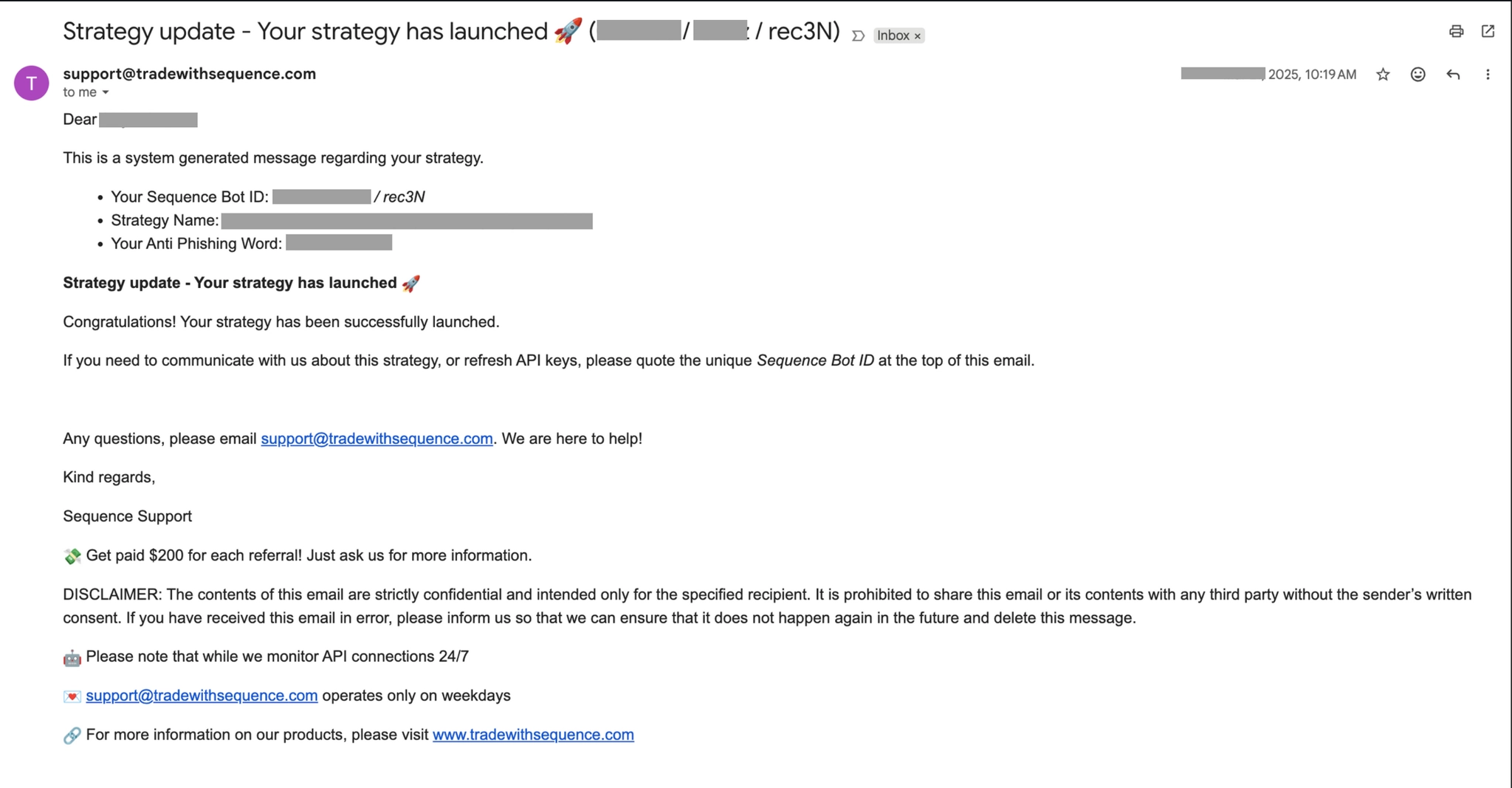
Example confirmation email
Additional Information
⁉️ API validity
API validity - is permanent for this method. You remain in full control of your funds at all times. Our platform operates by delivering automated trading signals through your exchange account via API.
Our system is designed to enhance your trading experience while maintaining complete control and security over your assets.
Please visit our intro video on API keys here: What are API Keys?
⁉️ Trade only permissions
The API permissions we require provide strictly controlled access exclusively for executing trades on your exchange platform. To ensure account security, these permissions do not allow for any withdrawal or transfer capabilities of your funds.
⁉️ Security recommendation
What's next?
We recommend reviewing the sections below, which address common questions about what happens next.
🟢 What to expect
The algorithm employs a systematic approach, placing strategic orders based on bidirectional price action.
The algorithm intentionally places smaller trades when price ranges are tight. Therefore during sideways or upward-only price movements, the strategy maintains conservative trade sizes. Conversely, larger trades require more significant price movements in both directions for effective execution and closing.
🟢 Adding funds
The system takes into account the total balance of the account after the close of each trade / before the start of a new trade.
This means that additional deposits can be made at any time and the system will recognize the deposit at the start of the new trade.
For the funds to be recognized, please ensure funds are deposited into the Unified Trading Wallet (on Bybit) or account where you are trading (on other exchanges) AND deposited in the strategy's base currency.
🟢 Withdrawing funds
For security purposes, please notify us before making any withdrawals that exceed 5% of your total wallet balance. This security measure allows our team to safely pause the automated trading functions before processing your withdrawal.
You can submit withdrawal notifications through your user dashboard or by emailing us at support@tradewithsequence.com
For more details, visit our How to Withdraw Funds Safely guide.
🟢 How to monitor your strategy
You can monitor your strategy's performance directly through your exchange interface by looking at the trade history. We recommend doing this in your desktop browser.
For accurate performance tracking, please keep in mind that exchanges display (PnL) metrics in USD terms. This is relevant for any strategy that is accumulating Bitcoin — as the unit of account will be incorrect. You must look or export the close trades and then compare the results in your account.
Critical Guidelines for Active Strategies
Once your strategy is active, please keep the following in mind to ensure everything runs smoothly:
🔴 Manual trades: Do not perform any manual trades in the sub-account running the algorithm
🔴 Withdrawals: Do not withdraw more than 5% of your total wallet balance without notifying us first
🔴 Non base asset withdrawal: Do not withdraw from any asset other than the coin that you are accumulating
🔴 Non base asset additions: Do not add any currency or coins, other than the base asset you are accumulating
FAQs and Troubleshooting
How do I create a sub-account in the app?
For further details please visit: What is Sub-Account?
How do I log in to my sub-account?
There are two ways to log into your Sub-account: click Switch Account, or select Sub-account.
Log in to your main account at BloFin.com, click User Avatar, and select Sub-account.
Click User Avatar, then select Switch Account to switch between your sub-accounts and the main account.
Switch Account: if you click Switch Account, there will be a list of sub-accounts that you've created, select the sub-account that you would like to log in to access.
Sub-Account: If you select the Sub-account tab, you will be directed to the sub-account list page, click Switch on the sub-account.
How Do I Transfer My Crypto Into My Sub-account?
You can only transfer crypto from your main account to your sub-account. To move funds back to your main account, initiate the transfer from the main account.
For further details please visit: How Do I Transfer My Crypto Into My Sub-account?
How Do I Transfer among Main Account and Sub-accounts?
For further details please visit: How To Transfer Assets among Different Accounts?
Which account do I use for withdrawals?
Always withdraw from the Funding Account. If your funds are in Spot, Futures, or Earn, transfer them back to Funding first.
For further details please visit: How To Withdraw From BloFin?
Do I need to create API keys manually in Blofin?
Yes, please refer to Step 3 👉 Create API Keys of this guide
What happens if I didn’t save my API Key, API Secret, or API Passphrase?
If you didn’t save your API Key, API Secret, or API Passphrase, you will need to create a new set of API keys in BloFin. For security reasons, neither BloFin nor Sequence can retrieve or recover these credentials once they are generated. Simply delete the old API key and create a new one, then reconnect it to Sequence.
Why does the page show “Invitation Not Valid” when I try to open my submission link?
If you see the message “Invitation Not Valid — The invite link has already been used”, it means your personalized submission link has expired or has already been used once.For security reasons, the link will expire in 24 hours.
Each submission link can only be used a single time for security reasons.
To proceed, please email support@tradewithsequence.com from your registered email and request a new personalized submission link.
Why am I receiving "System connected - Insufficient funds" after submitting my API Keys?
In most cases, this happens due to one of the following reasons:
The funds are located in your Main account instead of the Sub-account→ COIN-M Futures wallet.
Solution: Verify where your funds are located. If they are not in the correct sub-account and wallet, follow Step 2 – Transfer funds to transfer them properly.
The submitted API Keys were created from the Main account rather than from the intended Sub-account.
Solution: Create a new set of API keys in the correct sub-account, then request a new personalized connection link and submit the new keys.