
OKX Spot - Setup Guide
How to connect your OKX Spot account to Sequence.
Table of contents
- Before you Start
- Step 1: Create a sub-account
- Step 2: Transfer funds
- Step 3: Create API keys
- Step 4: Go to Sequence Home page
- Step 5: Sign Up
- Step 6: Check your Email
- Step 7: You will be redirected to the Main Dashboard
- Step 8: Add new strategy
- Step 9: Submit your API Keys
- Step 10: You will receive an email confirmation
- Additional Information
- What's next?
- Critical Guidelines for Active Strategies
Key terms on this page
This comprehensive guide walks you through the full process of setting up your OKX Spot — from funding and margin configuration to creation and submission to Sequence.
The guide is organized into the following sections:
Available Strategies on OKX Spot:
Before you Start
Use a Desktop Browser for Best Results.
We strongly recommend completing the setup process on a desktop browser, preferably Chrome. In our experience, doing this on a mobile web browser can be quite difficult — while not entirely impossible, the process is significantly less smooth. Additionally, API configuration is not supported in the native exchange applications (e.g., the Binance or Bybit mobile apps), so it's important to use a desktop environment for a successful setup.
Primary Email Requirement
Your registered email is the one linked to your active strategy or bot, and it’s the only one authorized to receive private account information. 2FA codes, invoices, and sensitive support responses will only be sent to this email.
Microsoft Email Users (Hotmail / Outlook / MSN / Live):
If you’re using an email address from Hotmail, Outlook, MSN, Live, or any other Microsoft-related domain, please note that these are not compatible with key features in the API connection manager. If you use one of these email service providers you must contact our support team before continuing.
Regional domain
If your OKX account was created on app.okx.com (US/AU regional), please note that this version is not supported. Only accounts on www.okx.com (Global) and my.okx.com (EEA) can connect to the system.
status
Please ensure that KYC verification has Level 1 completed on your OKX account before attempting to connect.
Step 1: Create a sub-account
First, create a dedicated sub-account exclusively for trading with Sequence. Each strategy requires its own sub-account to ensure optimal performance — do not manually modify positions or place trades within it.
Please view the OKX guide on how to create a sub account
Step 2: Transfer funds
Next, transfer the required minimum balance ($20,000 USDT or USDC / 0.2 BTC).
Adding funds to your account: please check the following OKX guide
or
Transferring funds to your sub account: please check out the following OKX guide
Make sure to transfer your assets from your funding account to your trading account. Minimum required $20,000 USD or 0.2 BTC.
Step 3: Create API keys
Make sure to create the API keys for your dedicated sub-account.
Go to your API Management page to access your API settings.
Click “Create API key”. You’ll find the button in the top right corner of the API management page.
Fill out the API key form:
Set an “API Key Name” (e.g., Sequence Trading)
Under “Purpose”, select “API Trading”
Under “Account”, choose “your dedicated Sub-account” for this strategy
Under “Permissions”, enable “Trade“
Create a secure “Passphrase” — you’ll need to share this with the Sequence team
Click Submit All
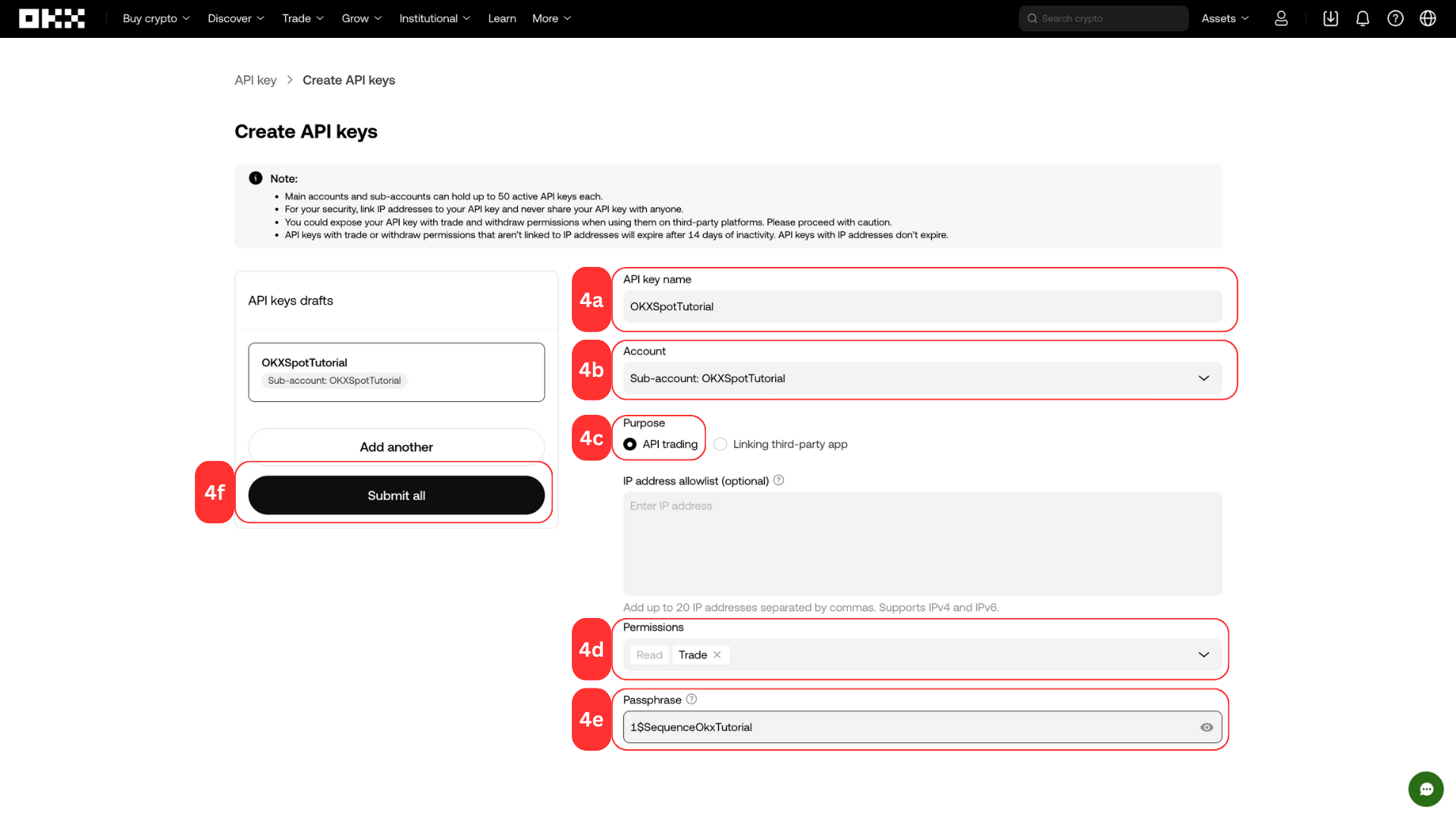
Solve the 3 steps 2FA code
Click “Confirm.” A modal will appear — click “Show Info.”
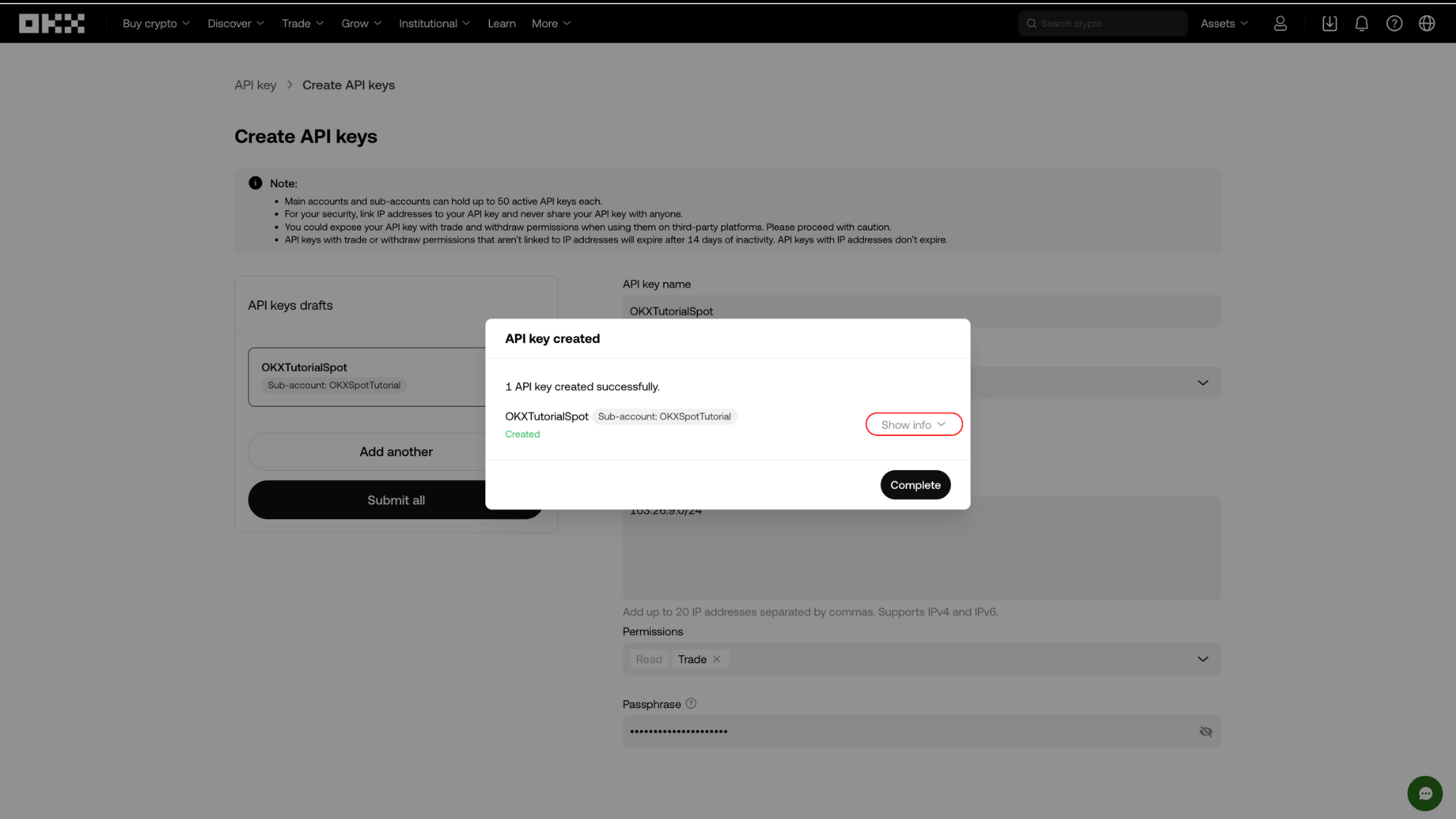
Copy your API Key and API Secret before leaving the screen
API Key = 36 characters
API Secret = 32 characters
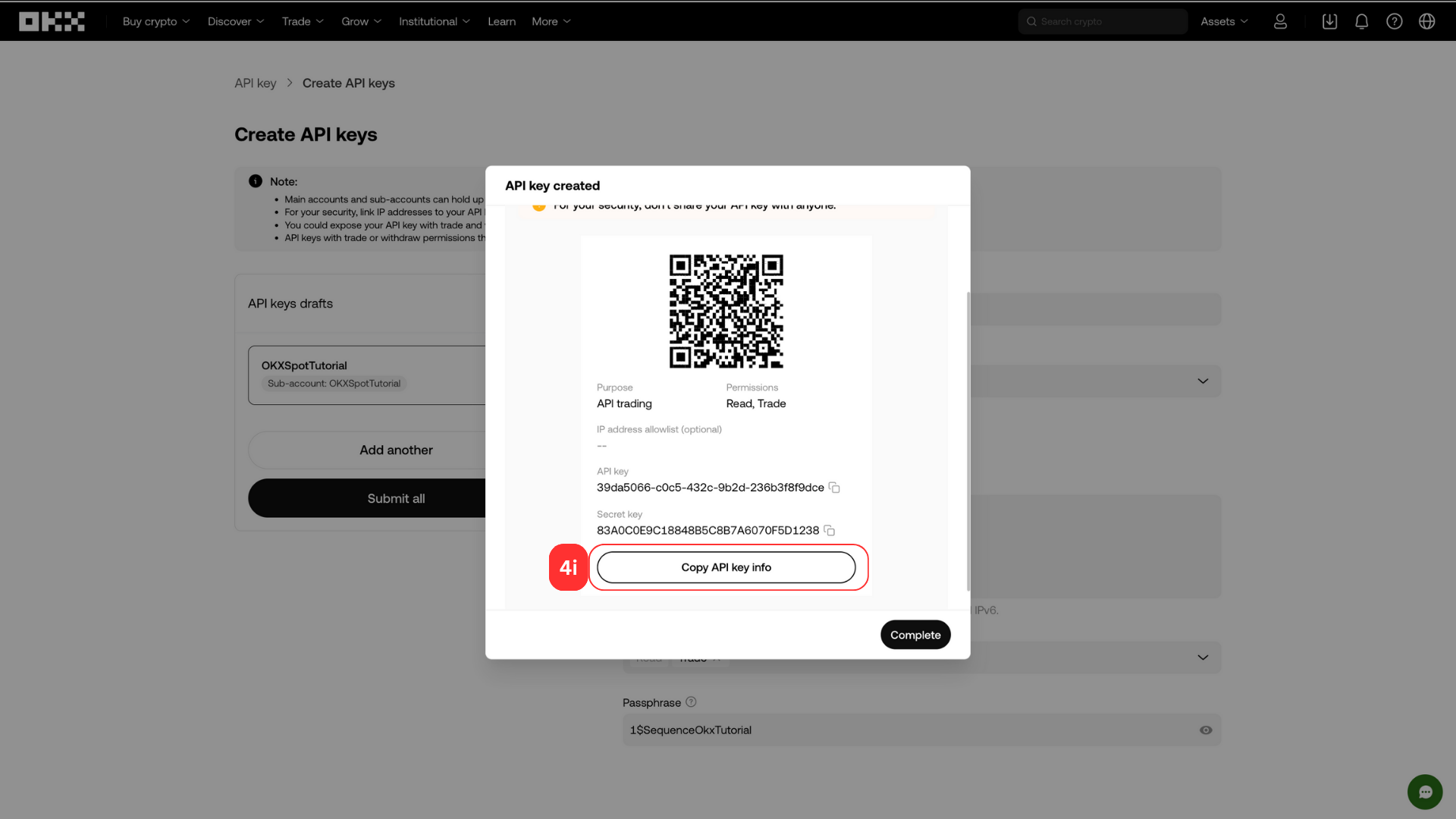
⚠️ Your Passphrase must also be sent with the API credentials, OKX nor Sequence cannot recover the Passphrase if you have lost it. You will need to create a new set of API Keys.
Step 4: Go to Sequence Home page
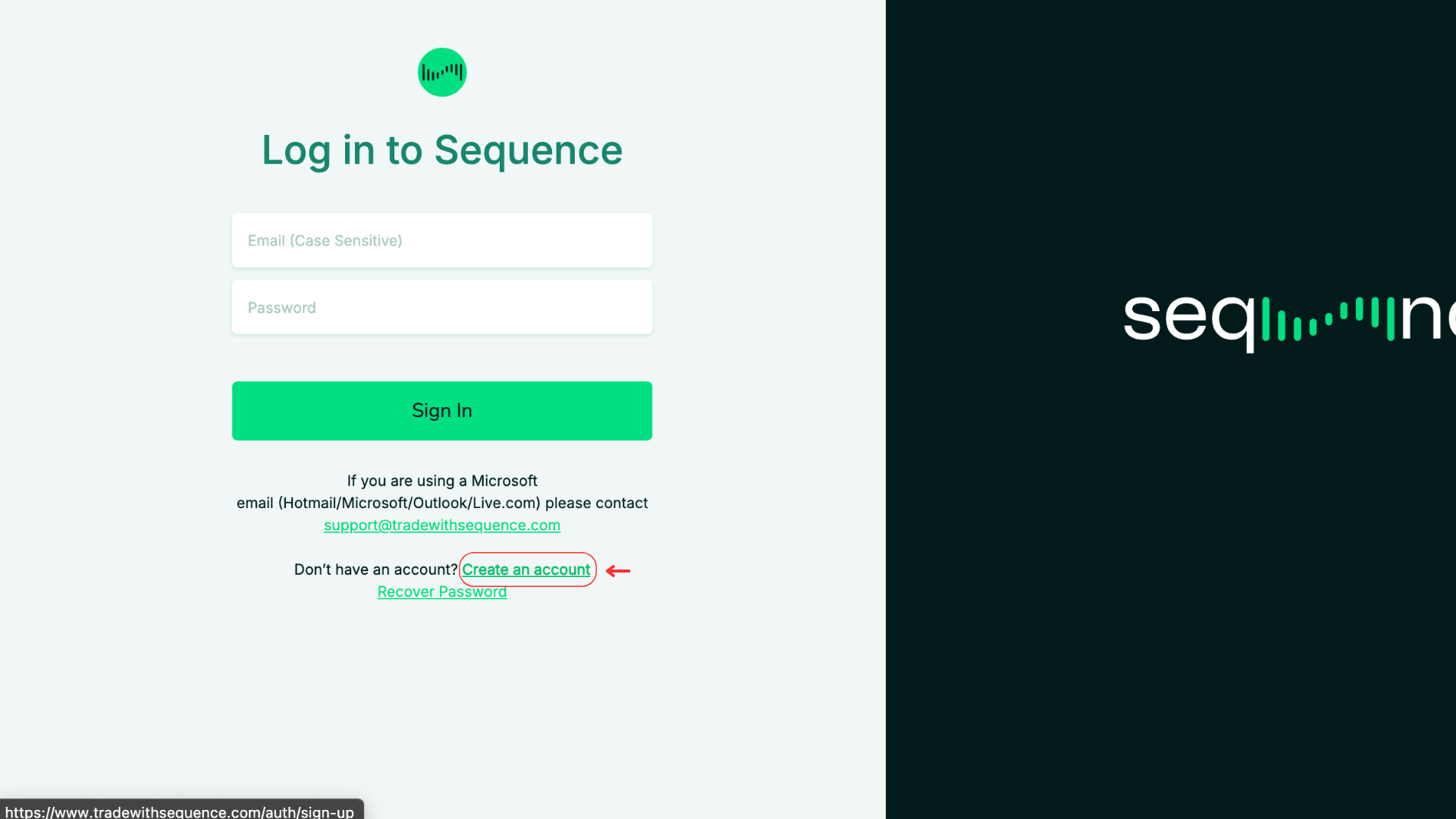
Click “Sign in”
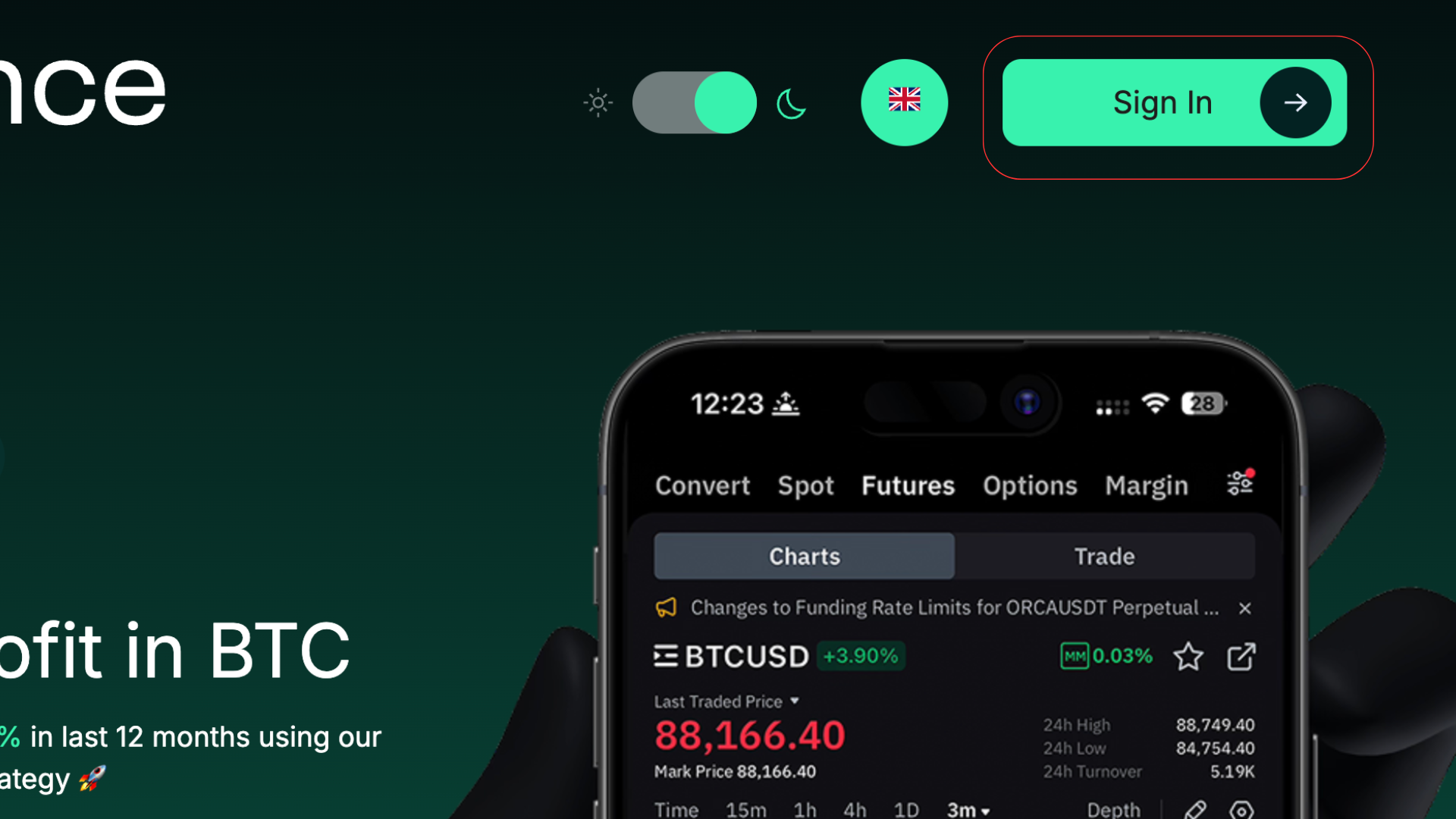
Step 5: Sign Up
If you don’t have an account yet, click “Create an Account” to sign up.
If you already have an account, enter your credentials to sign in.
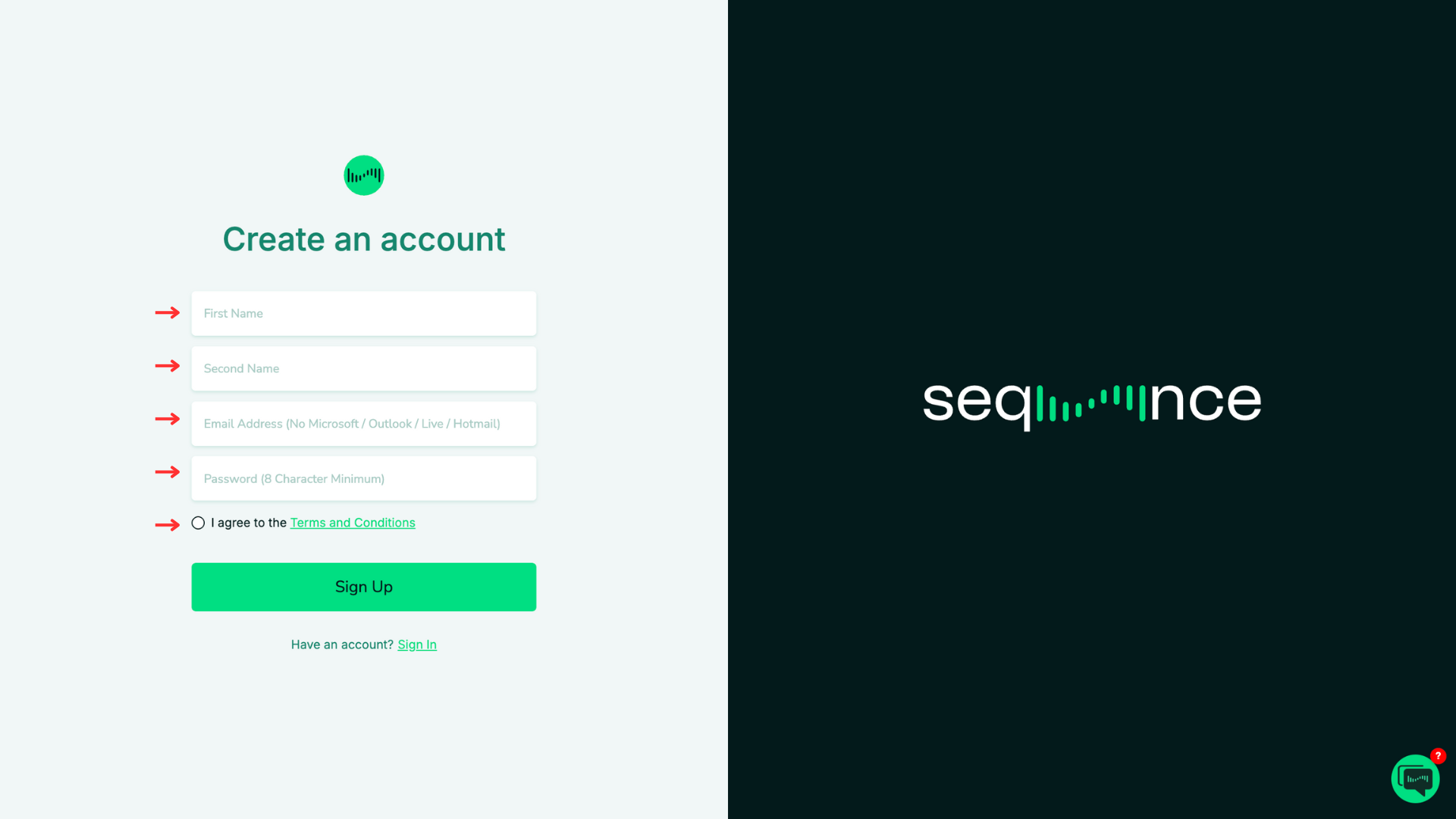
On the Create an Account screen, complete all required fields: First Name, Second Name, Email Address (no Microsoft/Outlook/Live/Hotmail), and Password (minimum 8 characters).
Check the box to agree to the Terms and Conditions.
Click Sign Up to create your account.
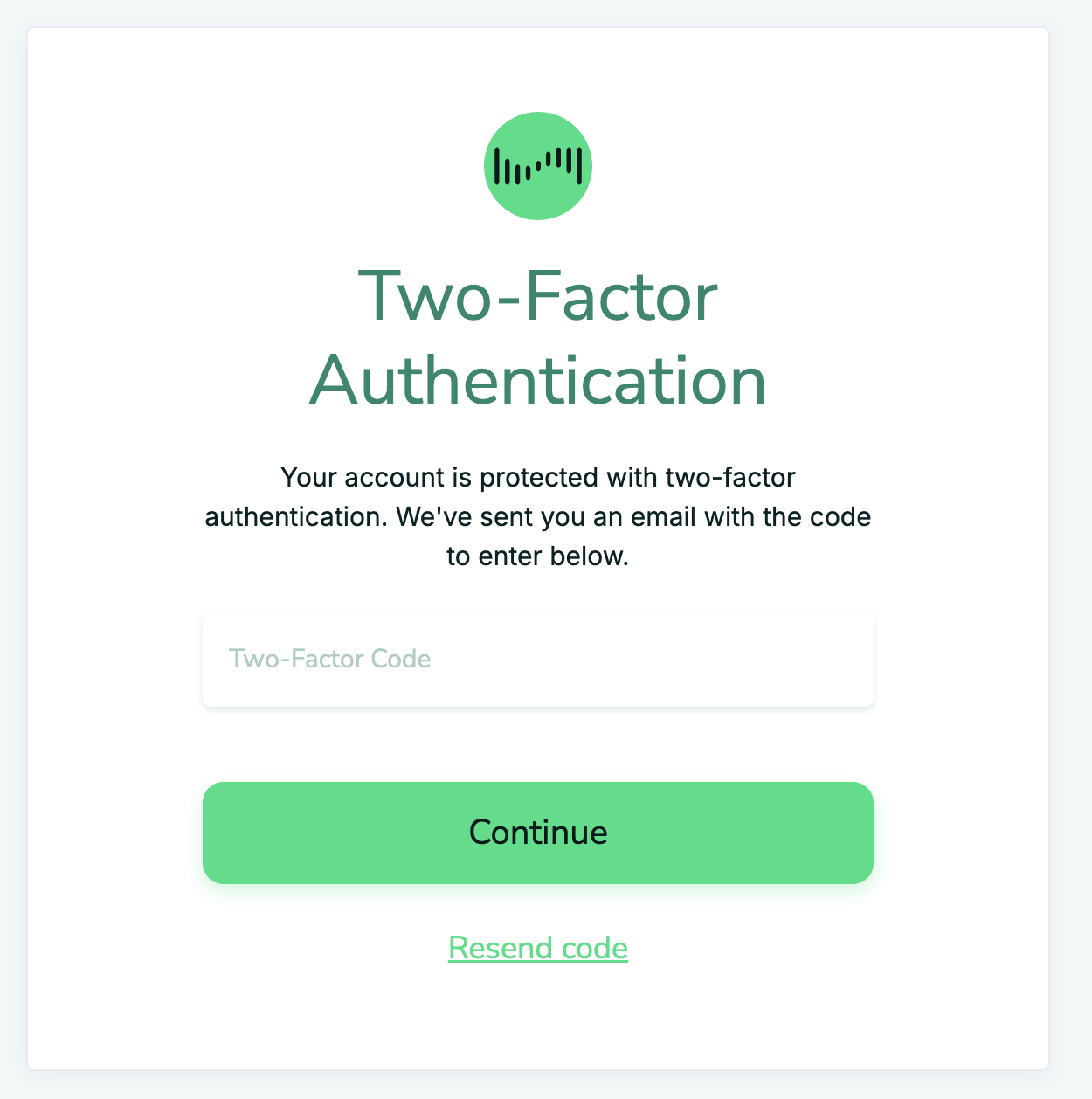
Step 6: Check your Email
You will be asked to check your 2FA details
⚠️ If you don’t receive an email, firstly check spam, and secondly please check the Sequence welcome email that you registered with initially - these must match 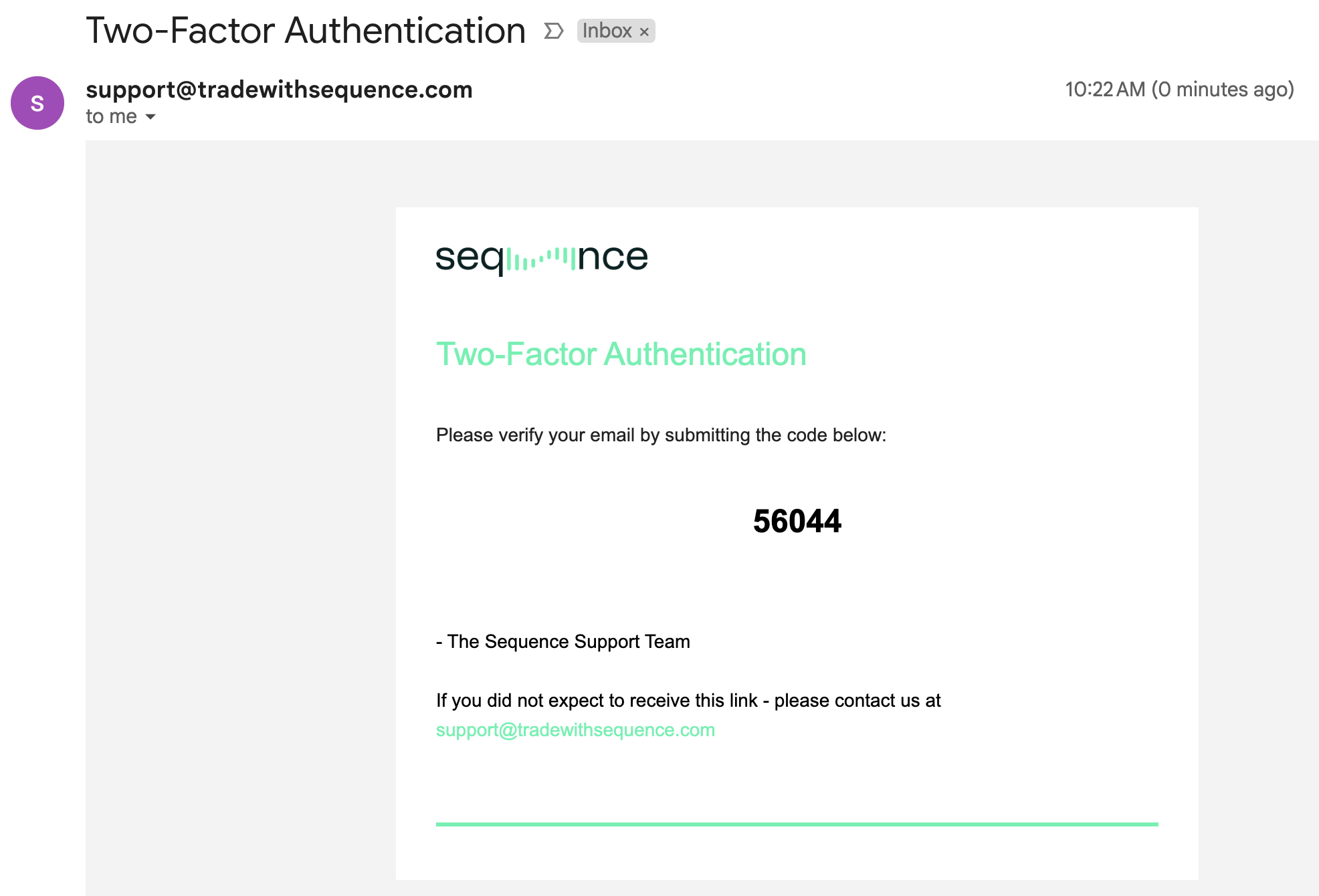
Enter 2FA Details in the web interface (Screenshot above)
Step 7: You will be redirected to the Main Dashboard
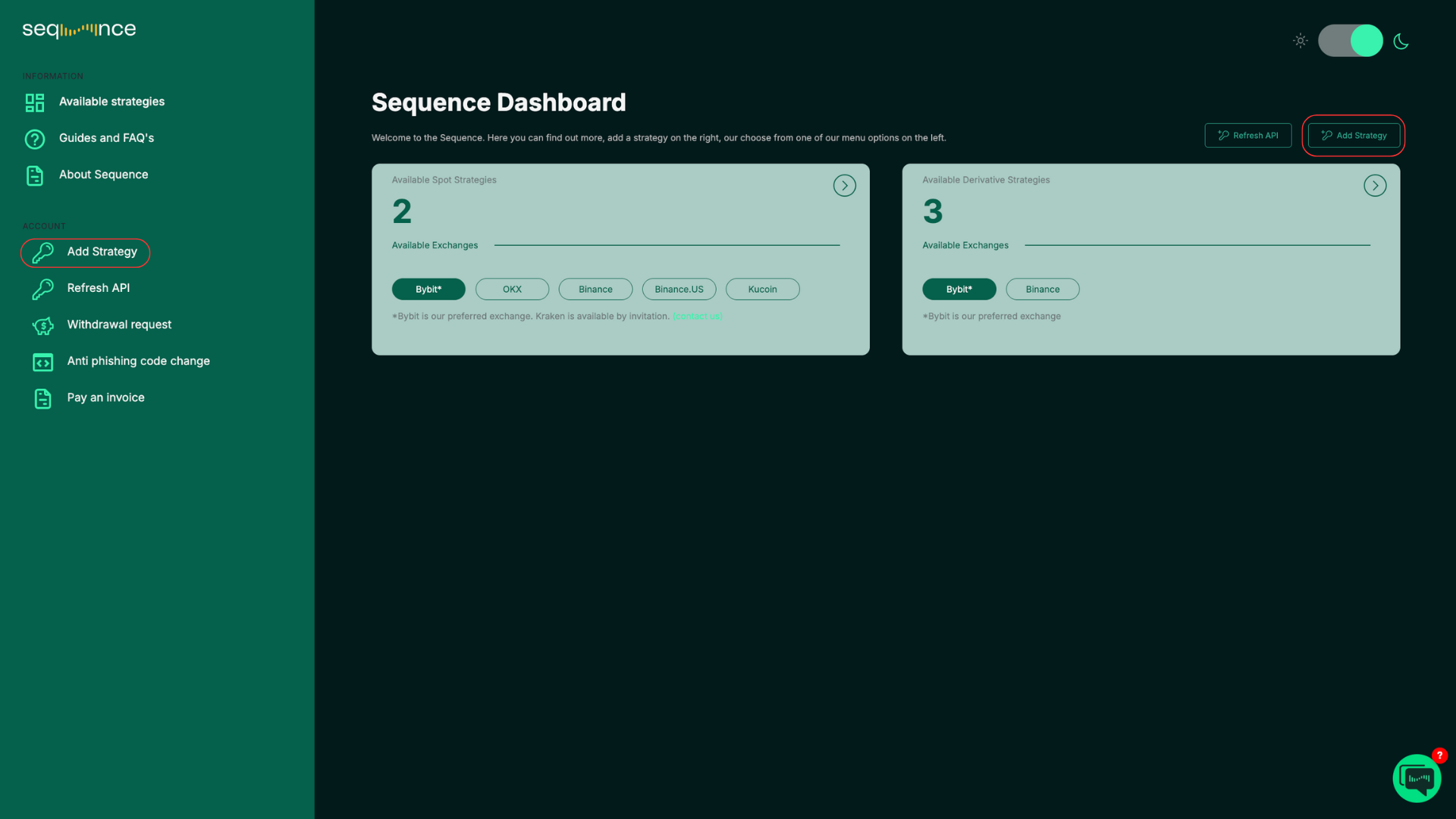
In the top right corner or in the left-hand panel of the Dashboard, you will see “Add Strategy.”
Click “Add Strategy” to set up a new trading bot for the first time.
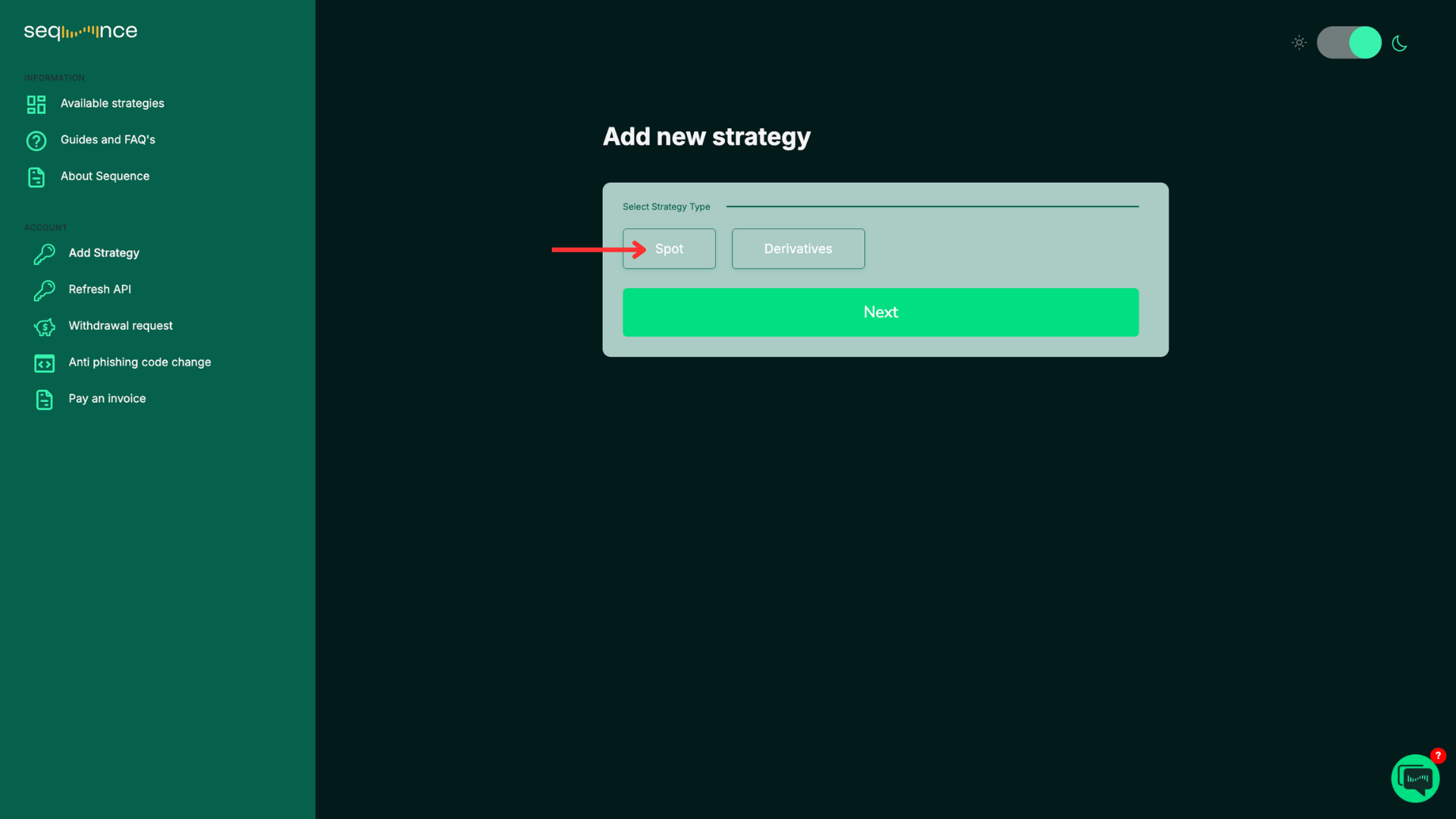
Step 8: Add new strategy
a. Choose “Spot”
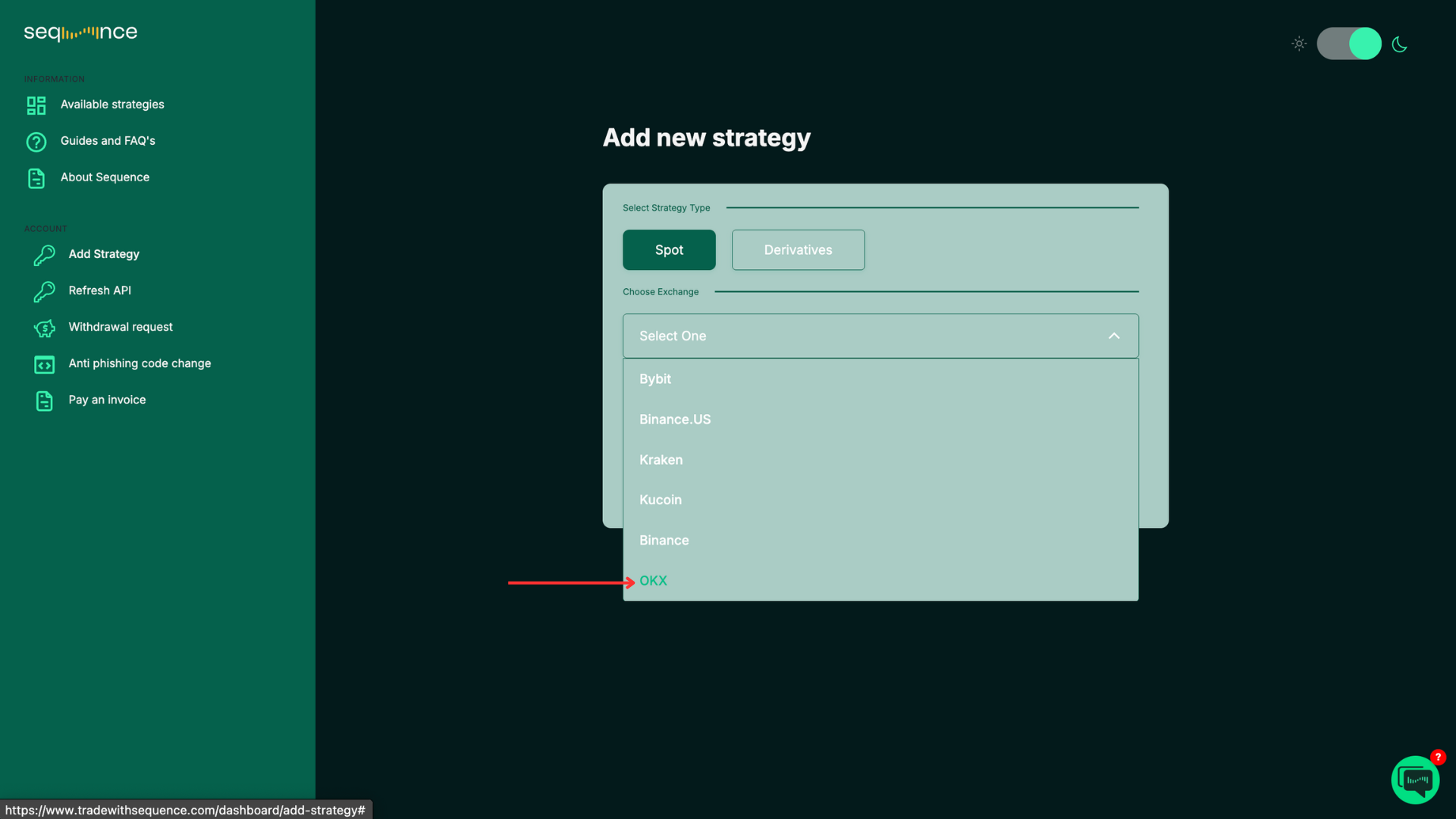
b. Choose your “OKX”. Please note that not all strategies are available on all exchanges.
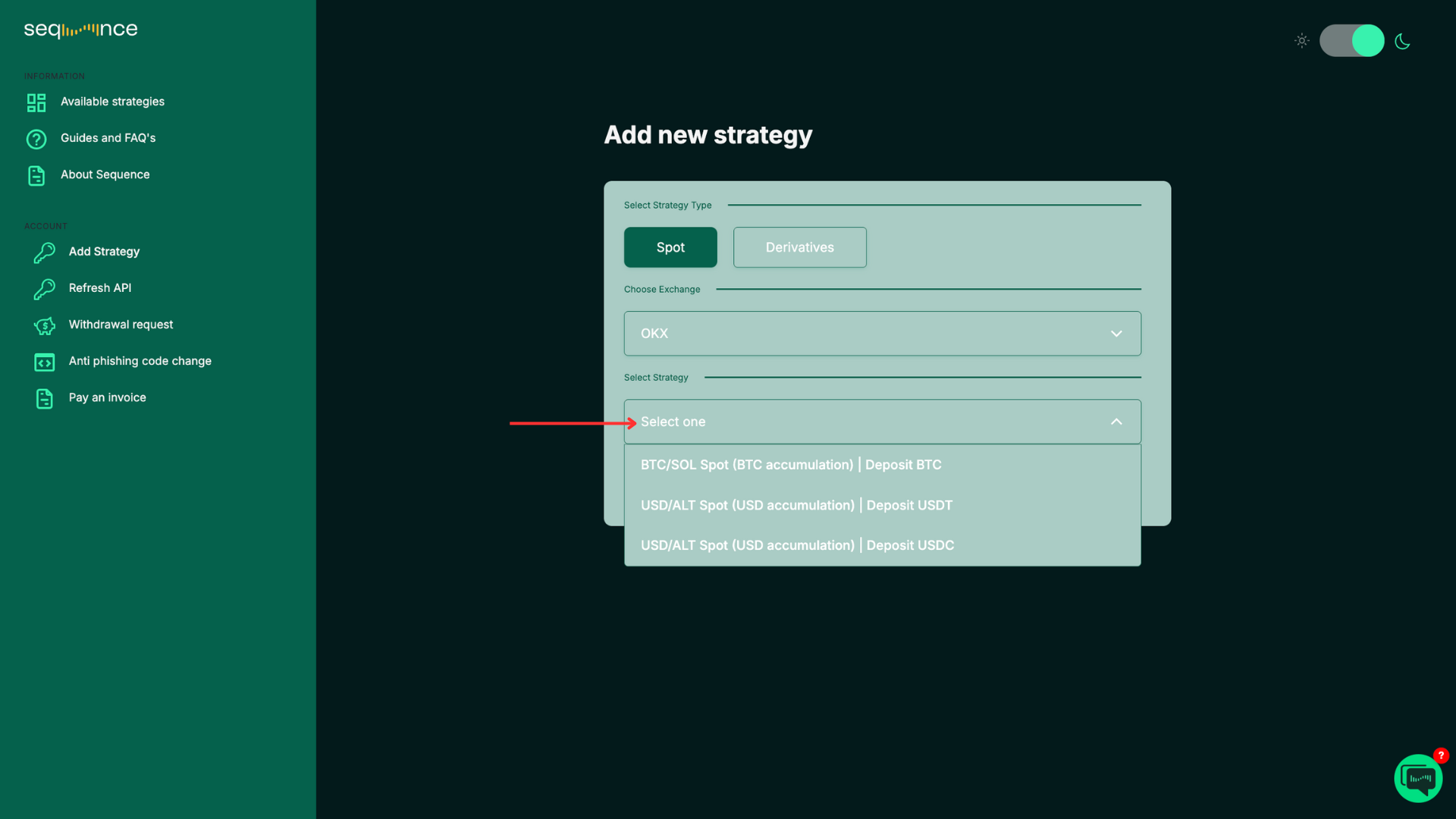
c. Select your “Strategy” and then Click “Next”.
Strategies labeled “Invite Only” are limited to specific users. Please contact us to check your eligibility.
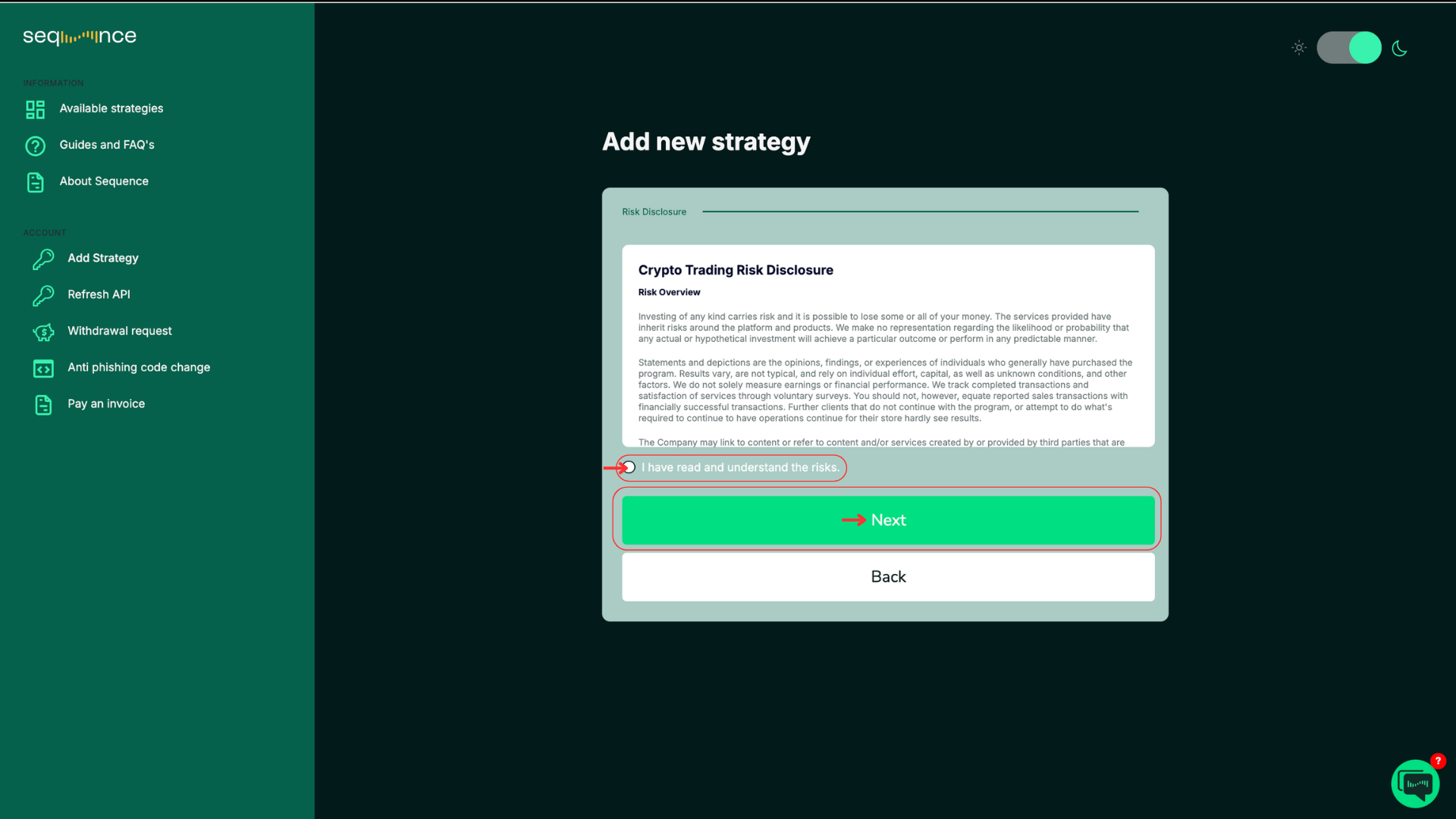
e. Read and accept to the Crypto Trading Risk Disclosure.
Make sure you understand the trading risks in the disclosure.
Click “I have read and understand the risks” and then click “Next”.
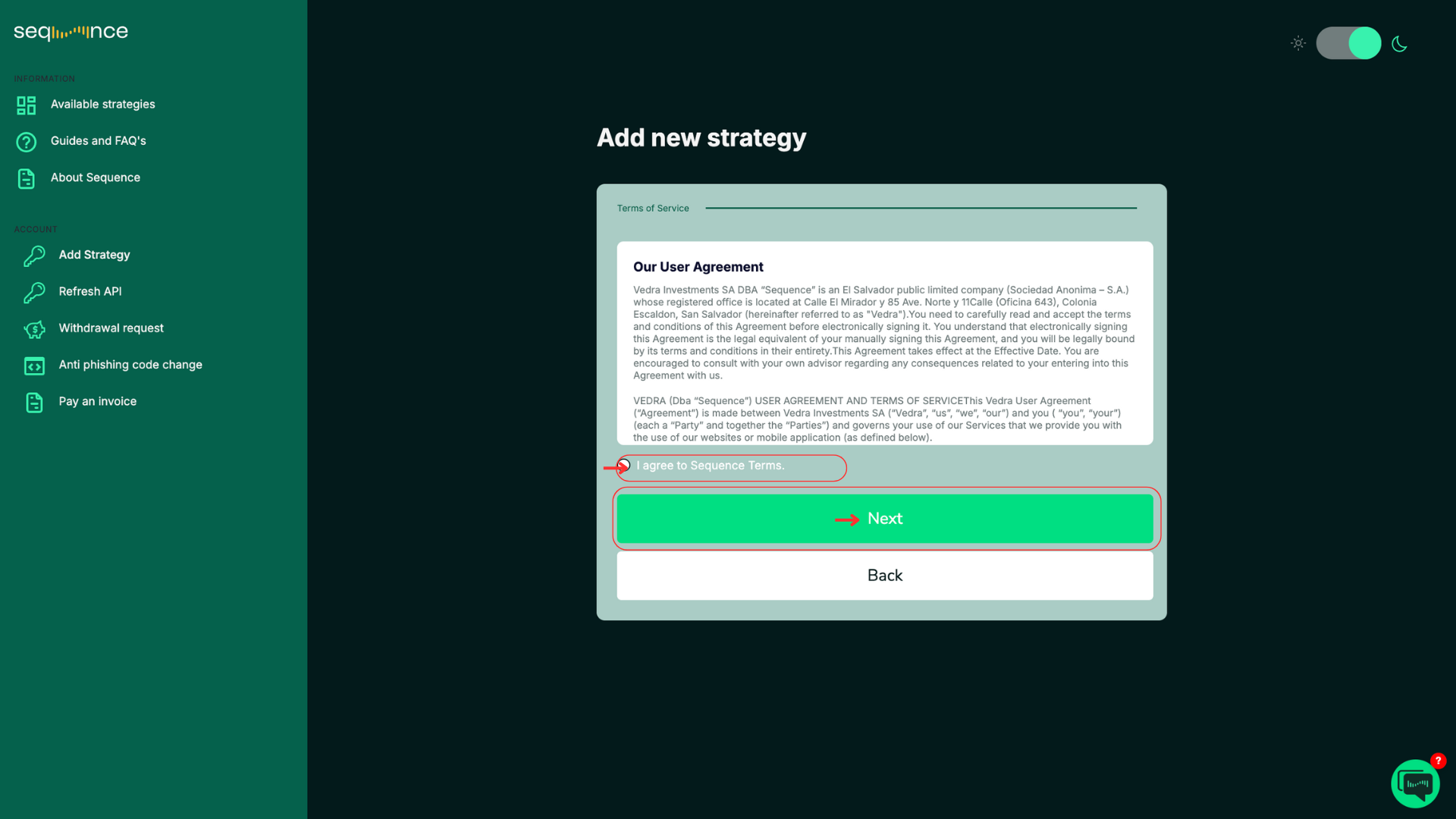
f. Read and accept to our User Agreement.
Make sure you understand the terms and conditions.
Click “I agree to Sequence Terms” and then click “Next”.
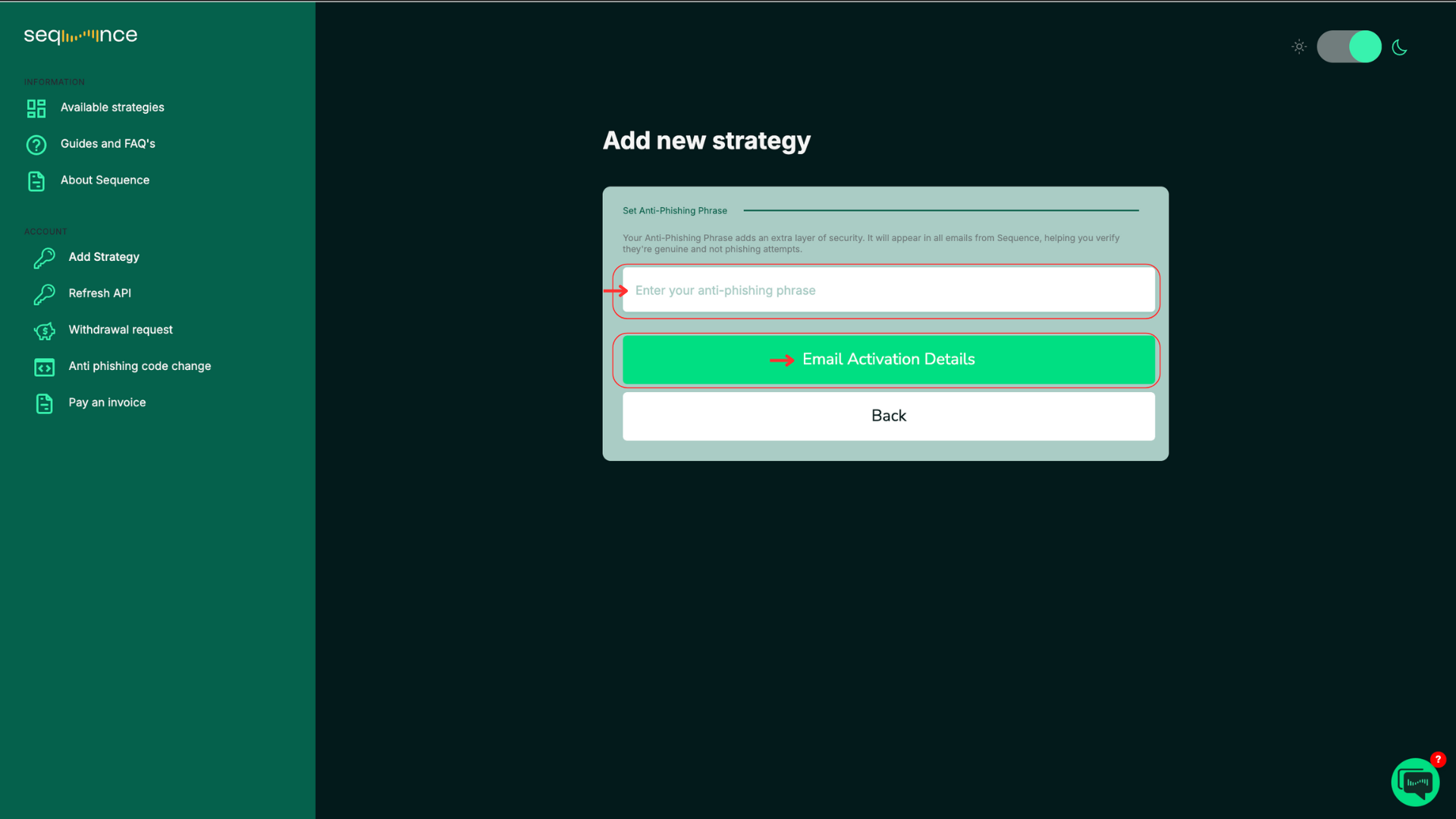
g. Set Up Your Anti-Phishing Code
Enter a word or code between 4 to 20 characters. This code helps you verify that messages you receive are genuinely from Sequence.
Then click “Email Activation Details”
A “Please check your email” message will appear. Check your email.
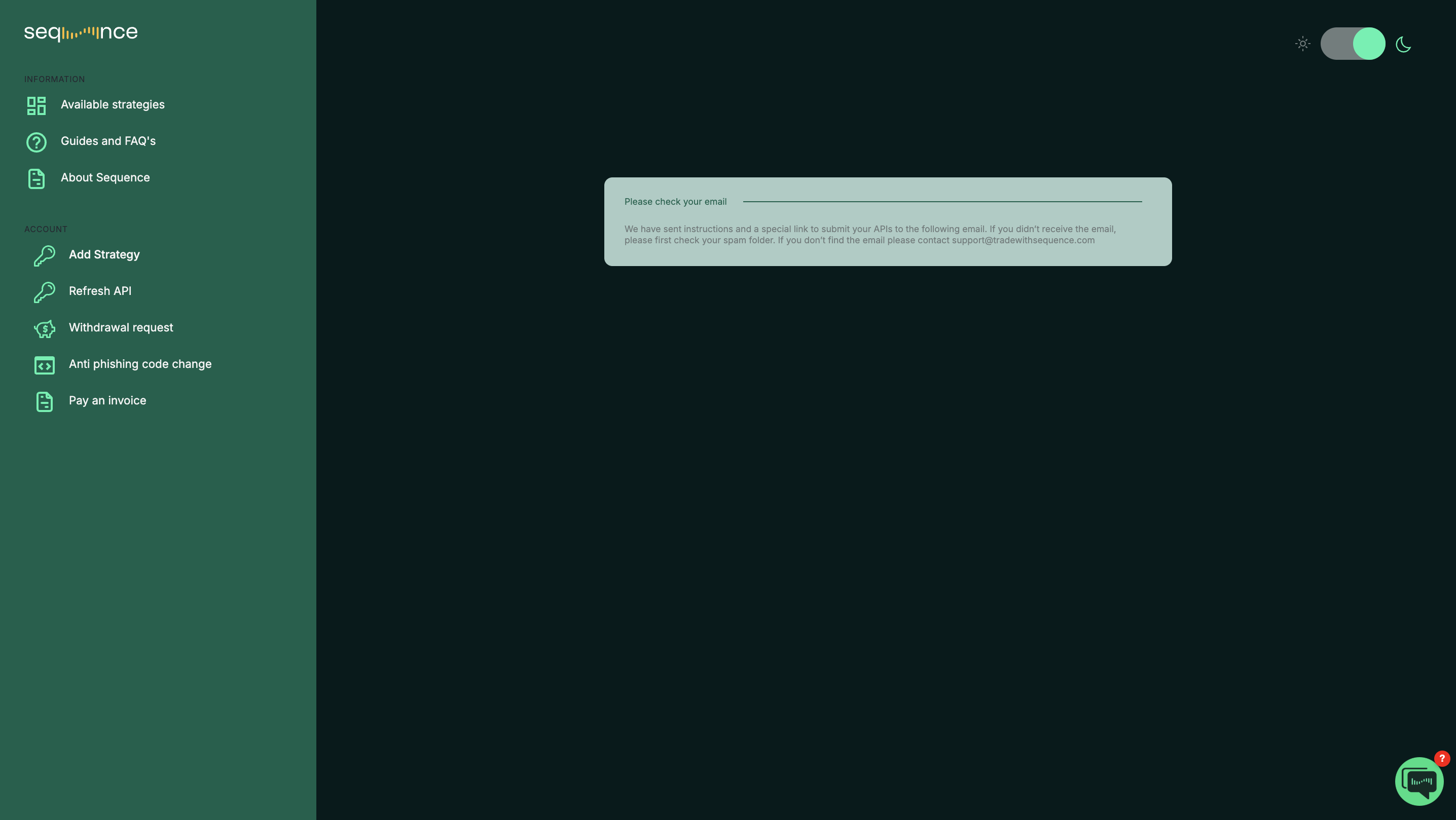
We have sent instructions and a special link to the email address you registered with.
If you don’t see the email in your inbox, check your Spam or Junk folder.
If you still can’t find it, contact support@tradewithsequence.com.
Step 9: Submit your API Keys
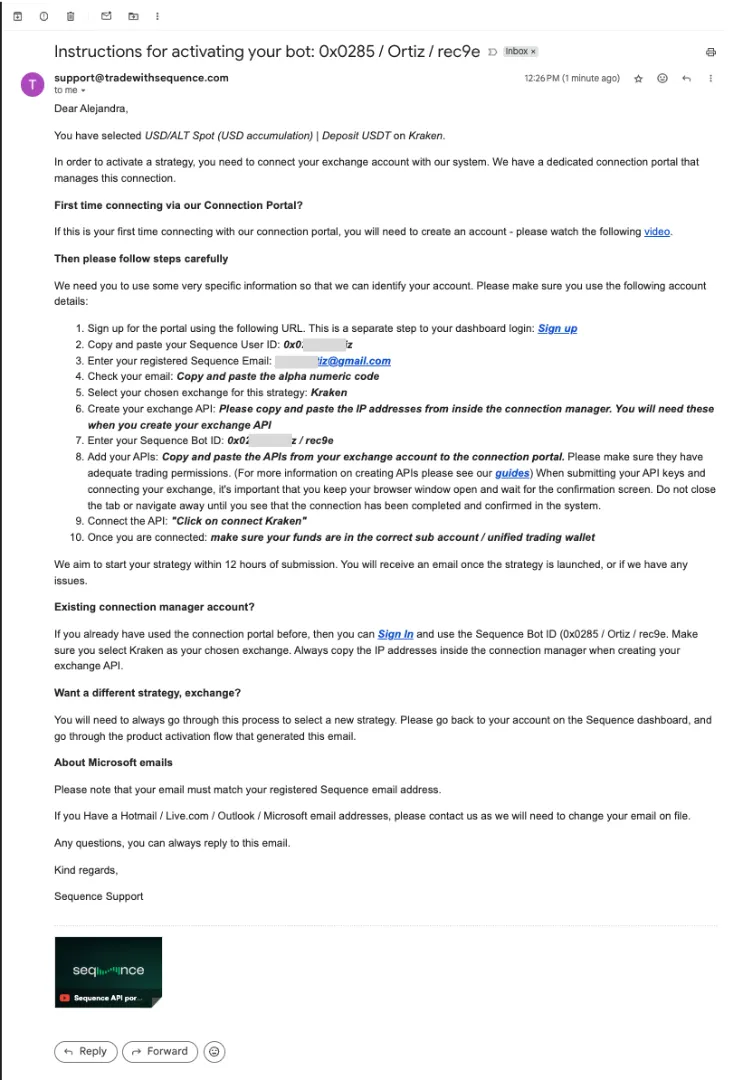
Locate your Sequence User ID, bot ID and primary email address.
Sequence ID/Bot ID: You can find this information in the email your received in Step 8.
Example:
Client ID = 0x000 / ClientName
BOT ID = 0x000 / ClientName / BotID
Confirm email:
Go to: https://api.tradewithsequence.com/signup
Input your Sequence User ID and your email address
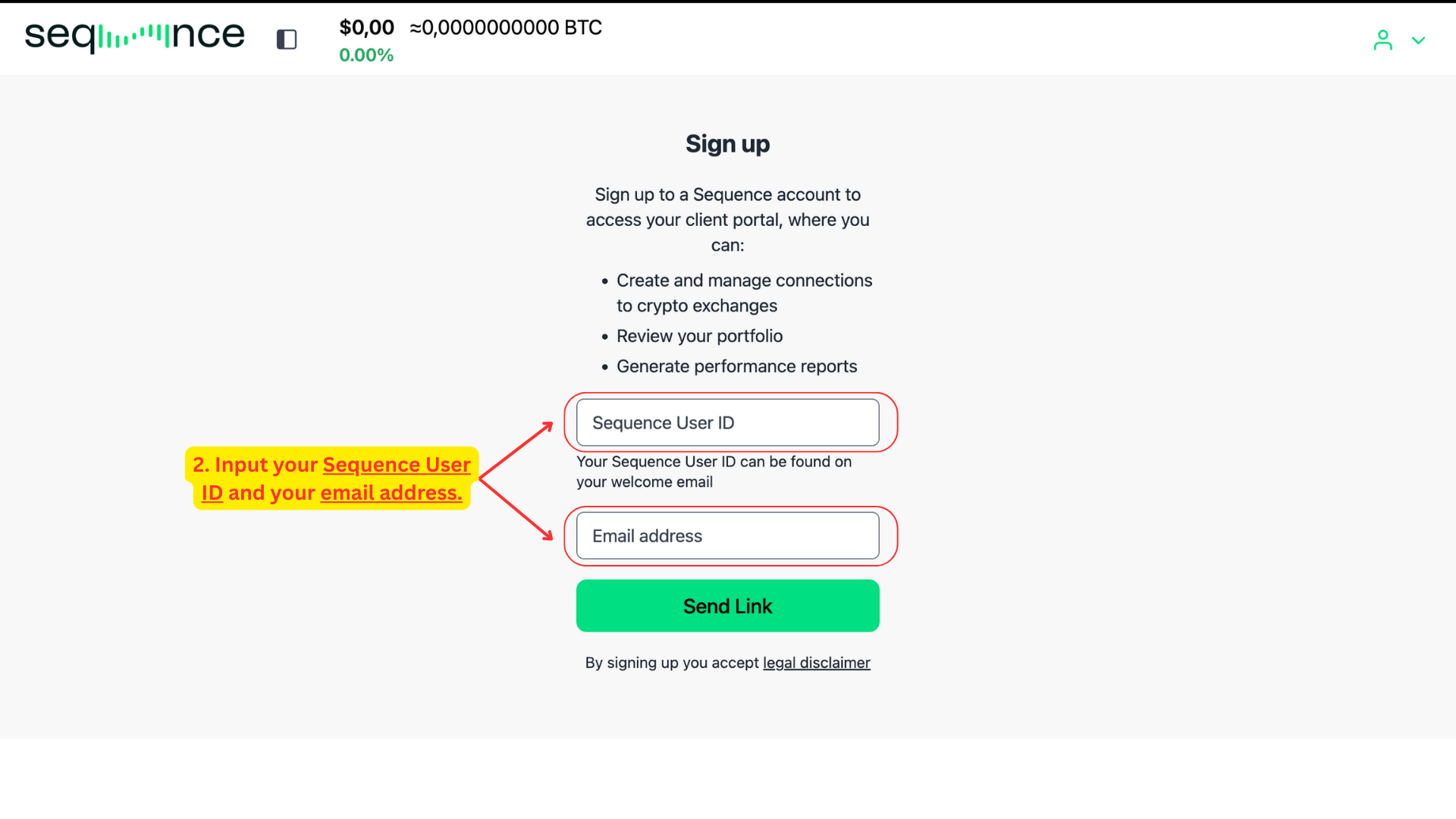
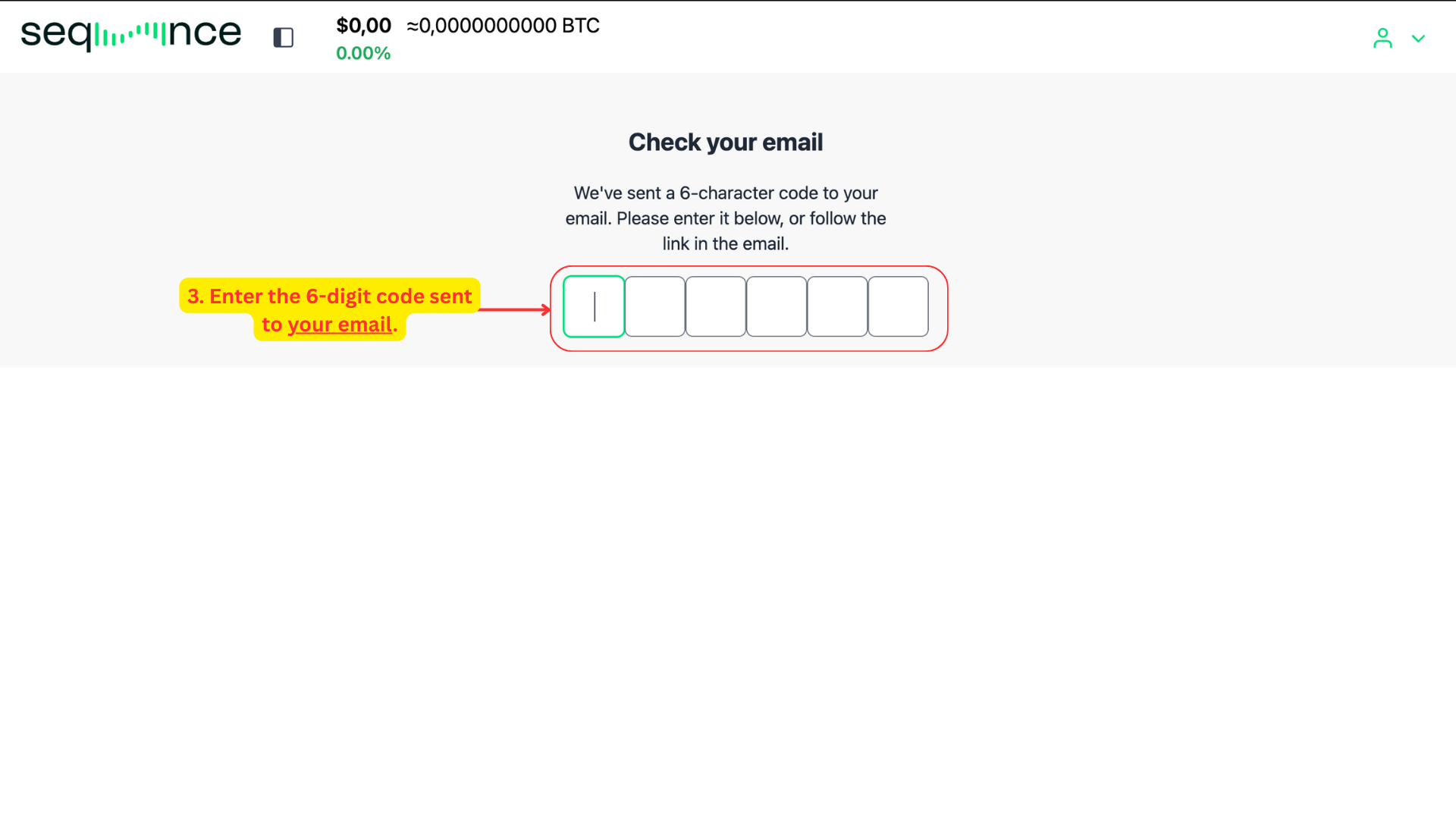
2FA: once you’ve submitted your User ID and email, a 6-digit verification code will be sent to your inbox.
Enter the code on the screen to confirm your identity.
Alternatively, you can click the link included in the email to complete the process automatically.
Tip: If the email doesn’t appear within a minute, make sure to check your Spam or Promotions folder.
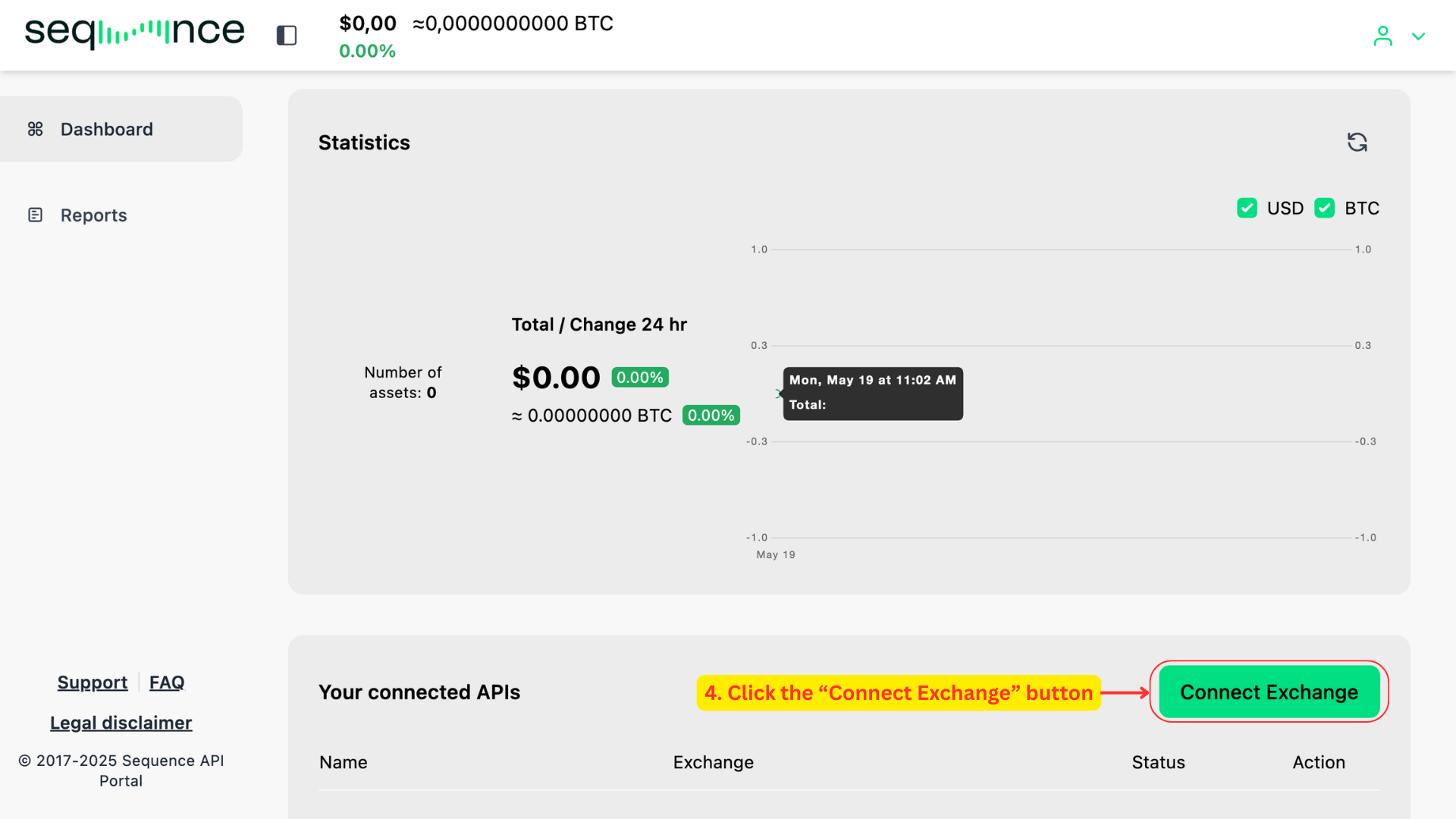
Connect your exchange.
Once you’ve successfully logged in, you’ll land on the API Connection Manager dashboard. Navigate to the bottom right of the screen and click the “Connect Exchange” button. A modal dialog will appear on the left-hand side of your screen.
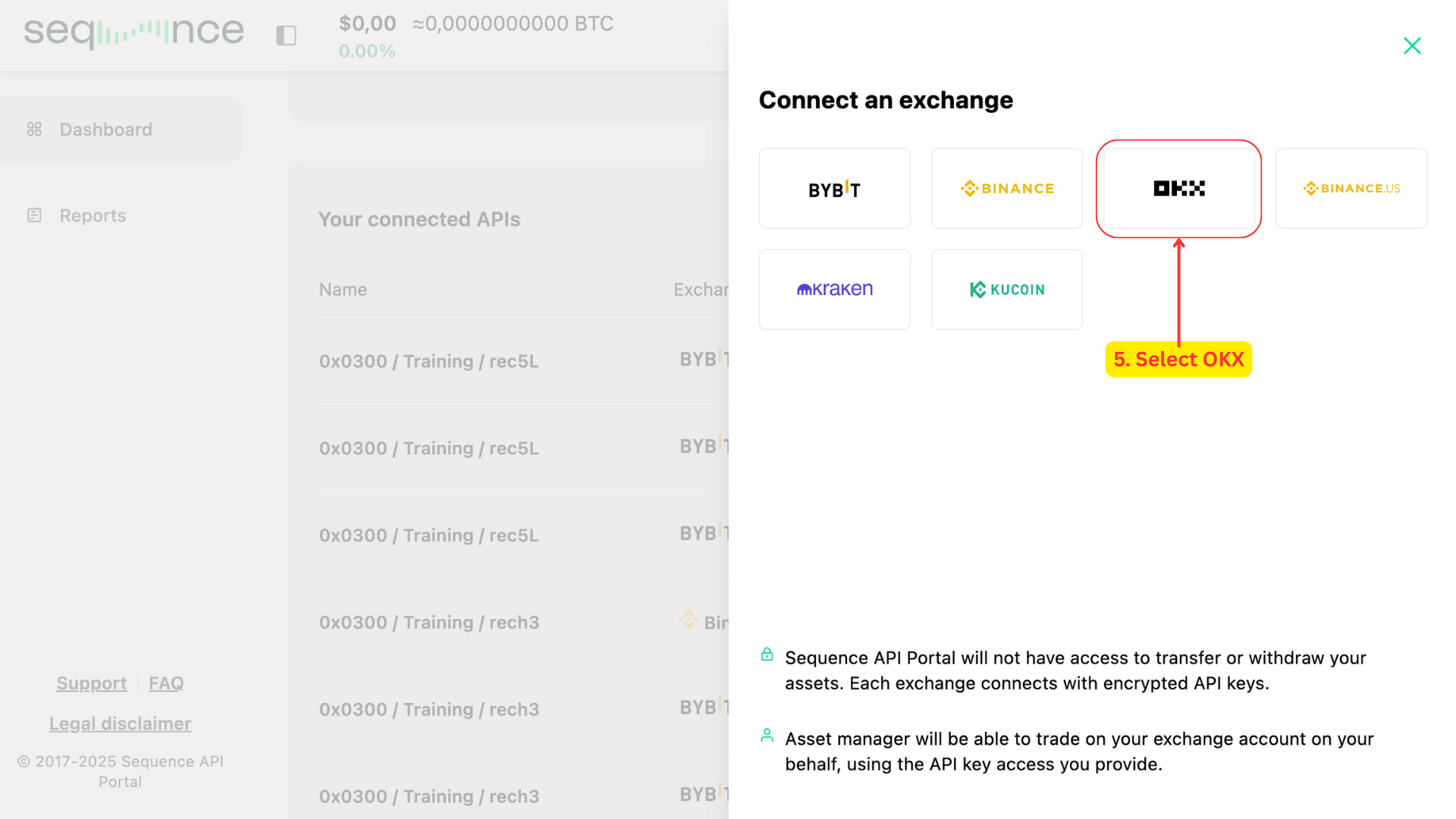
From the modal that appears on the right, click on the OKX icon. This will trigger a second view in the same modal.
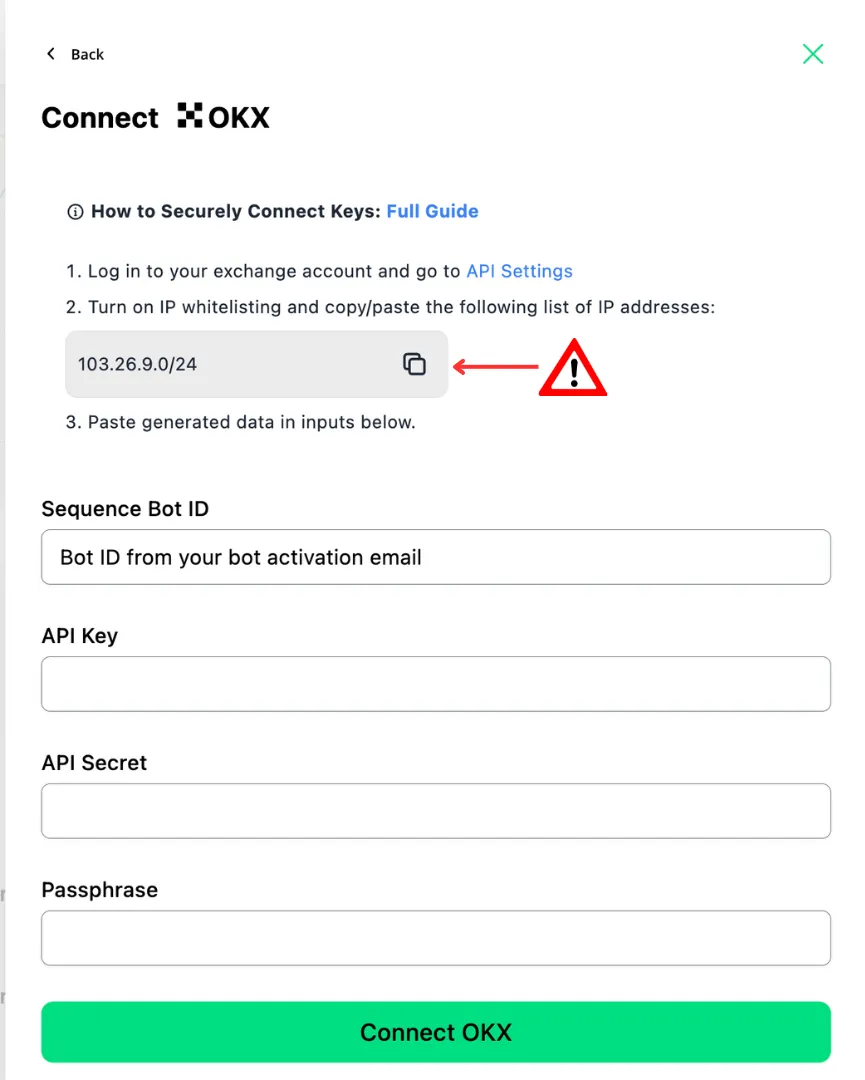
Prepare your OKX IP settings (or other exchange IP settings)
Before entering your API Key and Secret, follow the on-screen security instructions.
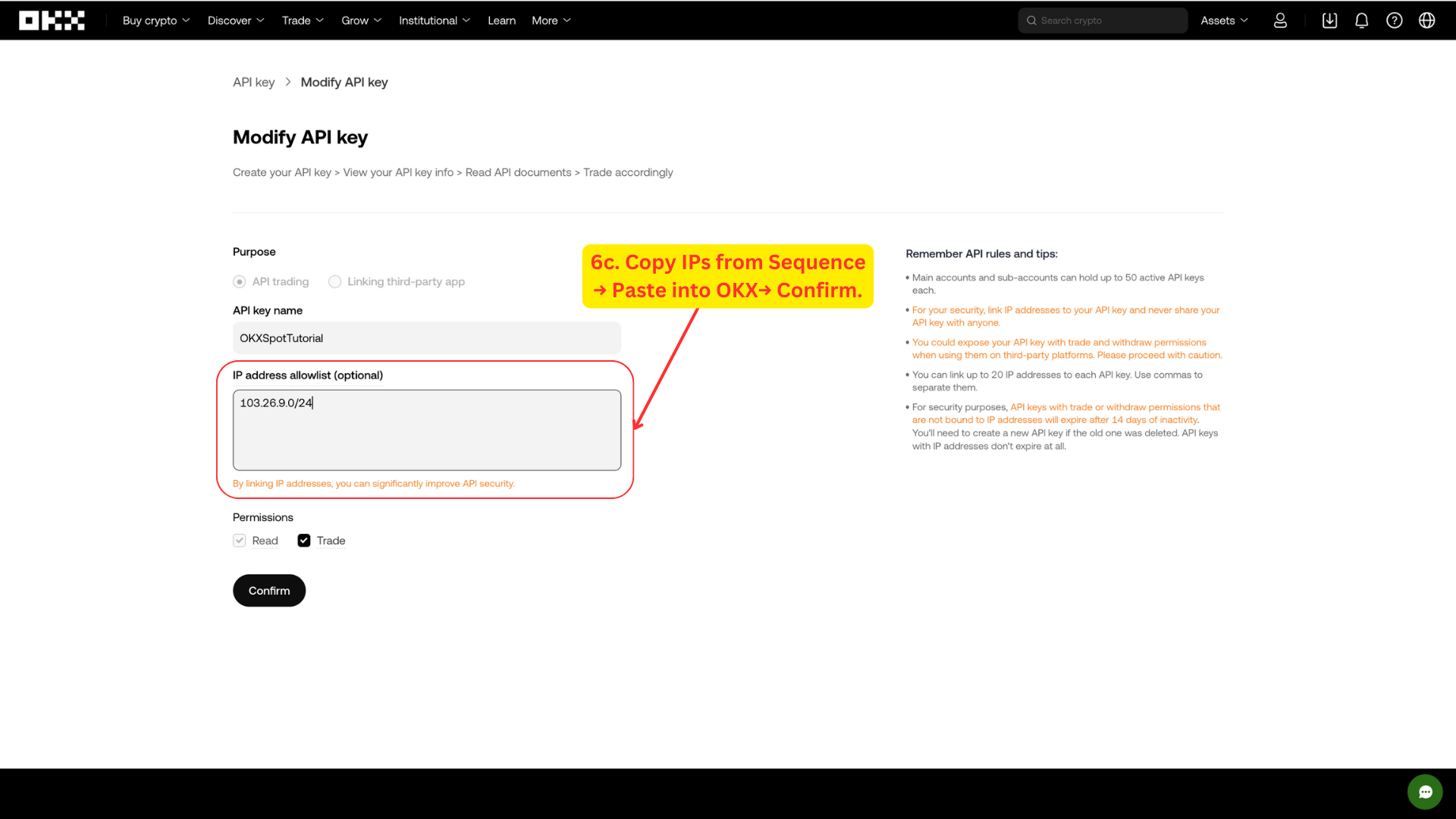
Log in to your OKX account and go to the API Management section.
Locate the API key linked to the sub-account used for this strategy.
Under “IP address allowlist (optional)”, copy IPs from Sequence → Paste into OKX→ Confirm.
Please Note: The IP address may occasionally change. For this reason, it’s important to always retrieve the current IP address directly from https://api.tradewithsequence.com/
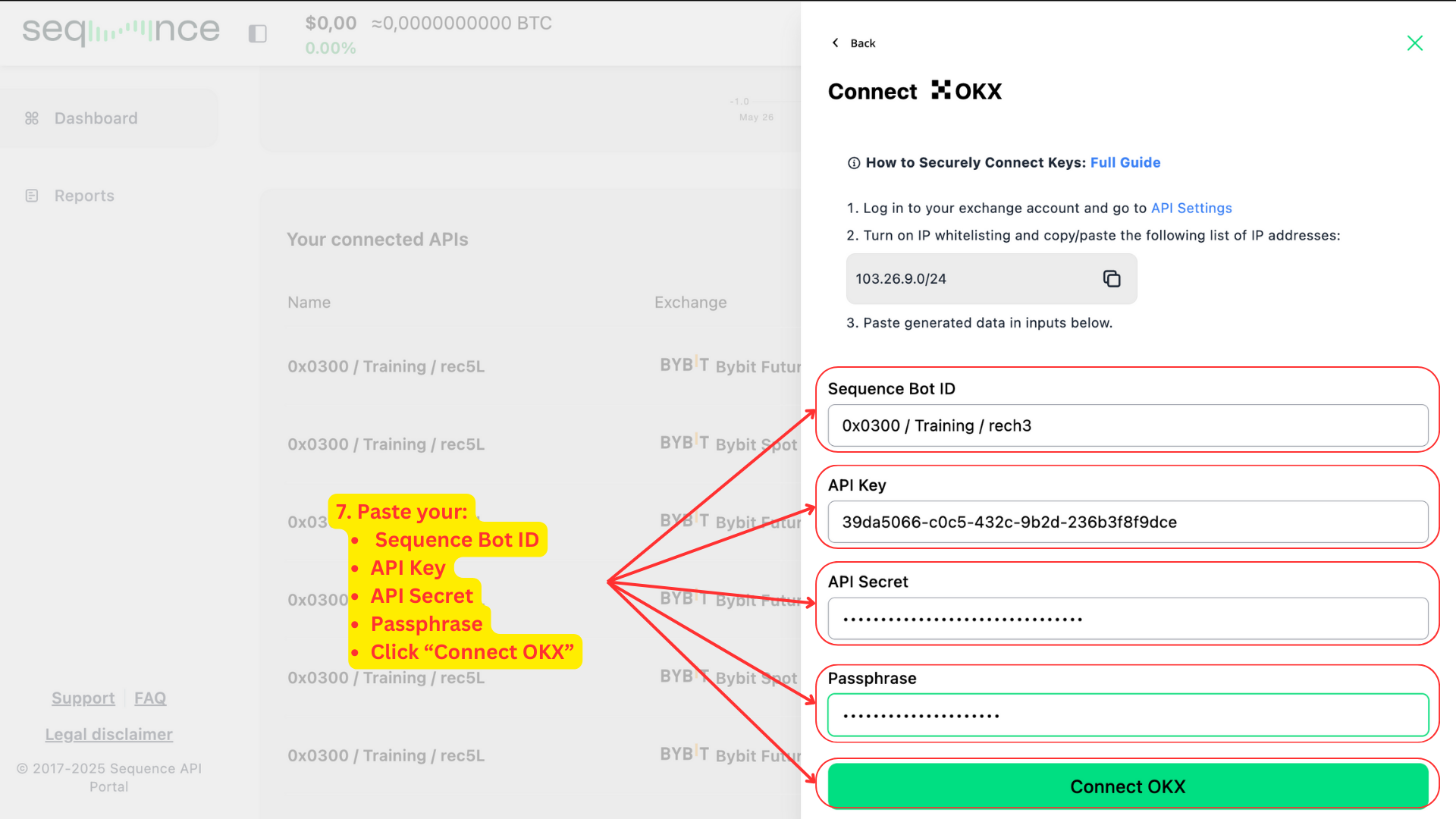
Enter your API credentials and connect.
Once completed the IP Whitelisting, return to the Sequence portal and proceed with entering your credentials.
Paste your Sequence Bot ID — this is included in your bot activation email.
Enter your API Key and API Secret from OKX.
Click Connect OKX to complete the integration.
You’ll see a confirmation message — “Account successfully connected!” — and the modal will close.
Step 10: You will receive an email confirmation
You will receive an email confirmation once you have submitted your keys. If you didn’t instantly receive the email, then we didn’t receive the keys.
If there is any issue with the keys or account, you will have an email from the trading team.
You will then receive an email once the strategy has been launched.
Additional Information
⁉️ API validity
API keys created during this initial steps are valid for 90 days.
At this stage, the keys are not yet bound to an IP address, which means they will automatically expire after the 90-day period.
To ensure long-term, uninterrupted service, it is essential to complete the next step in our instructions:
Once this part of the process is completed, your keys become IP-address bound, and they will no longer expire.
Until you finish this integration step, your API keys remain subject to the 90-day expiration, and neither OKX nor Sequence will send reminders when they are close to expiring or have already expired.
⁉️ Trade only permissions
The API permissions we require provide strictly controlled access exclusively for executing trades on your exchange platform. To ensure account security, these permissions do not allow for any withdrawal or transfer capabilities of your funds.
⁉️ Security recommendation
To protect your account's security, never share your exchange account login credentials—not even with our team.
What's next?
We recommend reviewing the sections below, which address common questions about what happens next.
🟢 What to expect
The algorithm employs a systematic approach, placing strategic orders based on bidirectional price action. The algorithm intentionally places smaller trades when price ranges are tight. Therefore during sideways or upward-only price movements, the strategy maintains conservative trade sizes. Conversely, larger trades require more significant price movements in both directions for effective execution and closing.
🟢 Adding funds
The system takes into account the total balance of the account after the close of each trade / before the start of a new trade. This means that additional deposits can be made at any time and the system will recognize the deposit at the start of the new trade. For the funds to be recognized, please ensure funds are deposited into the correct wallet or subaccount where you are trading (on other exchanges) AND deposited in the strategy’s base currency.
🟢 Withdrawing funds
For security purposes, please notify us before making any withdrawals that exceed 5% of your total wallet balance. This security measure allows our team to safely pause the automated trading functions before processing your withdrawal. You can submit withdrawal notifications through your user dashboard or by emailing us here: support@tradewithsequence.com
🟢 How to monitor your strategy
You can monitor your strategy’s performance directly through your exchange interface by looking at the trade history. We recommend doing this in your desktop browser. For accurate performance tracking, please keep in mind that exchanges display (PnL) metrics in USD terms. This is relevant for any strategy that is accumulating Bitcoin - as the unit of account will be incorrect. You must look or export the close trades and then compare the results in your unit of account.
Critical Guidelines for Active Strategies
Once your strategy is active, please keep the following in mind to ensure everything runs smoothly:
🔴 Manual trades: Do not perform any manual trades in the sub-account running the algorithm
🔴 Withdrawals: Do not withdraw more than 5% of your total wallet balance without notifying us first
🔴 Non base asset withdrawal: Do not withdraw from any asset other than the coin that you are accumulating
🔴 Non base asset additions: Do not add any currency or coins, other than the base asset you are accumulating